
Help CenterMessaging and Notifications
Notifications
What the bell in the header tells you about, which events send you a notification, how to mark them read, and how they reach your phone.
Notifications tell you when something needs you: a job assigned to you, a request waiting for your approval, a message that mentions you. They appear in the bell in the app header, and, once the mobile app is released, on your phone too.
Before you start
Notifications need no permission and no setup. You receive the ones that concern you, based on what you are assigned, asked to approve, or mentioned in. Which events can reach you depends on the modules in your company's plan.
The bell
The bell sits in the app header, beside the chat bubble. A red badge shows how many notifications you have not read, and it updates on its own while the page is open.
- Click the bell. Your latest notifications open in a list, grouped under Today, Yesterday and Earlier.
- Click a notification. It is marked read and takes you to what it is about: the work order, the request, or the chat message.
- Click Mark all as read to clear the badge without opening each one.
- Click View all notifications for the full list.
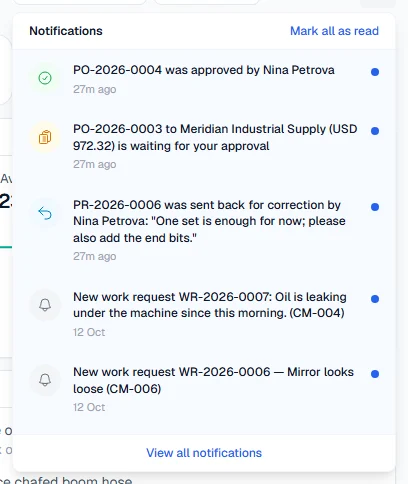
When there is nothing new, the list says You're all caught up.
The full list
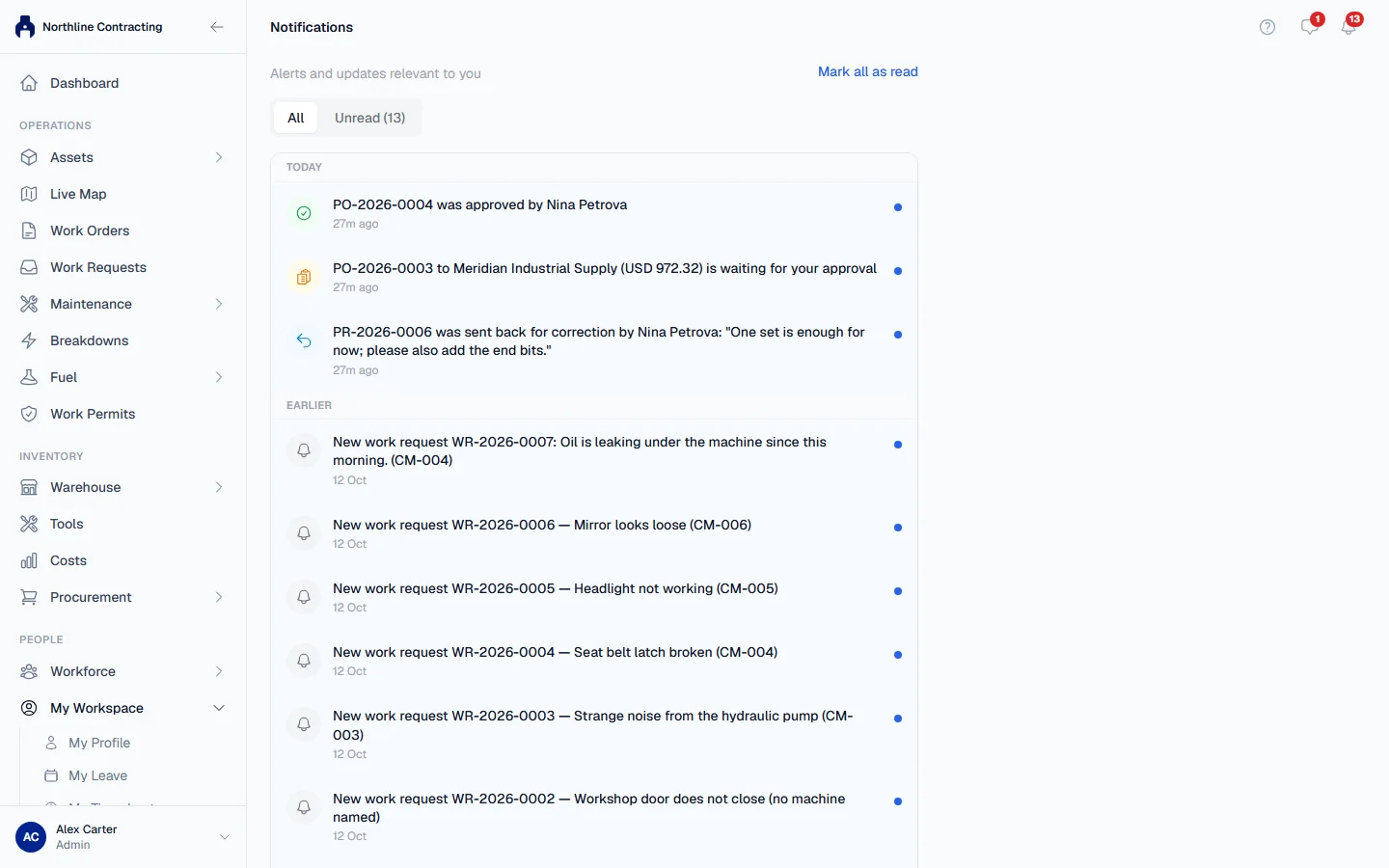
View all notifications opens a page of every notification you have received. Switch between All and Unread, click Mark all as read to clear them, and click Load more at the bottom to go further back.
What sends you a notification
| You are notified when | Who is notified |
|---|---|
| A work order is assigned to you | The person it is assigned to |
| Someone else completes a work order assigned to you | The person it is assigned to |
| You are mentioned, or someone replies to you, in a work order's conversation | The person mentioned or replied to |
| A new work request comes in | People who triage work requests |
| Your work request is turned into a work order or breakdown, or rejected | The person who raised it |
| A purchase request reaches your step of the approval chain | The approver whose turn it is |
| Your purchase request is approved, rejected or sent back | The person who raised it |
| A purchase request you were due to approve is withdrawn | Its approvers |
| A purchase order is waiting for approval | The people who may approve it |
| Your purchase order is approved or rejected, or goods are received against it | The buyer, and for a delivery also the person whose request it fills |
| A chat message, reply or mention arrives, or you are added to a chat group | The people in the conversation |
You are never notified about something you did yourself.
On your phone
When the Solmex mobile app is released, it will ask for permission to send notifications after your first sign-in. With it allowed, every notification in the bell will also arrive on your phone, and tapping it will open the matching screen. You will be able to turn this on or off in your phone's own settings for the Solmex app. See The Solmex mobile app.
Troubleshooting
| What you see | What to do |
|---|---|
| "Couldn't load notifications" | Check your connection and press Try again. |
| You expected a notification and none came | Check the event is one in the table above, and that it was someone else who did it. |
| Notifications do not arrive on your phone | Check notifications are allowed for Solmex in your phone's settings, and that you are signed in to the app. |