
The Daily Maintenance dashboard
See whether your crews are keeping pace with each daily job, how many machines are on time or overdue, where the backlog is and which teams are doing the work.
The Dashboard tab of Daily Maintenance is the summary for a supervisor or manager: are we doing enough greasing, washing and filter cleaning to keep up, and where are we falling behind? Every number on it opens the machines behind it.
Before you start
- You need Routine Maintenance: View.
- The dashboard has something to show once jobs are on your job list and some work is recorded. See Set up your job list.
Open the dashboard
In the sidebar, open Maintenance > Daily Maintenance. The Dashboard tab opens first.
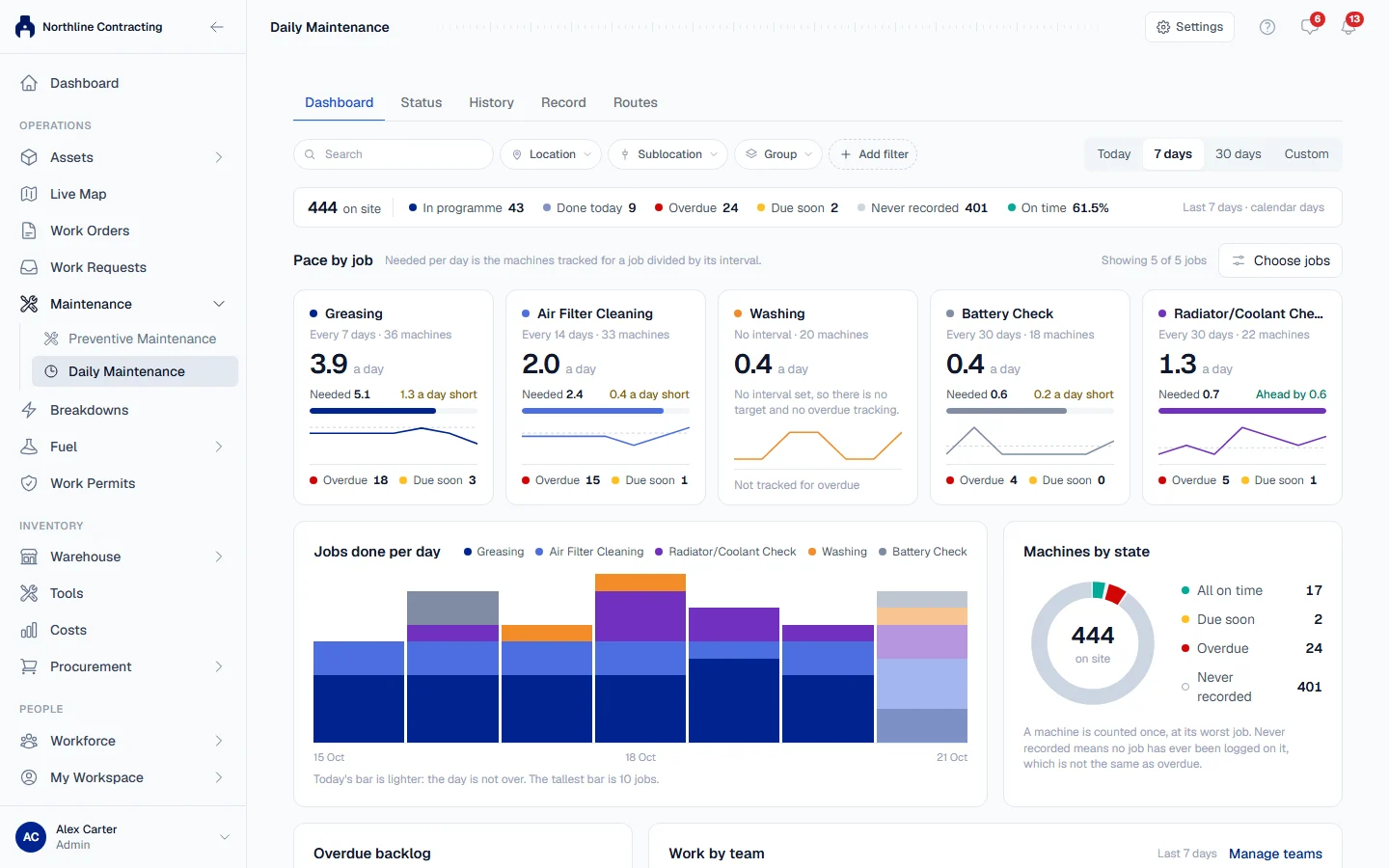
Choose what you are looking at
- The filter bar narrows the machines, with the same filters as the Status tab. The filters are shared between Dashboard, Status and History, so switching tabs keeps them and all three describe the same machines.
- Period sets the time window for the activity figures: Today, 7 days, 30 days or Custom. Days are calendar days.
The top line
| Figure | Meaning |
|---|---|
| on site | Machines on site within your filters. |
| In programme | Machines with at least one daily job ever recorded on them. |
| Done today | Jobs recorded with today's date. |
| Overdue, Due soon, Never recorded | Machines in each state, counted once at their worst job. |
| On time | The share of tracked machine and job pairs that are not overdue. |
Click In programme, Overdue, Due soon or Never recorded to open the Status tab showing those machines.
Pace by job
One card per job. Each card shows:
- How often the job is due and how many machines it is tracked on.
- How many times it was done per day in the period.
- Needed: how many times a day it must be done to keep pace, which is the machines tracked for the job divided by its interval. For example, 70 machines greased every 7 days need 10 a day.
- Whether you are short ("2.5 a day short"), Ahead by some amount, or On pace.
A job with no Remind after has no target, and the card says so instead of showing zero. A job not yet recorded on any machine has no target either.
Choose your cards
Click Choose jobs to tick the jobs you want a card for and drag them into your order. This is your view only. Reset to site default returns to the company's choice, which is set by the On dashboard switch on the job list.
The charts
| Section | What it shows |
|---|---|
| Jobs done per day | Jobs recorded each day in the period, by job. Today's bar is lighter because the day is not over. |
| Machines by state | Each machine once, at its worst job. |
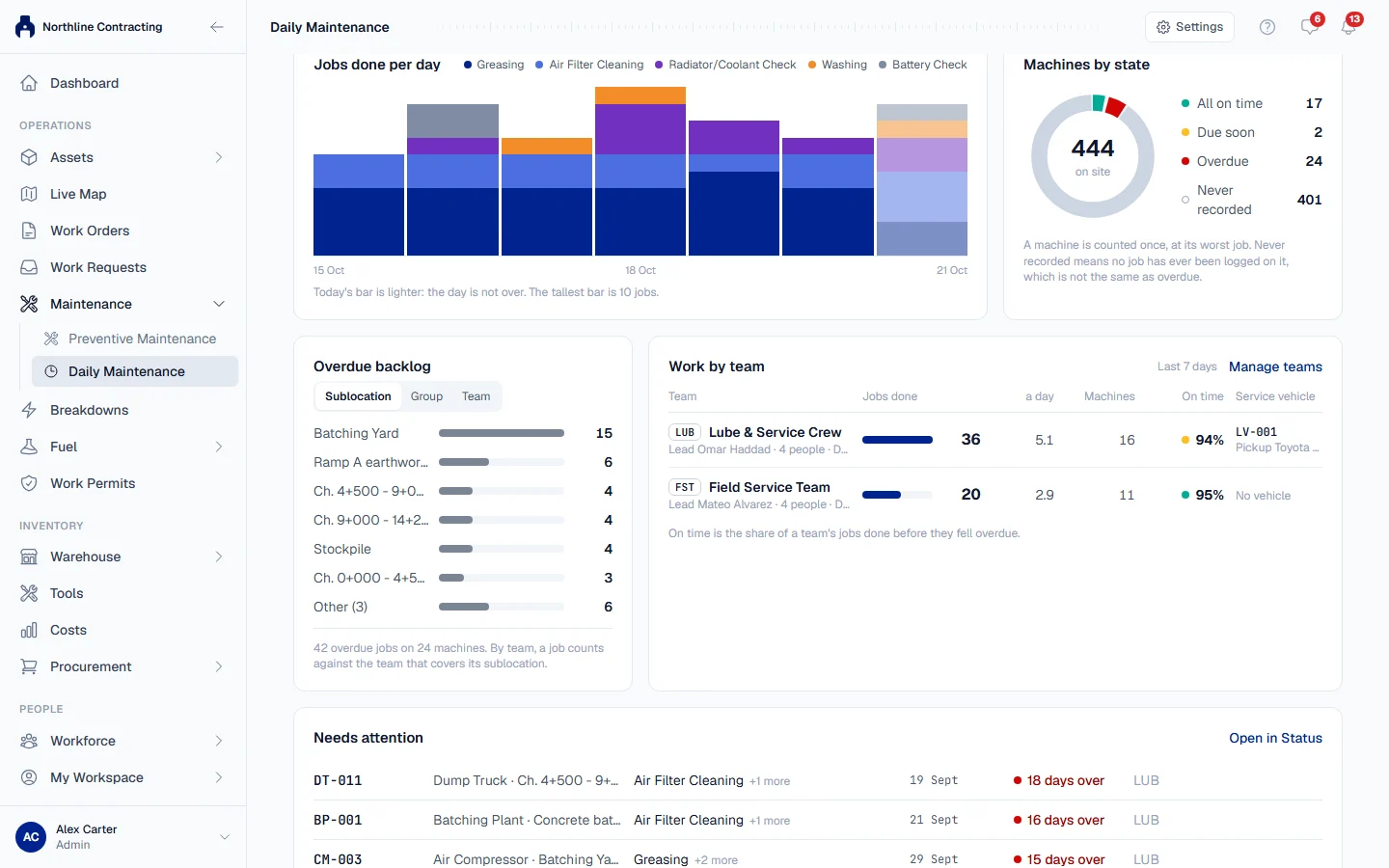
| Overdue backlog | Where the overdue jobs are. Use Group the backlog by to switch between Sublocation, Group and Team. |
| Work by team | Jobs done and machines covered by each team in the period, and each team's on time share. |
| Needs attention | The machines most overdue. Open in Status shows all overdue machines. |
Troubleshooting
| What you see | What to do |
|---|---|
| "List the jobs your crews do every day or every week" | You have no jobs yet. Click Add your first job. |
| "Every job is hidden from your dashboard." | Use Choose jobs to show some. |
| "No interval set, so there is no target and no overdue tracking." | Set Remind after on the job if it should be done on a schedule. |
| "No maintenance teams yet." | Click Add a team, or see Set up maintenance teams. |
| On time shows Not measured | No machine has this work recorded yet, so there is nothing to measure. |