
Approve, sign and close a permit
Take a work permit from submitted to closed: approve or reject it, record signatures, activate it when work starts, close it when work ends, and cancel or duplicate when plans change.
Once a permit is submitted, it needs a second person to approve it, a signature to activate it, and someone to close it when the work is done. Each step has its own button on the permit and its own permission, so the steps can be given to different people.
Before you start
| To | You need |
|---|---|
| Approve or reject | Work Permits: Approve |
| Record signatures, and activate | Work Permits: Sign |
| Close or cancel | Work Permits: Close |
| Duplicate | Work Permits: Edit |
Open the permit from Work Permits in the sidebar. The buttons at the top of the permit change with its status, and only the ones you are allowed to use are shown.
Approve a permit
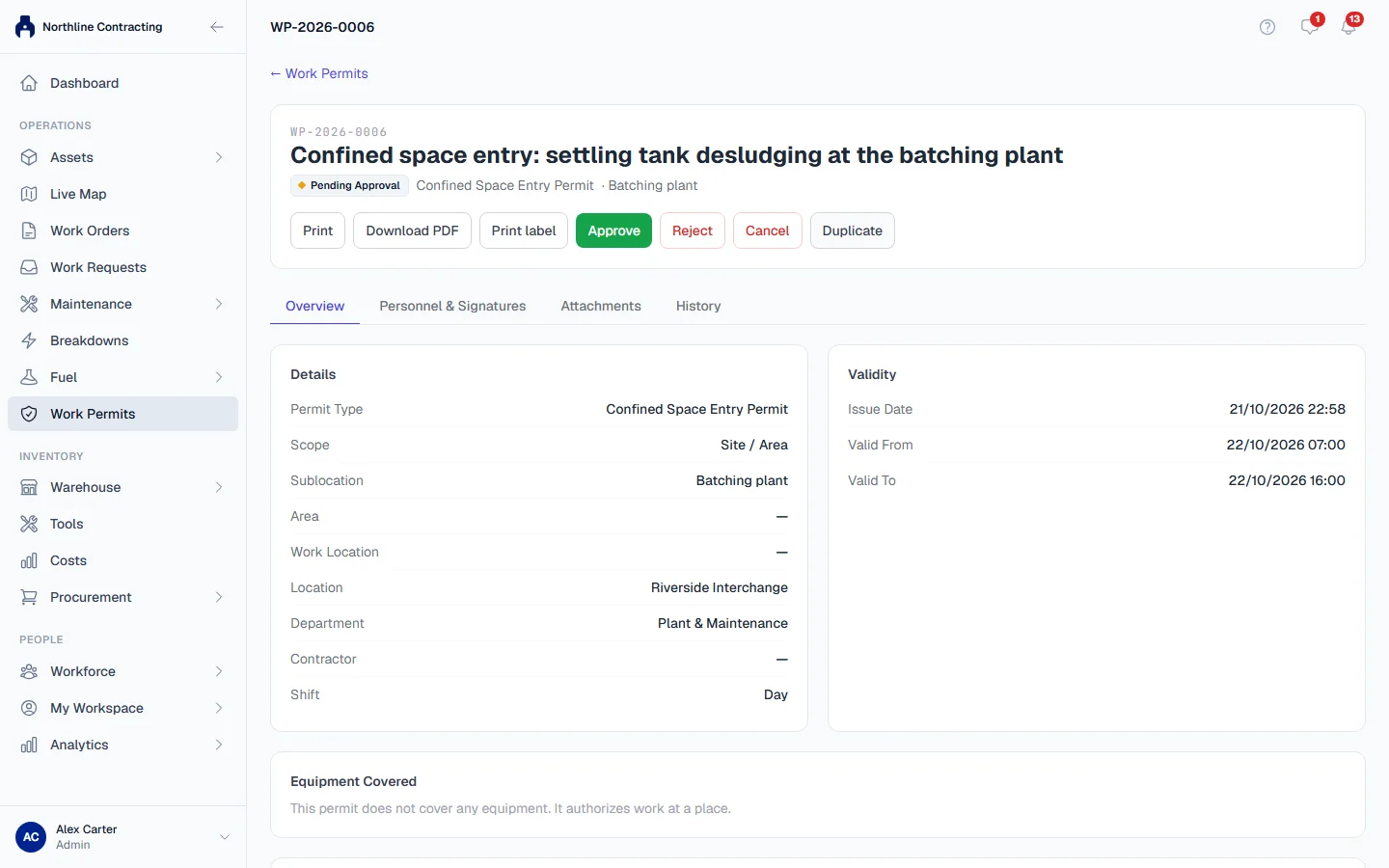
- Open a permit with the status Pending Approval.
- Read it through, including the Personnel & Signatures tab.
- Click Approve. You can add a comment.
- Confirm with Approve. The status becomes Approved.
Reject a permit
- Open the permit and click Reject.
- Type the reason. A reason is required, because the person who raised it needs to know what to fix.
- Confirm with Reject.
The permit goes back to Draft. Its author can edit it and submit it again.
Permits that need no approval
A permit raised from a template that does not require approval skips Pending Approval: its Submit (no approval needed) button moves it straight to Approved. The History tab shows it as approved automatically and names the template. Permits with no template always need a person to approve them. See Permit templates.
Record signatures
Signatures are recorded on the Personnel & Signatures tab, once the permit has been submitted.
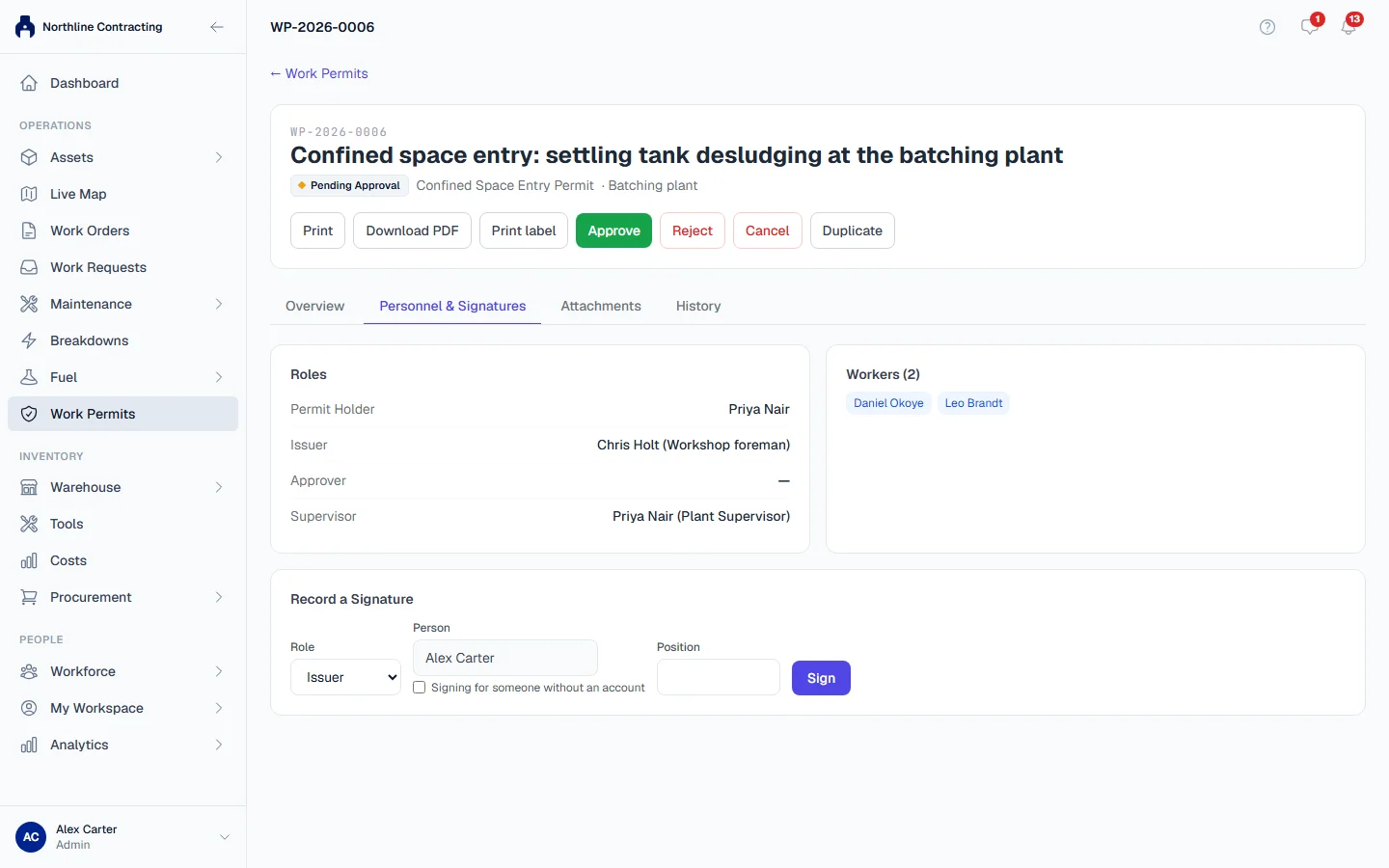
- Open the Personnel & Signatures tab.
- Under Record a Signature, choose the Role: Issuer, Approver, Supervisor or Worker.
- The Person is you. To sign for someone without a Solmex account, such as a contractor's welder, tick Signing for someone without an account and type their Full name.
- Optionally add their Position.
- Click Sign.
The tab lists the Permit Holder, Issuer, Approver, Supervisor and Workers with their signatures.
Activate a permit
- Open an Approved permit.
- If the permit was raised from a template with Required Sign-offs, a note on the permit lists the roles that must sign first. Record those signatures on the Personnel & Signatures tab. For Workers, at least one worker must sign. A name typed on the form does not count: the person has to sign.
- Click Sign & Activate.
The status becomes Active: the work is authorised now, until Valid Until. Twenty four hours before that time the permit shows Expiring Soon, and after it Expired. An expired permit still shows as Active until someone closes it: close it, and if the work must continue, duplicate it into a new permit with new times.
Close a permit
- When the work is finished, open the Active permit.
- Click Close.
The status becomes Closed. Solmex creates a PDF of the signed permit and attaches it on the Attachments tab as Signed Permit PDF.
Cancel a permit
You can cancel a permit at any stage before it is closed, for example when the work is called off.
- Click Cancel.
- Add a comment if you want to record why.
- Click Cancel Permit.
Duplicate a permit
Duplicate creates a new Draft with the same details. Use it when:
- The permit is Closed or Cancelled and related work must continue. The button reads Duplicate into New Permit.
- An approved or active permit needs to change. Approved and active permits cannot be edited.
- You need a similar permit for another job.
The original permit is never changed.
Follow what happened
The History tab on each permit lists every step: who submitted, approved, rejected, signed, closed or cancelled it and when, plus each time it was printed or downloaded.
Troubleshooting
| What you see | What to do |
|---|---|
| "A permit cannot be approved by the person who raised it" | Ask another person with Work Permits: Approve. |
| "A comment is required when rejecting a permit" | Type the reason for rejecting it. |
| "Cannot sign a permit still in draft. Submit it first." | Submit the permit first. |
| "This permit cannot be activated until these sign-offs are recorded: ..." | Record the listed signatures on the Personnel & Signatures tab, then click Sign & Activate again. |
| "Cannot sign a closed or cancelled permit" | Duplicate it into a new permit. |
| "A signature naming a user account can only be made from that account." | Have the person sign in themselves, or tick Signing for someone without an account and type their name. |
| "A permit can only be changed while it is a draft" | Reject it back to draft if it is still awaiting approval, or duplicate it. |
| "This permit is closed and is now read-only." | Click Duplicate into New Permit to continue related work. |