
Find machines on the Equipment Register
Narrow the Equipment Register to the machines you want with the status strip, filter pills, search and sorting.
The Equipment Register lists every machine your company has registered, one row per machine. This article shows how to narrow it down to the ones you are looking for, whether that is one excavator by number or every rented truck in one Location.
Before you start
- You need Equipment: View to open the register.
- Open it from the sidebar: Assets > Equipment.
The status strip
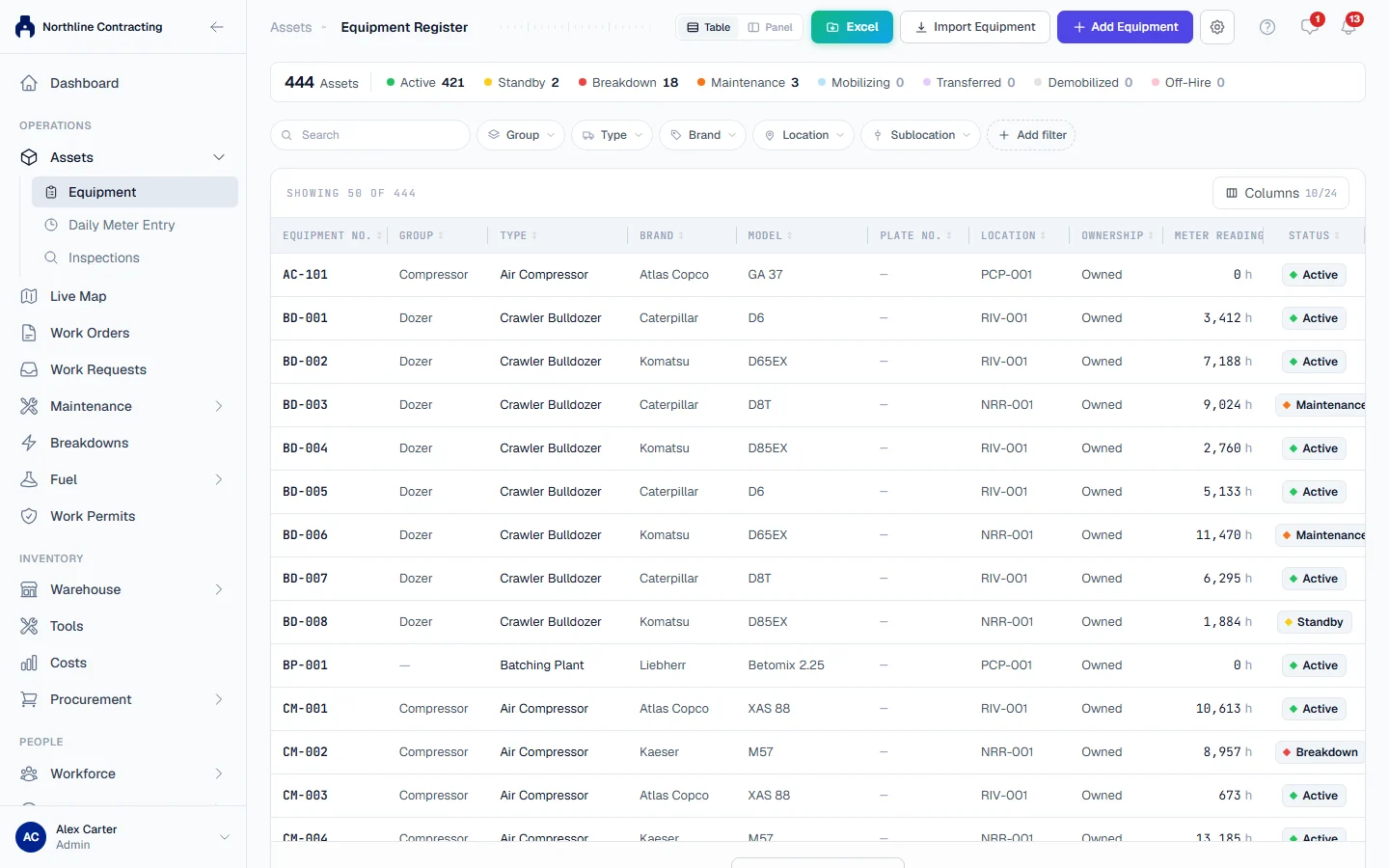
Across the top of the register is a strip of counts. The first figure, Assets, is the total. Beside it is one chip per status: Active, Standby, Breakdown, Maintenance, Mobilizing, Transferred, Demobilized and Off-Hire.
- Click a status chip to show only machines with that status.
- Click another chip to add it. The register shows machines in any of the chosen statuses.
- Click a chosen chip again to remove it.
On a phone the strip is replaced by a single count of what the list holds, and Status moves into the filter row instead.
Filter pills
Below the strip is a row of filter pills. Six are always there: Group, Type, Brand, Location, Sublocation and, on a phone, Status.
- Click a pill. A list of values opens, with a Search… box for long lists.
- Tick one or more values and click Apply. A machine matching any of the ticked values is shown.
- To filter on something else, click Add filter and choose a field, such as Ownership, Year, Operator, Meter Reading, Last PM or Insurance Expiry. Text fields match part of the value; number and date fields take a From and a To.
- To remove one filter, open its pill and click Clear. To remove every filter at once, click Clear all.
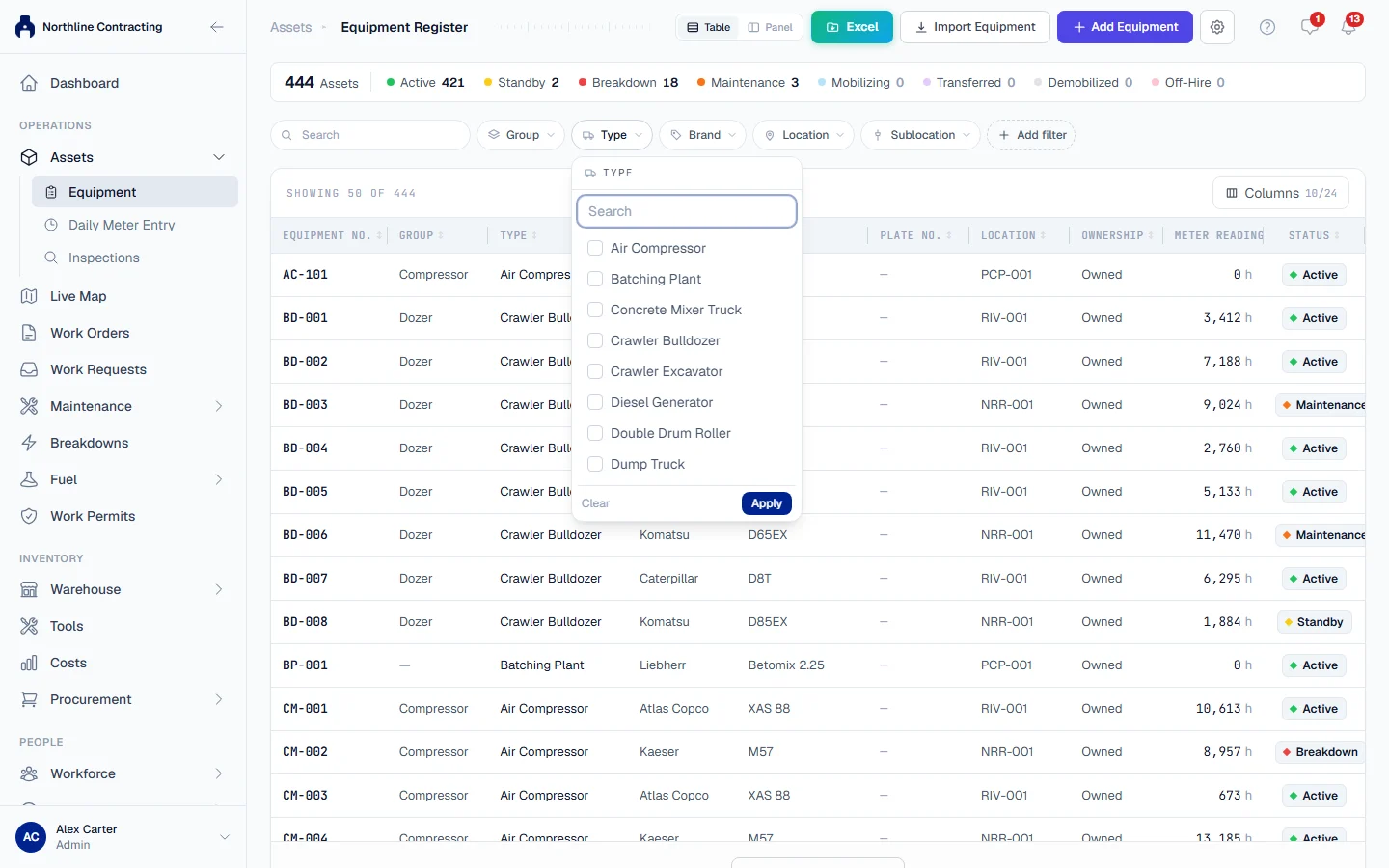
Different filters narrow together. Choosing Type "Excavator" and Location "North Site" shows the excavators at North Site, not every excavator plus everything at North Site.
Search
Type in the search box at the end of the filter row (it reads "Equipment no., plate, type, brand, model…"). Solmex looks for your text in the equipment number, asset number, type, group, brand, model and plate number. You do not need to type the whole value: "330" finds "EX-330" and "CAT 330".
Search works together with the filters, so you can search inside a filtered list.
Sorting
Click a column heading to sort by it. Click again to reverse the order, and a third time to go back to the normal order.
The register loads machines in pages. When more machines match than are shown, a Load More button at the bottom says how many you are seeing, such as "Load More (50 of 312)".
Disposed machines
Machines that have been sold, scrapped or written off are not on the register. When there are any, a small link below the status strip says how many, such as 3 disposed. Click it to see them, and click Back to the register to return. See Dispose of a machine and reinstate it.
Open a machine
Click a row to open that machine's page. See The equipment page.
Troubleshooting
| What you see | What to do |
|---|---|
| "No equipment matches the current filters." | A filter or the search is narrowing the list to nothing. Click Clear all and empty the search box. |
| A message saying there is no equipment on the register | No machines are registered yet. See Add equipment. |
| A machine you expect is missing | Check the status chips and filters, then check the disposed link: a disposed machine is hidden unless you ask for it. |
| A machine is missing from a Group filter | Its group is blank. Set it on the machine's Overview tab, or give its type a group under your equipment lists. |