
Help CenterManaging Purchases and Stock
Send a purchase order to the supplier
Email the approved order to the supplier from Solmex or mark it as sent, download its PDF, and attach quotations.
Once a purchase order is approved, you place it with the supplier. Solmex can email the order PDF to the supplier's address, or you can send it your own way and simply record that it was sent.
Before you start
- You need Procurement: Order to send an order.
- The order must be Approved.
- To email it from Solmex, the supplier needs an Email on the register. See Suppliers.
Send the order
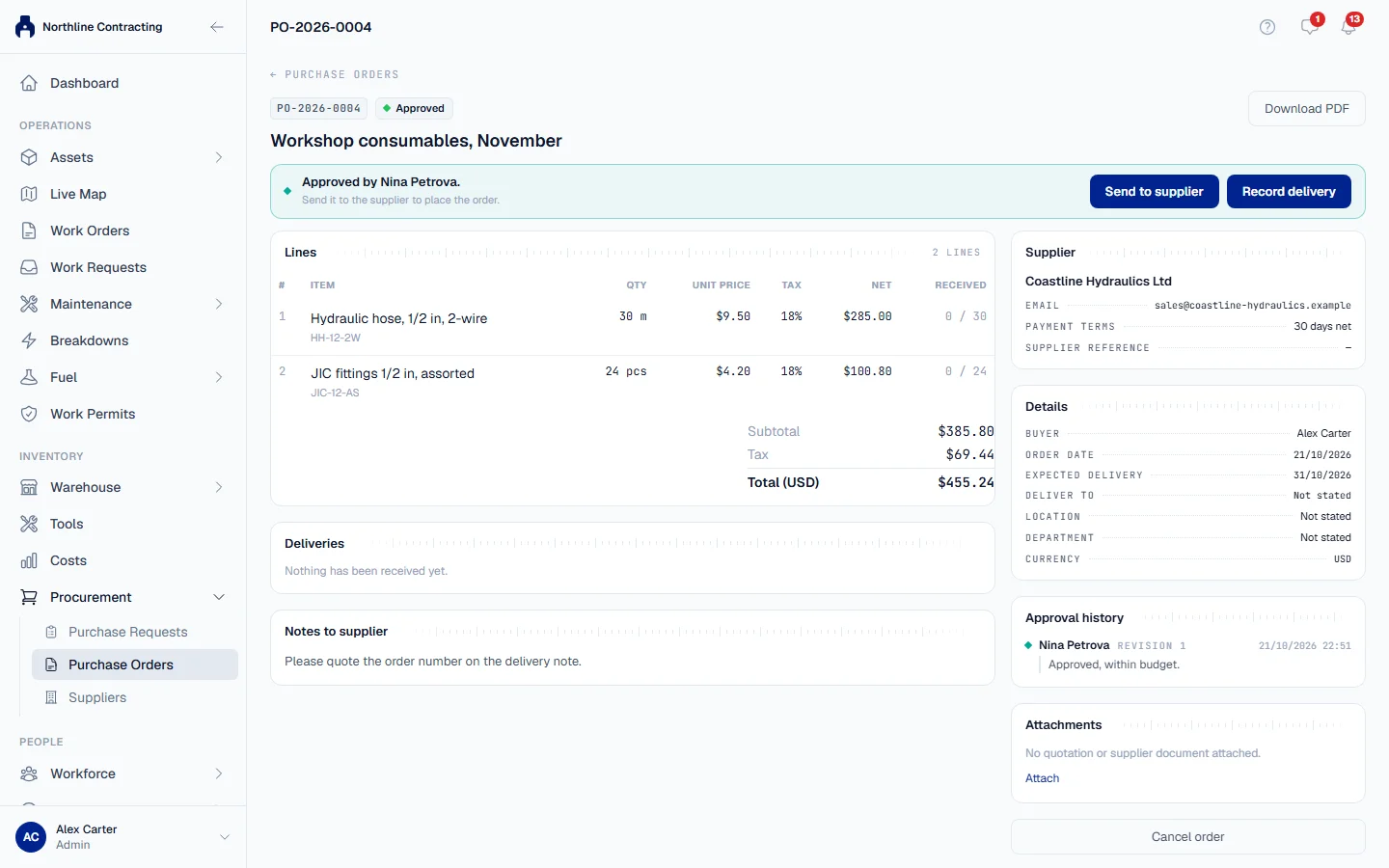
- Open the approved order. The banner says Approved by and the approver's name.
- Click Send to supplier. The Send to supplier window opens.
- To email it, tick Email the order to followed by the supplier's address, and write an optional message to the supplier. Click Send email.
- To send it some other way, such as by phone or on your own email, leave the box unticked and click Mark as sent.
The order becomes Sent to Supplier and the banner records when it was sent and how: by email or by other means.
What happens next
Record each delivery as it arrives. See Receive a delivery.
Download the order PDF
Click Download PDF at the top of the order. The file is named after the order number. It prints your company's details, the supplier, where to deliver, the terms, the priced lines, the totals, the Notes to supplier and who approved it.
It never prints the Internal notes, and nothing about your warehouse.
The PDF is available from Approved onwards. A draft or an order waiting for approval has none, because the document says on its face that the company has committed.
Attach quotations and supplier documents
Under Attachments on the order, click Attach and choose the file: a quotation, a pro forma invoice, the supplier's confirmation. You can attach files at any stage until the order is finished (received in full, closed short or cancelled), including while it waits for approval, because supplier paperwork keeps arriving after the order is placed. Attaching needs Procurement: Order.
Rules worth knowing
- Receiving does not need the order to be marked as sent. A phone order that nobody marked as sent can still be received when it arrives.
- Only an approved order can be sent.
Troubleshooting
| What you see | What to do |
|---|---|
| "This supplier has no email address on record; mark the order as sent by other means." | Add an email to the supplier, or send the PDF yourself and click Mark as sent. |
| "Outbound email is not configured on this server; mark the order as sent by other means." | Download the PDF, send it yourself, and click Mark as sent. |
| "The order was marked as sent, but the email did not leave." | The order is recorded as sent. Download the PDF and send it to the supplier another way. |
| "The order could not be marked as sent." | Check your connection and try again. |
| "The file could not be attached." | Check the file type and size, then try again. |
| No Download PDF button | The order is not approved yet, or it was cancelled. |