
Automatic reports
Have Solmex generate a report on a schedule and email it as a PDF to the people you choose, run one straight away, and read the delivery history.
An automatic report is a PDF that Solmex builds on a schedule and emails to people in your company, so a manager has the morning's breakdowns or the day's inspections without opening the app. Every run is kept in a history, so a report can be downloaded again later.
Before you start
- You need Analytics: Schedule. By default only administrator roles have it, because a schedule sends your company's records by email without anyone pressing a button. It is also needed to see the page at all.
- Automatic reports are part of Analytics, included in the Business plan.
- Recipients are people with an account in Solmex. You cannot type an outside email address.
The report types
| Report type | What it covers |
|---|---|
| Equipment Breakdown Report | The breakdown picture for the previous complete period: a daily report sent this morning covers yesterday. The same look as the Breakdown Status Report. |
| Daily Inspection Report | The inspections of the day it is sent, as an end-of-day document. See Email a Daily Inspection Report. |
| Routine Maintenance Overdue Report | Which machines are overdue or due soon on routine jobs at the moment it is sent. See What is daily maintenance. |
Create a report
- In the sidebar, open Analytics > Automatic Reports.
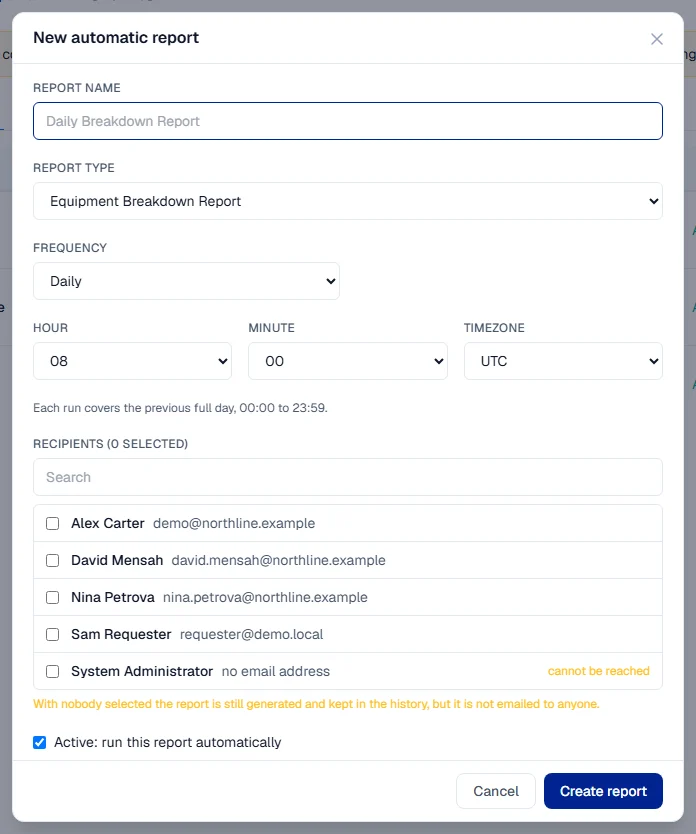
- Click New report. The New automatic report window opens.
- Give it a Report name, such as "Daily Breakdown Report". The name is how it appears in the list and in the email.
- Choose the Report type.
- Choose the Frequency: Daily, Weekly (then a Day of week) or Monthly (then a Day of month, from 1 to 28).
- Choose the Hour and Minute it is sent, and the Timezone that time is in.
- Under Recipients, tick the people who should receive it. Search with Search people….
- Click Create report.
The report appears on the list with its Next run. From then on it runs by itself.
Under the time fields the window says which period each run covers, and the sentence follows the Report type you chose: the previous full day, week or month for the Equipment Breakdown Report, and the day, week or month it is sent in for the other two. For those, schedule a daily run late in the day so it covers the whole day.
Manage your reports
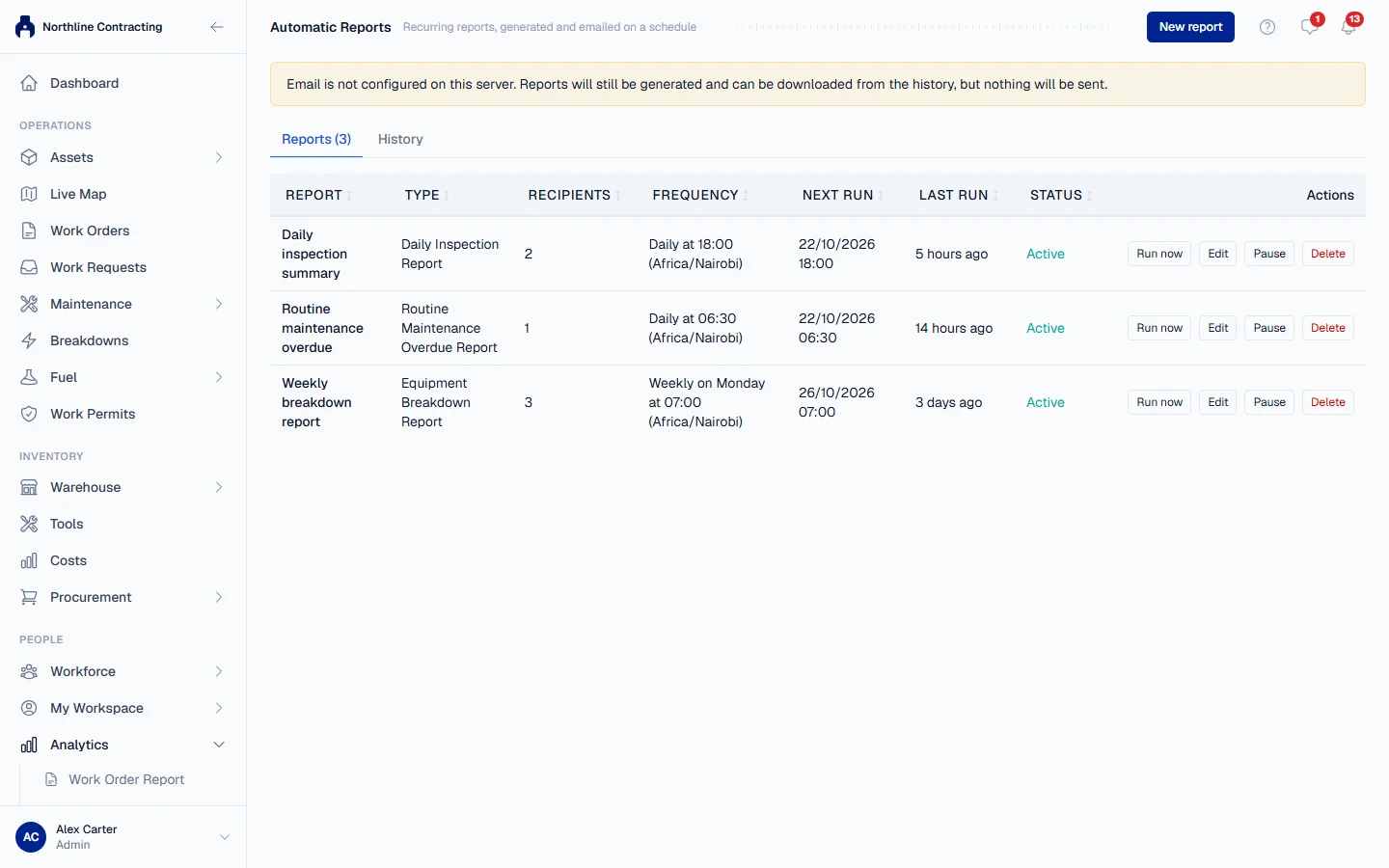
Each report on the list shows its Type, Recipients, Frequency, Next run, Last run and Status (Active or Paused). On each row:
- Run now generates the report straight away and sends it to its recipients, after asking you to confirm. It covers the same period the next scheduled run would.
- Pause stops it running without deleting it. Enable starts it again.
- Edit changes any of its settings.
- Delete removes the schedule. Its delivery history is kept.
The history
Click History to see every run, newest first:
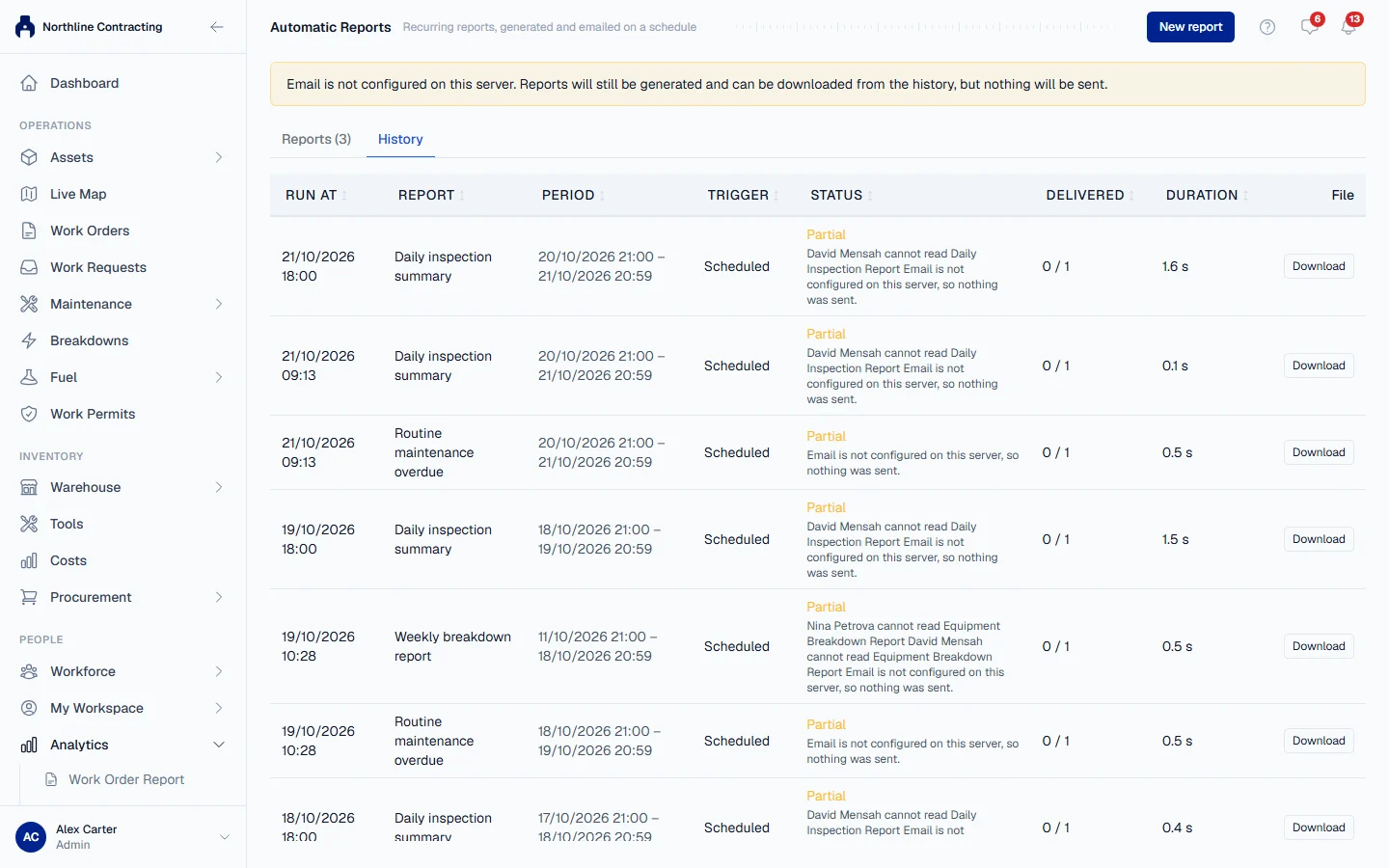
| Column | What it shows |
|---|---|
| Run at | When it ran. |
| Report and Period | Which report, and the period it covered. |
| Trigger | Scheduled, or Manual with the name of whoever clicked Run now. |
| Status | Sent, Partial (the report was made but did not reach everybody), Failed or Running. A Partial or Failed row says why underneath. |
| Delivered | How many recipients it reached, out of how many. |
| File | Download to get the PDF again. |
Troubleshooting
| What you see | What to do |
|---|---|
| "Email is not configured on this server. Reports will still be generated and can be downloaded from the history, but nothing will be sent." | Reports are made but not emailed. Download them from History, and contact Solmex support. |
| A recipient marked cannot be reached | That person has no usable email address. Add one to their account. See Invite your team. |
| "With nobody selected the report is still generated and kept in the history, but it is not emailed to anyone." | Tick at least one recipient if you want it sent. |
| "Give the report a name." | Fill in Report name. |
| "Report could not be generated. View details." | Open History and read the reason on the failed row. |
| Automatic Reports is not in the sidebar | Your role does not include Analytics: Schedule. Ask your administrator. |