
What Live Map shows
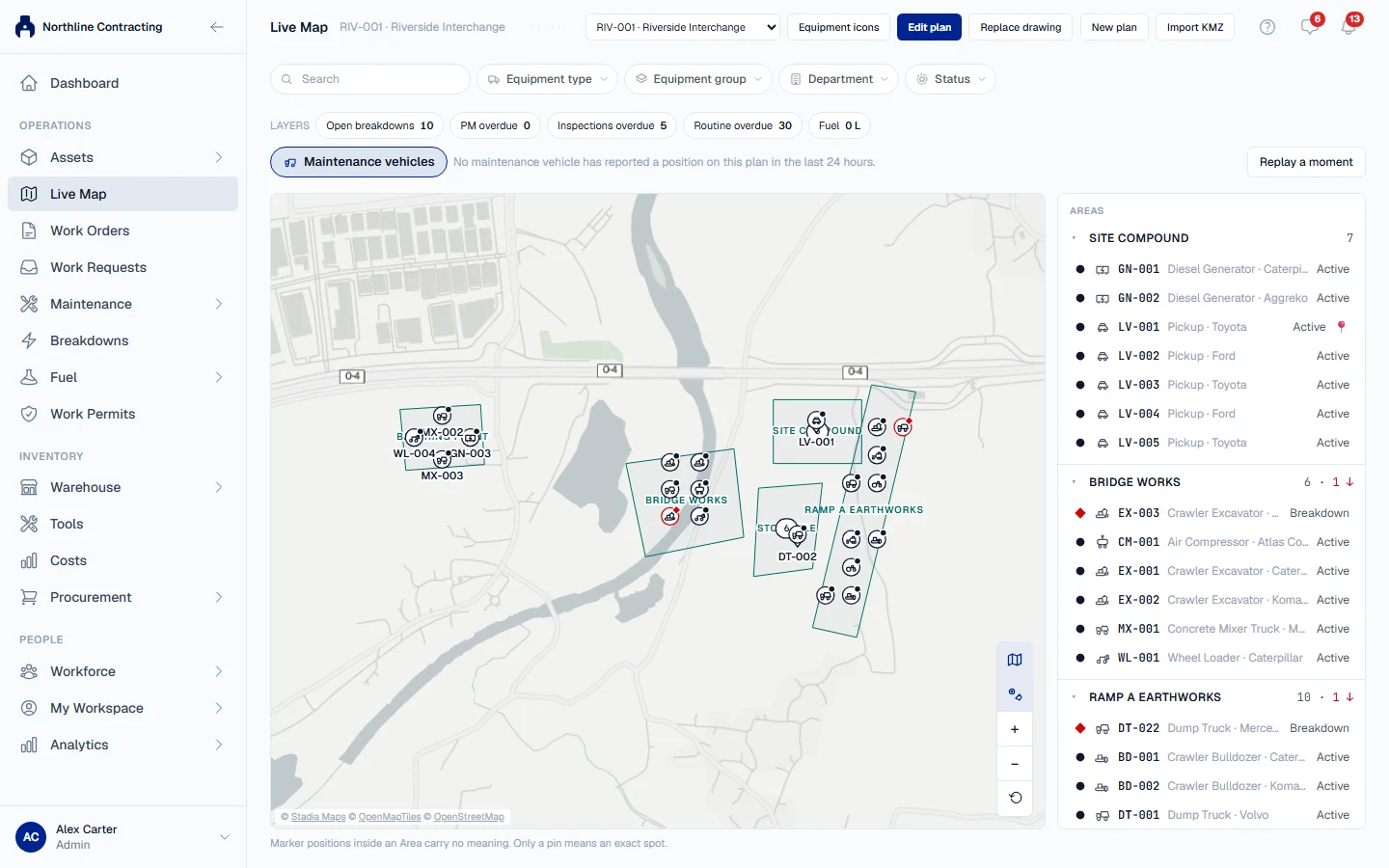
Live Map draws each machine on a site plan of its Location, in the Sublocation the records last placed it, and says plainly what it does not know.
Live Map answers one question: which equipment is where on the site. It draws a site plan of a Location (a drawing you upload, or shapes imported from Google Earth) and places every machine in the Sublocation it was last seen in.
Before you start
- Live Map is switched on per company, not by plan. If you do not see Live Map in the sidebar, contact Solmex to ask for it.
- You need Live Map: View to open it, and Equipment: View to see machines on it. Without Equipment: View the page shows the drawing and its Areas, and says that machines are not shown.
- Someone with Live Map: Edit must first create a site plan for the Location. See Create a site plan.
Open Live Map
- In the sidebar, under Operations, click Live Map.
- If your company has more than one Location, choose the one whose map you want. Live Map remembers the last one you opened in this browser.
- To switch Location later, use the Location list in the page header. If a Location has more than one plan, a Plan list appears beside it.
How a machine gets its place
A machine is drawn where your records say it was last seen, and nowhere else. Every inspection, fuel entry, routine maintenance entry, manual location entry and GPS fix that names a Sublocation is a sighting, and the newest one decides where the machine is drawn.
Live Map never guesses. It does not let anybody drag a machine to a spot, and it does not fill in a position nobody recorded.
There are two kinds of mark:
| Mark | Meaning |
|---|---|
| Marker: somewhere in the Area | The machine is filed under that Sublocation. Where the marker sits inside the Area carries no meaning. |
| Pin: exact spot | A tracker or a person recorded the exact point where the machine stood. |
The caption under the plan says this once: "Marker positions inside an Area carry no meaning. Only a pin means an exact spot."
The list beside the plan
The pane on the right lists every Area with its machines, followed by the machines the plan cannot draw:
- Not placed on this plan: these machines are filed under a Sublocation that has no Area on this plan yet. Draw it to place them.
- No sublocation: these machines are filed under the Location with no Sublocation.
- On the plan by GPS, in no Sublocation: a tracker put the machine inside the plan but outside every drawn Area or point radius. It is drawn as a pin at its newest position and is not counted in any Sublocation.
The Total, Placed and Off site counts at the top reconcile with your Asset Register. Machines with an off-site status are counted, not drawn.
Click a machine on the plan or in the list to open its panel. Open equipment page takes you to its full record.
It is not a live stream
Live Map shows the newest record for each machine, with its age. Hover a machine and the tooltip says when and how it was last seen, for example "Last seen 3 days ago · from fuel entry". A machine last seen more than 14 days ago is drawn faint, and the legend says so.
If a machine has a Sublocation but no sighting at all, the tooltip reads Position from registration: the only thing known is where it was registered.
What a machine's panel shows
The panel shows the machine's own record, the same tabs as its equipment page, and buttons for Day track (see Follow a machine's day track), Map colour and Set exact spot (see Read the map).
Troubleshooting
| What you see | What to do |
|---|---|
| No site plan for this Location yet | Someone with Live Map: Edit creates one. See Create a site plan. |
| "Machines are not shown: viewing equipment needs its own permission." | Ask your administrator for Equipment: View. |
| A machine you expected is under Not placed on this plan | Its Sublocation has no Area on this plan. Draw it. |
| "No Location has been set up yet." | Add a Location first: see Add Locations and Sublocations. |