
Help CenterManaging the Organisation
The organisation chart
See who reports to whom, search and filter it, rearrange reporting lines by dragging, and export the chart to Excel or PDF.
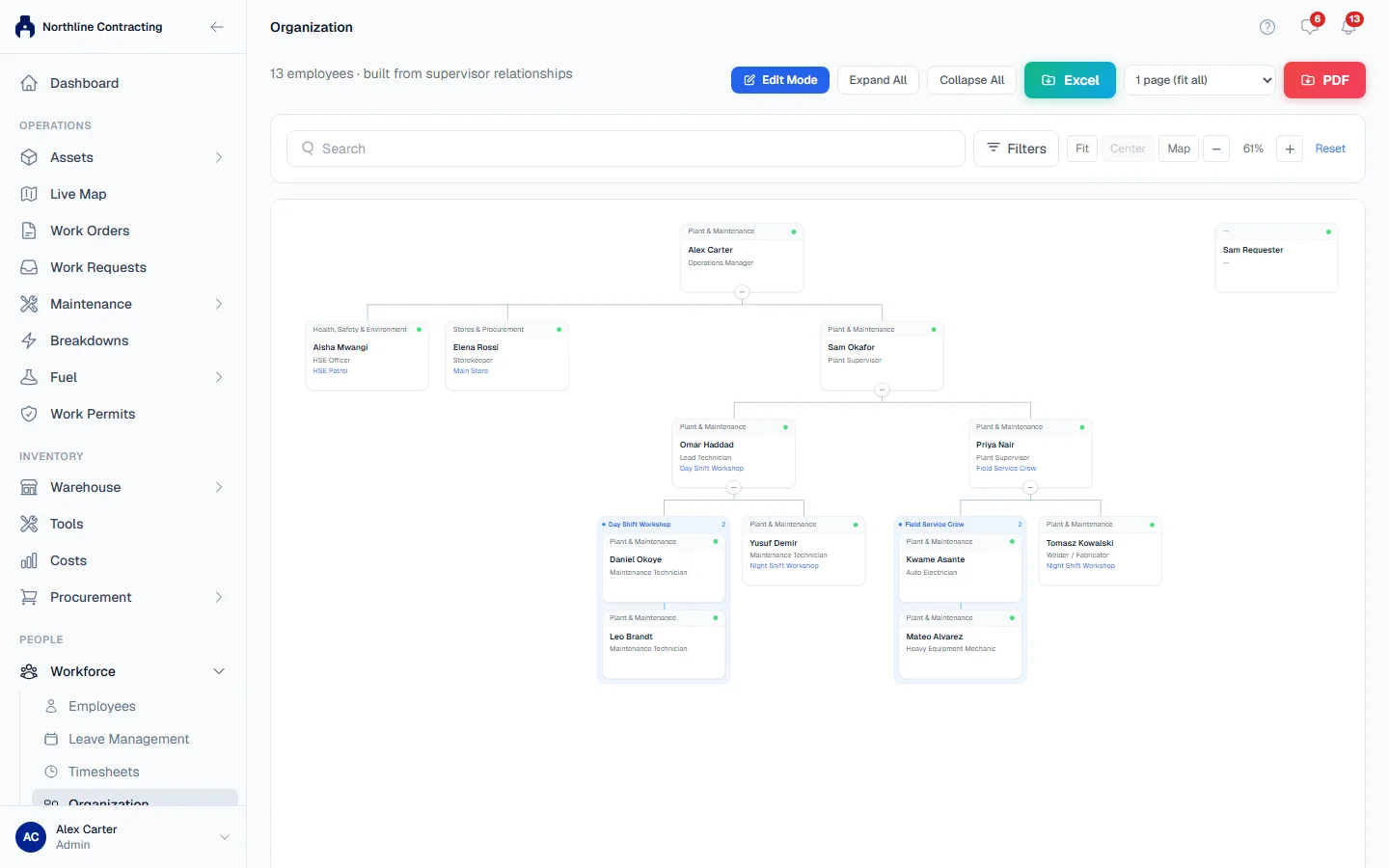
The organisation chart draws your company from one fact on each employee's record: their Supervisor. Nobody draws it by hand. Change a supervisor and the chart changes; rearrange the chart and the supervisors change. It is the quickest way to check that every person reports to somebody real.
Before you start
- Employees: View shows the chart. Employees: Edit lets you rearrange it.
- Rearranging works on a screen at least the width of a tablet. On a phone the chart is view only.
- Each employee's supervisor is set on their profile: see Add and manage employees.
Read the chart
- In the sidebar, open Workforce > Organization. The line under the title says how many employees are shown.
- Each card is one employee, with their position and department. The button on a card whose tooltip reads Open profile takes you to their profile.
- Use Expand All and Collapse All, or open and close one branch at a time.
- Search by name, position or department. The matches are highlighted with the path down to them.
- Open Filters to narrow the chart by department, team or Location, or tick Active only. Clear filters shows everyone again.
- Move around with Fit, Center (on the selected card), the zoom buttons and Map, a small overview of the whole chart.
The legend at the bottom explains the colours: Active, On Leave, Suspended and Planned to Join. A dashed amber line is an Informational reporting line.
Rearrange reporting lines
- Click Edit Mode. A banner explains what you can do.
- Drag a card onto the person who should become their manager. Ctrl-click to select several cards and move them together.
- Drag the grip on a card to change the order of colleagues under the same manager.
- Use Undo and Redo (Ctrl+Z and Ctrl+Y) freely, and open the history to see each step.
- Nothing is saved yet: a bar at the bottom counts the pending changes. Click Save changes to save them all together, or Cancel to throw them away.
- Click Exit Edit Mode when you are done.
Add an informational line
Some people answer to a second person without reporting to them, such as a site engineer who takes direction from the project manager. To show that:
- In Edit Mode, click + Informational Line.
- Click the manager, then the employee.
The dashed line is shown on the chart only. It does not change anyone's supervisor.
Export the chart
- Click the Excel button to export the organisation to a spreadsheet.
- To print, choose 1 Page (fit all) or Multi-page (true size) in the layout list, then click the PDF button. The PDF shows the chart as it is filtered on screen.
Rules worth knowing
- All your moves save together, or none do. If one of them would break the structure, nothing is changed.
- Reporting lines cannot go round in a circle, and an employee cannot report to themselves. Anyone already caught in a circle from older data is drawn at the top level and listed under Hierarchy Validation Issues, so you can fix them.
- You cannot move someone under a manager who is not active.
- If somebody else saves the chart while you are editing, Solmex tells you and keeps your unsaved changes. Click Discard mine & reload to start again from their version.
Troubleshooting
| What you see | What to do |
|---|---|
| "This change would create a circular reporting line involving ..." | Move that person under someone who is not below them. |
| A message that the manager is not active | Choose an active manager, or reactivate the manager first. |
| "That line already exists" | The informational line is already on the chart. |
| No Edit Mode button | Your role lacks Employees: Edit. On a narrow screen, such as a phone, the page says "Editing the chart needs a wider screen.": open it on a tablet or computer. |
| "PDF export failed" | Try 1 Page (fit all), or narrow the chart with filters first. |