
Tracking meter analytics
Chart a tracked value, such as pressure, pH or tank level, across your machines over a period, see which readings fell outside the expected range, and export it to Excel.
Tracking meters record process or condition values on a machine beside its hourmeter and odometer. The Tracking Meters page under Analytics turns those readings into a chart per machine for one value at a time, so you can see trends and spot readings outside the range you expect. Setting tracking meters up and recording readings is covered in Tracking meters.
Before you start
- You need Analytics: View to open the page.
- To download the Excel report you also need Analytics: Export. Without it, the export buttons are not shown.
- At least one tracking meter must exist and have readings in the period.
Read a metric
- In the sidebar, open Analytics > Tracking Meters. The page is called Tracking Meter Analytics.
- Under Metric, choose the value to look at. Each choice shows its unit and how many readings it has. The page opens on the metric with the most readings.
- Set the Period. It starts on the last 30 days.
- To look at one Location only, choose it under Location.
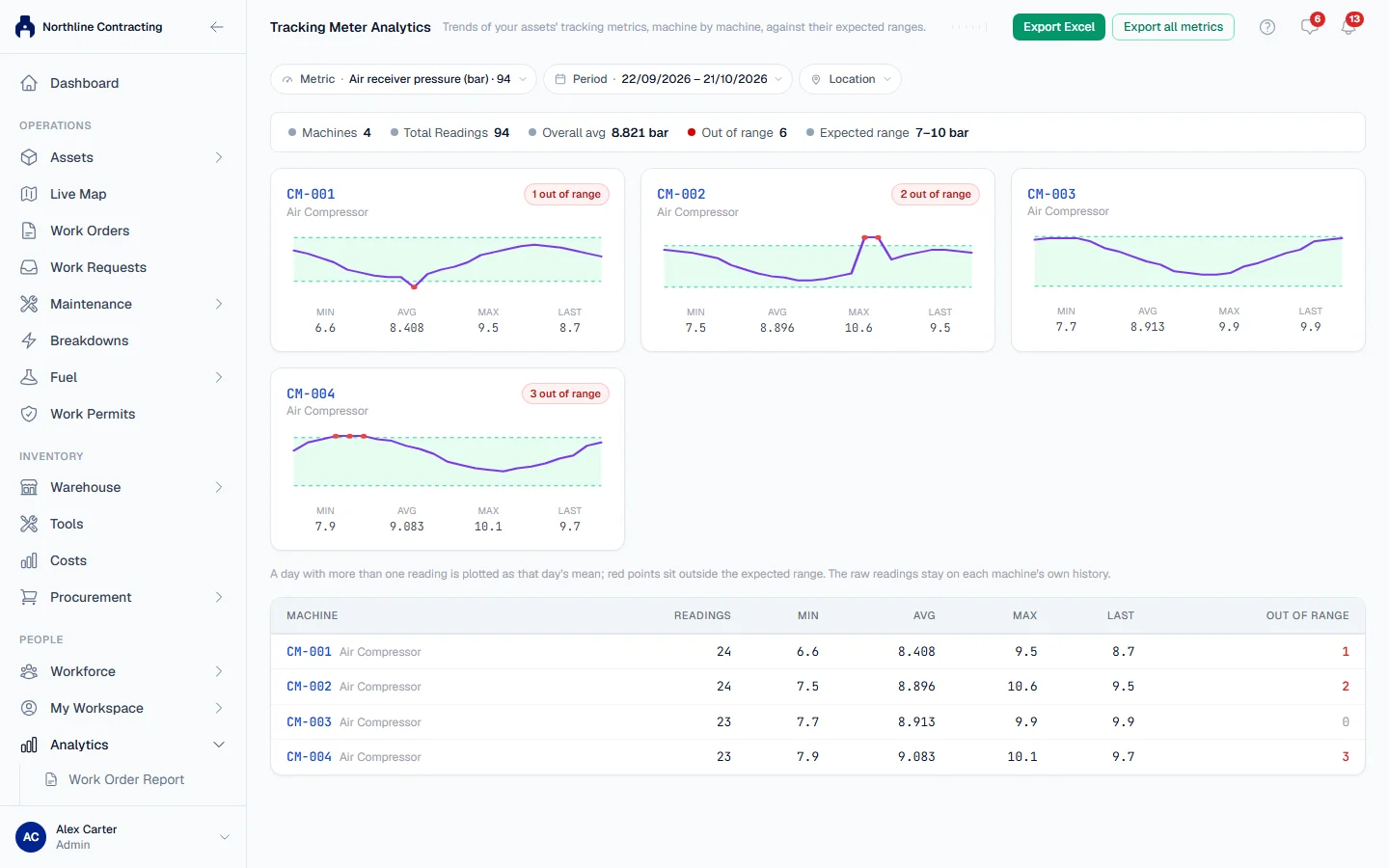
The figures at the top describe the metric across the period:
| Figure | What it means |
|---|---|
| Machines | How many machines have readings of this metric in the period. |
| Total Readings | How many readings were taken, across all machines. |
| Overall avg | The average of every reading, across all machines. |
| Out of range | How many readings fell outside the expected range. |
| Expected range | The range set on the metric. Not stated when none was set. |
Below them, each machine has its own chart with its Min, Avg, Max and Last reading, and a badge such as 2 out of range. A table at the bottom lists every machine with the same figures.
A day with more than one reading is drawn as that day's average. Points outside the expected range are red. The individual readings stay on each machine's own history.
Export to Excel
- Export Excel downloads the report for the chosen metric and period.
- Export all metrics downloads one report covering every metric in the period.
The file is named after the period it covers and includes charts.
Share or bookmark a view
Like the other Analytics pages, the metric, period and Location are written into the page address. Copy the address and send it, and the other person opens the same view (with the figures their own permissions allow). The back button steps back through your changes.
Troubleshooting
| What you see | What to do |
|---|---|
| No tracking metrics defined yet in the Metric list | No tracking meter exists. See Tracking meters. |
| "No readings for this metric in the selected period." | Widen the Period, or choose another metric. |
| "No readings in this period to export." | There is nothing in the period to put in the file. |
| "Could not build the Excel report." | Try again. If it keeps failing, narrow the period. |
| No export buttons | Your role does not include Analytics: Export. |