
Set up your job list
Name the daily jobs your crews do, set how often each is due, and choose how they appear on the dashboard.
The job list is your company's own list of daily jobs, such as "Greasing" or "Air Filter Cleaning". Each job gets its own column on the Status tab, its own tick box on the Record tab and its own card on the Dashboard, so set it up before anyone records work.
Before you start
- You need Routine Maintenance: Manage to add, edit, reorder or archive jobs. Anyone with Routine Maintenance: View can see the list.
- Agree with your crews what each job is called. Name them the way your crews say them.
Open the job list
- In the sidebar, open Maintenance > Daily Maintenance.
- Click Settings at the top right, then Jobs.
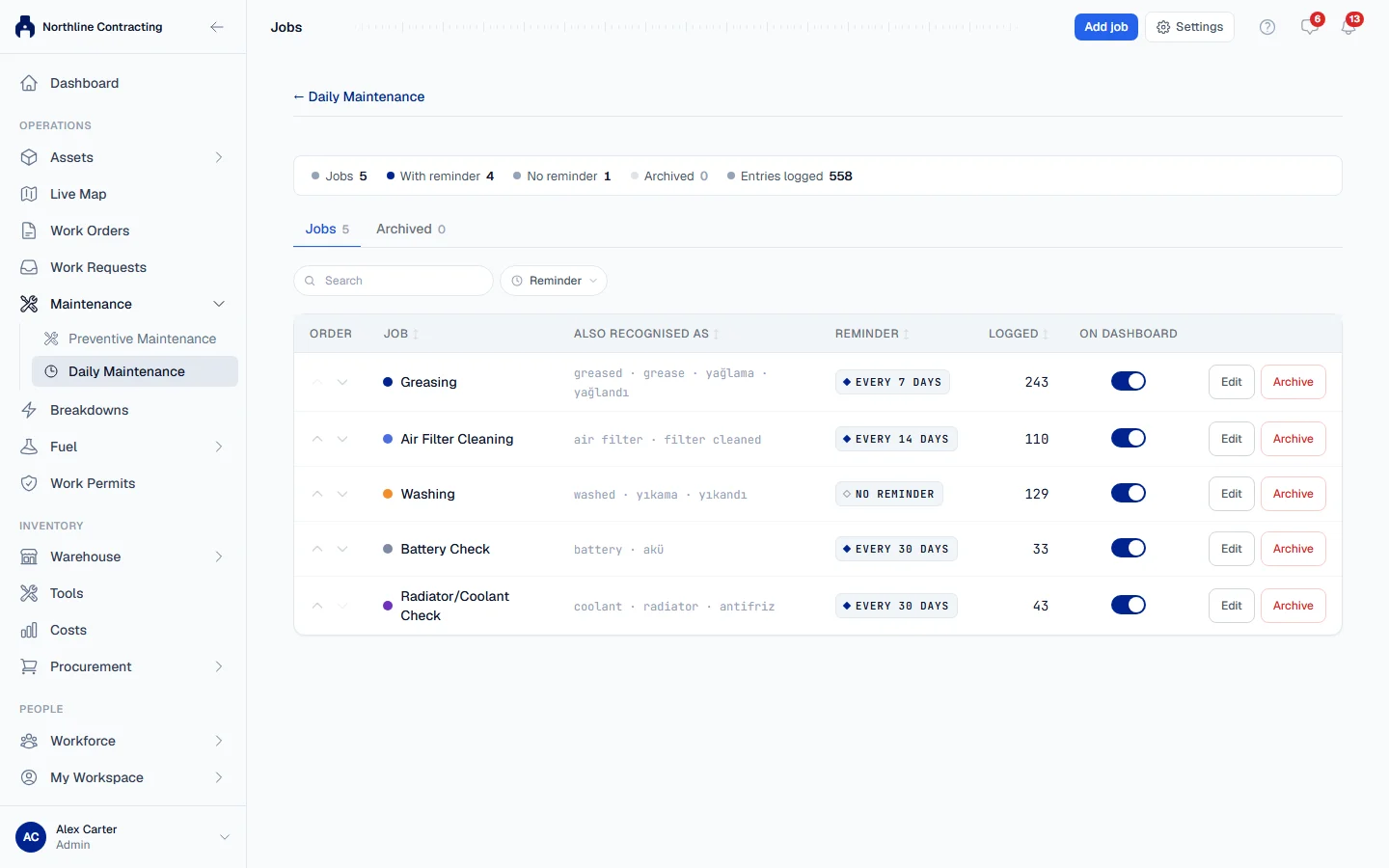
The page is called Jobs. A new company may already have a few common jobs on it. They are yours to rename, change or archive.
Add a job
- Click Add job.
- Fill in the fields described below.
- Click Save. The job appears on the list and on every Daily Maintenance tab.
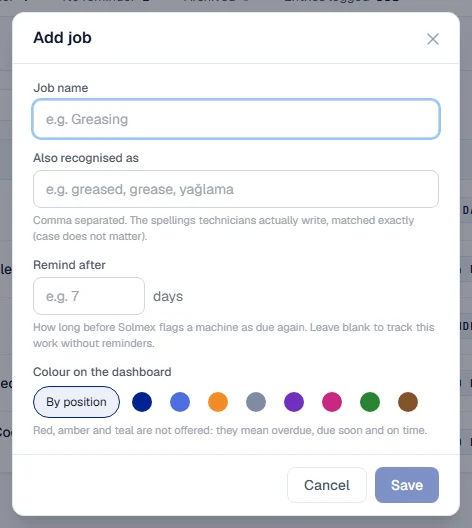
| Field | Notes |
|---|---|
| Job name | What the job is called, such as "Greasing". Must be unique. |
| Also recognised as | Other spellings people actually write, separated by commas, such as "greased, grease, yağlama". Matched exactly, ignoring upper and lower case. Used when you import history from a spreadsheet. |
| Remind after | How many days before a machine is flagged as due again. Leave it blank to track the job without reminders. |
| Colour on the dashboard | The job's colour on charts and cards. By position picks one for you. |
Choose which jobs show on the dashboard
The On dashboard column has a switch for each job. A job that is switched on gets a card on the Dashboard tab for everyone by default. Each person can still hide or reorder cards for themselves with Choose jobs on the dashboard; that changes only their own view.
Change the order
Use Move up and Move down on a row. The order is used everywhere: the columns on the Status and Record tabs and the cards on the dashboard.
Edit a job
Click Edit on the job's row. The Edit job form opens. Change what you need and click Save.
Renaming a job renames it everywhere, including on work already recorded under it. Changing Remind after changes which machines read as due from that moment on; no recorded work is changed.
Archive and restore a job
- Click Archive on the job's row.
- Confirm. Solmex tells you how many entries are already logged under it.
An archived job leaves the pickers and the Record tab, and no new work can be recorded against it. Every entry already logged under it stays, with its name. Archived jobs are listed on the Archived tab, where Restore brings one back.
Troubleshooting
| What you see | What to do |
|---|---|
| "... is already used by ... (as its name or an alias)" | Another job already has that name or spelling. Use a different one, or edit the other job. |
| "An item's alias cannot repeat its own name" | Remove the job's own name from Also recognised as. |
| "... is already a routine maintenance item" | A job with that name exists. Edit it instead. |
| No Add job button | You need Routine Maintenance: Manage. Ask your administrator. |