
Correct or withdraw a logged PM
Fix a service that was recorded wrongly, or withdraw one that never happened on this machine. Two different actions, because they say two different things.
A mistyped meter reading on a logged PM is not just untidy. The schedule reads it, so a 250 h service typed as done at 50,000 hours instead of 5,000 makes the machine look serviced for years to come. Solmex gives you two ways to put it right.
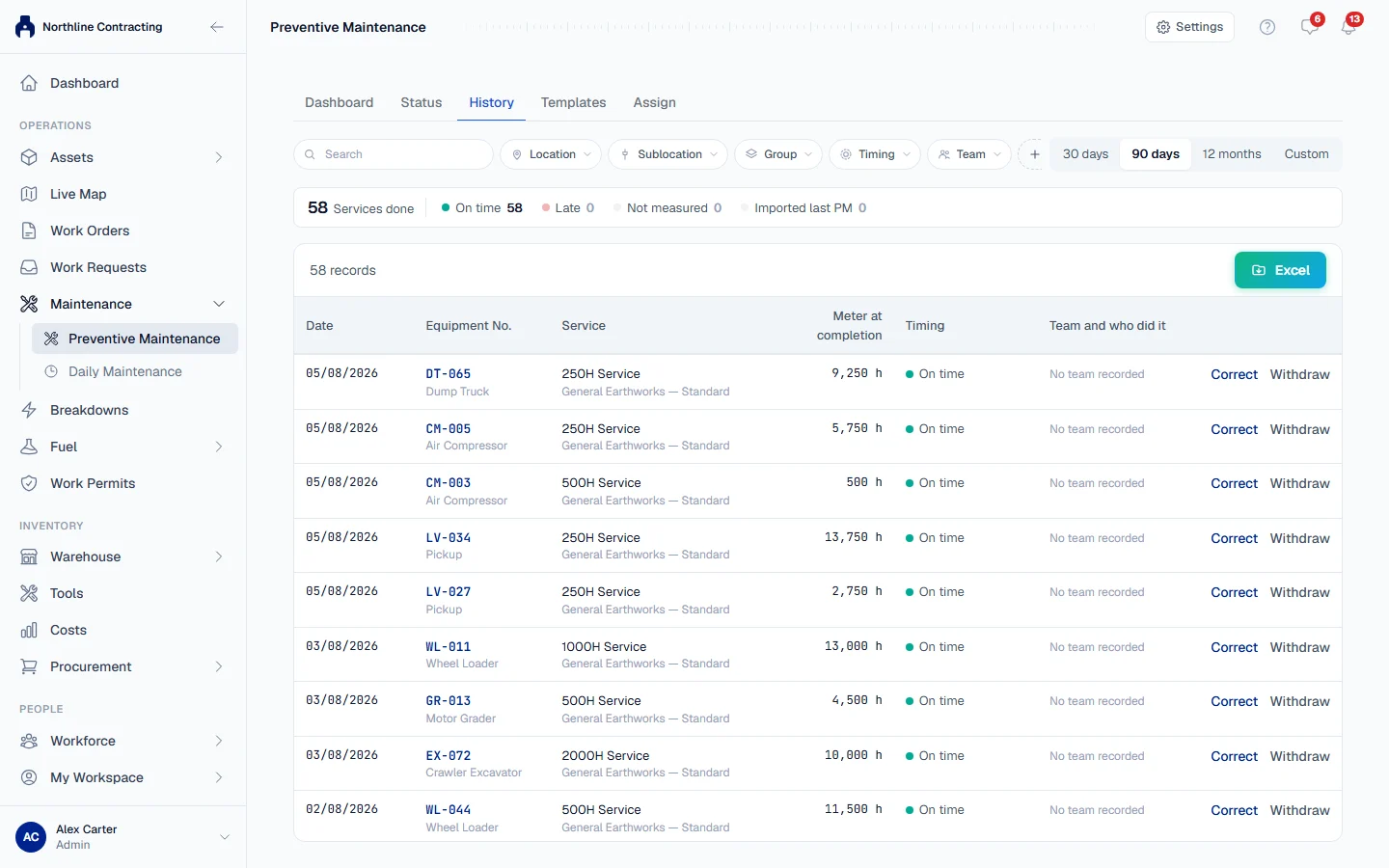
Correct or withdraw?
| Use | When | Examples |
|---|---|---|
| Correct | The service did happen, but something about it was recorded wrongly. | Wrong meter reading, wrong date, wrong service chosen, wrong name. |
| Withdraw | The service did not happen on this machine. | Logged against the wrong machine, entered twice, logged by mistake. |
Before you start
- You need Preventive Maintenance: Edit, the same permission used to log a PM. Whoever can log a service can fix their own mistake.
- Find the record: in the machine's PM History on its Prev. Maintenance tab, or on the History tab of the Preventive Maintenance page.
Correct a record
- On the record's row, click Correct. The Correct PM Record form opens with the record as it stands.
- Change what was wrong: Service, Date performed, Meter at completion, Performed by, Maintenance team or Notes.
- In What is being corrected, say what was wrong, for example "hourmeter typed with an extra digit".
- Click Save Correction.
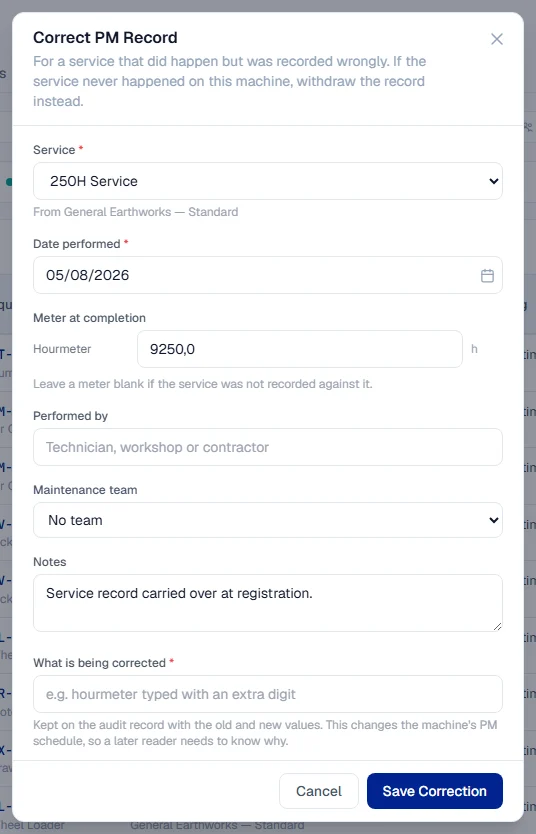
The machine's schedule is worked out again from the corrected record. If the meter figure changed, the meter reading the PM recorded moves with it. The PM Completion Report is made again under the same report number.
Withdraw a record
- On the record's row, click Withdraw. The Withdraw PM Record form lists what will happen.
- In Why is this record being withdrawn?, give the reason, for example "logged against the wrong machine, this was EX-014".
- Click Withdraw record.
Withdrawing:
- stops the record counting towards the machine's PM schedule, which may bring a service back to due or overdue;
- returns the parts and fluids it issued to warehouse stock;
- removes the meter readings it recorded, returning the machine's meter to where it stood before;
- reopens the maintenance schedule it closed, if there was one;
- keeps the record and its report, marked Withdrawn with the reason. Nothing is deleted.
When it is done, Solmex says what it undid, for example "Record withdrawn. 2 parts returned to stock". If a part could not be returned, it is named so you can check it in the warehouse by hand.
Finding a withdrawn record
Withdrawn records stay in the machine's PM History, struck through with their reason. On the History tab of the Preventive Maintenance page they are hidden until you choose Show withdrawn under Withdrawn records.
Imported last PM rows
A row marked Imported last PM on the machine's PM tab or on the History tab is not a logged service. It is the starting point imported for the machine. It cannot be corrected here:
- To change it, use Import last PM again, or ask an administrator to edit it. See Import each machine's last PM.
- To take it away, click Remove on the row. This clears the last PM figures on the machine's record too, so the starting point is not created again.
Troubleshooting
| What you see | What to do |
|---|---|
| "Say what is being corrected" | Fill in What is being corrected. It is kept with the old and new values. |
| "Nothing has been changed." | You saved without changing anything. Change a field, or cancel. |
| "A reason is required" | Give a reason for withdrawing. |
| "This record has been withdrawn. Log the service again to record it correctly." | Use Log PM or + Log a PM to enter it again. |
| "This is the imported starting point for the machine's PM schedule, not a service that was logged." | Change it with Import last PM on the Assign tab of the Preventive Maintenance page, or ask an administrator to edit it. |
| "Another PM completion for this interval at this reading already exists" | Another record already holds this service at this reading. Withdraw the duplicate instead. |
| "Could not return: ..." | Check those parts in the warehouse and adjust the stock by hand. |