
Help CenterManaging Purchases and Stock
The Stock Register
Find a part, see what is running low and what your stock is worth, open a part's details, and start a receipt, an issue or a transfer from one row.
The Stock Register is the list of every part in your catalogue with how many you hold. It is where you look a part up, see what needs ordering, and start receiving or issuing it.
Before you start
- You need Warehouse: View to open the register.
- You need Warehouse: Edit to see + New Part, Edit, and the receipt, issue and transfer buttons.
- Warehouse Settings at the top of the page appears only with Warehouse: Manage.
Open it
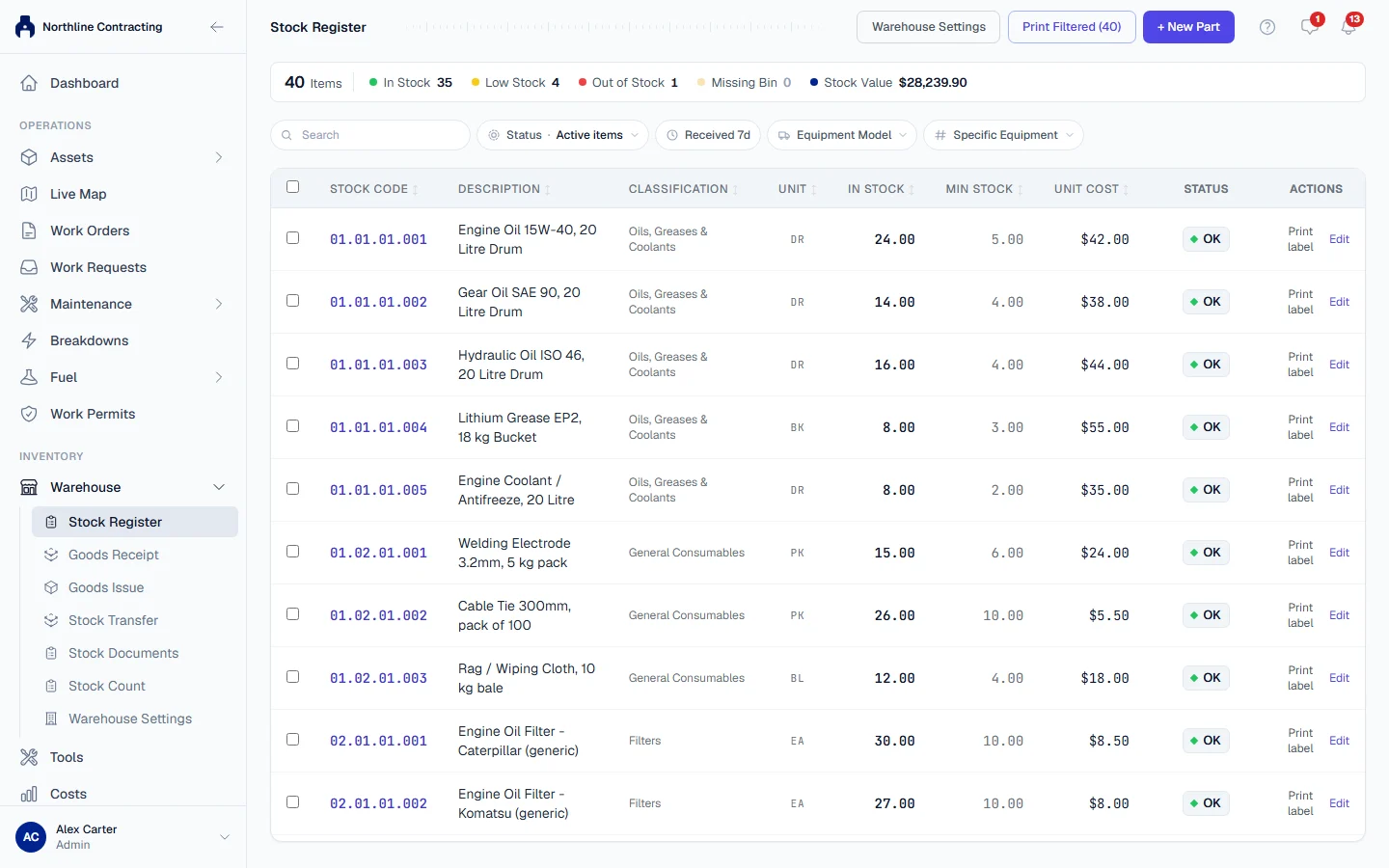
In the sidebar, open Warehouse > Stock Register.
Each row shows the Stock Code, Description, Classification, Unit, In Stock, Min Stock, Unit Cost and a stock status: OK, Low Stock or Out. Click a column heading to sort by it.
In Stock is the total across every storage location. To see what is held at one particular store or bin, open that location's page from Warehouse Settings > Warehouse Setup, or scan its shelf label.
The tiles along the top
| Tile | What it counts |
|---|---|
| Items | Parts on the register for the chosen Status |
| In Stock | Parts with stock above zero |
| Low Stock | Parts with stock above zero but at or below their Min Stock |
| Out of Stock | Parts with no stock |
| Missing Bin | Parts with no put-away location |
| Stock Value | What the stock on hand cost, from the price of each delivery it arrived with |
| Unpriced qty | Stock received or counted in without a price, left out of Stock Value. Shown only when there is some |
Click Low Stock, Out of Stock or Missing Bin to show only those parts. Click it again to show everything.
Find a part
- Type in the search box to match the stock code, description or classification.
- Status shows Active items by default; switch to Inactive items or All items.
- Received 7d shows only parts received in the last seven days.
- Equipment Model shows the parts listed for one model of machine.
- Specific Equipment shows the parts listed for one machine.
Open a part
Click a row to expand it. You see the part's classification, supplier, brand, manufacturer, OEM number, put-away location and notes, and its Recent Transactions: each receipt, issue and adjustment with its date, quantity, reference, machine and who posted it.
With Warehouse: Edit the expanded row also has three buttons:
- Goods Receipt opens Goods Receipt with this part already on the first line. See Receive goods.
- Goods Issue opens Goods Issue with this part on the first line. See Issue parts.
- Stock Transfer opens Stock Transfer with this part on the first line. See Transfer stock.
Click Edit on a row to change the part. See Add a part.
Print labels
- Print label on a row prints that part's label.
- Tick several rows and click Print Selected Labels.
- Print Filtered prints a label for every part the current filters show.
A part label's QR code opens the part's own page, which a storeman can use from a phone.
Troubleshooting
| What you see | What to do |
|---|---|
| "Empty shelves - no items match the current filters" | Clear the search and the filters. |
| No + New Part or Edit | Your role does not include Warehouse: Edit. |
| In Stock shows a quantity but an issue says none is available | The stock is at a different storage location from the one you are issuing from. The message names where it is. Issue from there, or transfer it first. |
| "Failed to load warehouse items." | Check your connection and reload the page. |