
Help CenterManaging Purchases and Stock
Count and correct stock
Count what is on a shelf with the Stock Count sheet and post a correction, with a reason, wherever the record and the shelf disagree.
Sooner or later the shelf and the record disagree: a part was used without being issued, a box was miscounted, something was damaged or turned up in the wrong bin. The Stock Count sheet lets you count a storage location and correct the record to match, with a reason that stays on file.
Before you start
- You need Warehouse: Manage. Correcting stock rewrites what the record says, with no delivery note or job behind it, so it is kept apart from receiving and issuing.
- If your account is limited to some Locations, you can see the sheet but not post it: warehouse stock belongs to no single Location.
- Pause receipts and issues at the shelf you are counting if you can. If stock moves while you count, the sheet will ask you to count that line again.
Count a location
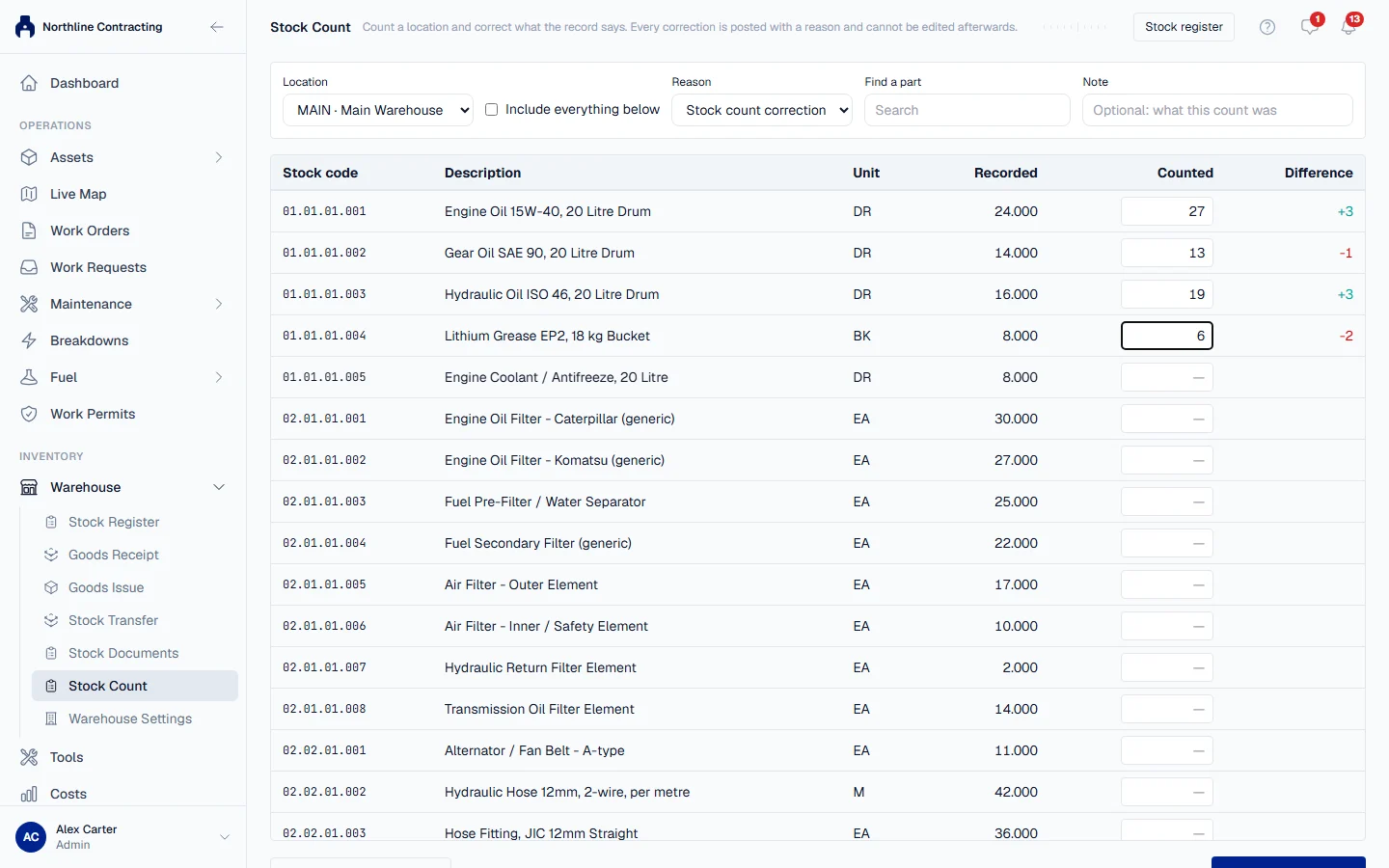
- In the sidebar, open Warehouse > Stock Count.
- In Location, choose the store, rack, shelf or bin you are counting. The sheet lists every part recorded there, including parts the record thinks are empty.
- Check the Reason. It starts on Stock count correction. Choose another if it explains the difference better: Damaged, Lost, Found, Data correction, Opening balance or Other.
- Add a Note describing the count if you like, such as "Quarterly count, Rack 4".
- Walk the shelf. For each part you count, type what you found in Counted. The Difference column shows how far the record is out. Use Find a part to jump to a stock code or description.
- Found a part the sheet does not list? Click + Add a part to this count, pick it, and type what you found. The record expects 0 there.
- Leave Counted blank for anything you did not count.
- Check the tally under the sheet, such as "12 of 40 counted · 3 to correct".
- Click Post 3 correction(s).
A green message gives the adjustment's number, such as ADJ-2026-0001, with how many parts went up, how many went down, and the net change. The sheet reloads with the corrected figures.
On a phone the sheet shows one part per screen. Type the count and use Next and Previous to move along the shelf.
Rules worth knowing
- Only differences are posted. A part you counted that matches the record is not a correction, so nothing is written for it.
- The figure you were shown is checked again when you post. If someone received or issued that part at the same location after your sheet loaded, the whole sheet is refused and you are told which part moved. Count that line again and post.
- One stale line refuses the whole sheet. Nothing is half posted.
- A posted correction cannot be edited. If it was wrong, count again and post another correction.
- Stock found during a count is unpriced. Whatever its usual price, stock that appears without a delivery has no known cost, so it never adds value to Costs. See How spare parts work.
- Stock counted down is taken from the oldest delivery first, the same way an issue is.
Count a whole store at once
Tick Include everything below to list the stock inside the chosen location as well: every rack, shelf and bin under it, each on its own row with its path. Each line is corrected where it actually sits, so a store and its bins can be counted on one sheet. Posting writes one adjustment per storage location that changed, all together or not at all, and the green message lists every adjustment number.
Troubleshooting
| What you see | What to do |
|---|---|
| "... has moved since the count sheet was drawn: it now shows 7, not 9. Re-count this line before adjusting it." | Stock moved while you counted. Count that part again, enter the new figure and post. |
| "Every counted line matches what the system already holds" | Nothing to correct. The record and the shelf agree. |
| "Nothing is recorded at this location." | No part has ever been recorded at this location. Use + Add a part to this count to count one in, or choose the location the stock was received into. |
| Post stays greyed out | No counted line differs from the record yet, or no Reason is chosen. |
| A storage location is missing from Location | It is archived. Restore it on the Warehouse Setup tab. |
| "A counted line names a location that is not ... or below it" | Reload the sheet and count again: the line no longer belongs to the location you chose. |
| You cannot open Stock Count | Your role does not include Warehouse: Manage. |