
Let anyone report a problem without a login
Visitors, operators and subcontractors can report a fault from a machine's QR label or your company's public request page, then follow what happens to it.
Many of the people who notice a fault first have no Solmex account: an operator on a hired machine, a subcontractor, a visitor. They can still send a work request, from the QR label on the machine or from your company's public request page. Maintenance receives it in the same queue as requests raised inside the app.
Before you start
- Nothing is needed from the person reporting: no account, no app, no password.
- For the QR route, the machine needs a Solmex QR label. You print it from the machine's page header. See Add equipment.
- For the public page, you need your company's address in Solmex, such as
yourcompany.getsolmex.com.
From the QR label on a machine
- Scan the QR label with a phone camera. The machine's public information card opens.
- Press Report a problem at the bottom of the card.
- The form opens already naming the machine, with "For" and the equipment number at the top.
- Fill in Your name, and optionally Phone or email (so maintenance can reach you).
- Optionally, fill in Where is it?.
- Choose What kind of problem? and How urgent?.
- Fill in Short summary and What is wrong?.
- Optionally, add up to three Photos.
- Press Send to maintenance.
From the public request page
The page lives at /request on your company's address, for example yourcompany.getsolmex.com/request. You can put the link on a notice board, in a site induction pack or on a poster. Anyone who triages requests can open it from the Public request page button on the Work Requests page.
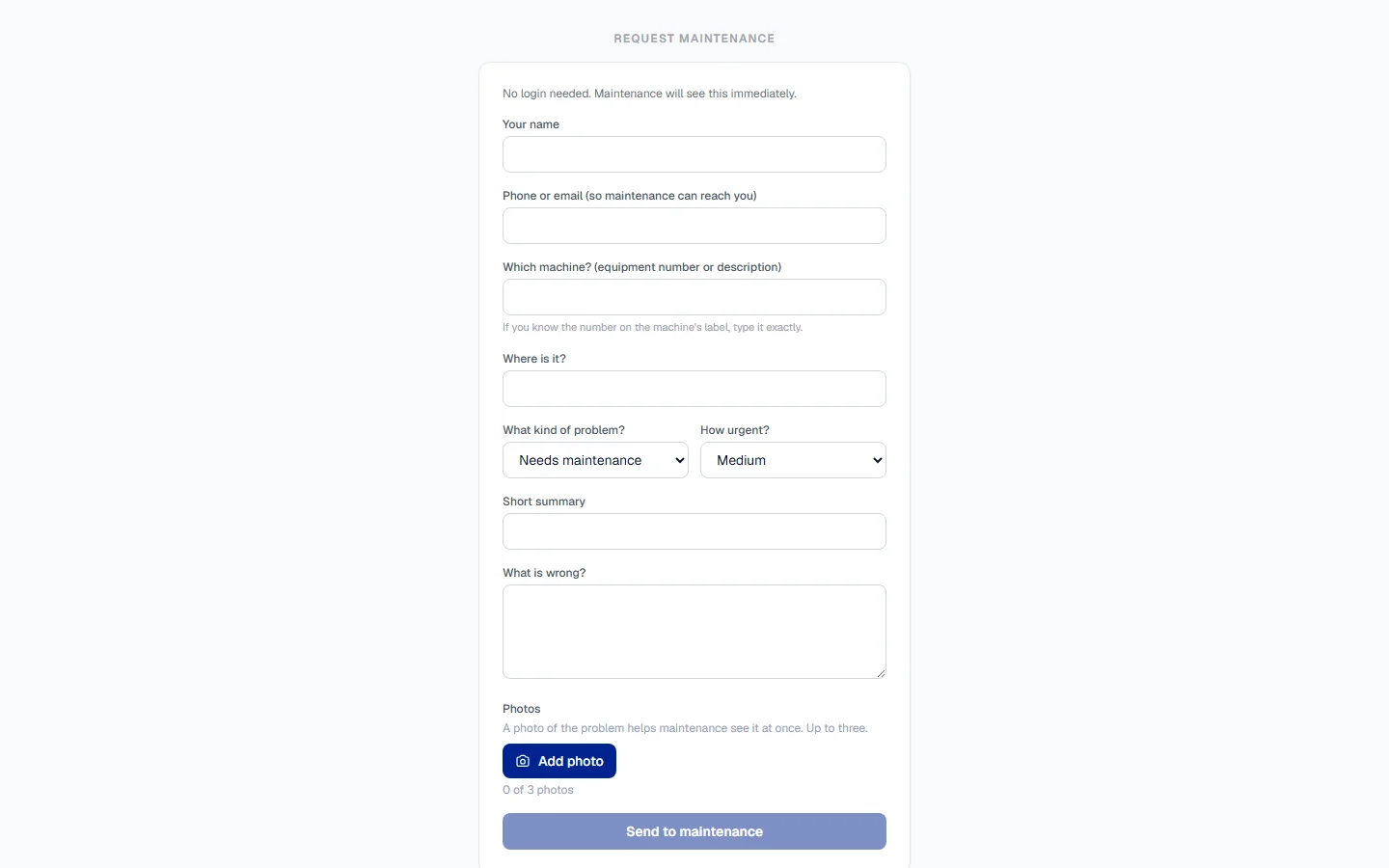
- Open the page. It is titled Request maintenance.
- Fill in Your name and, optionally, a phone number or email.
- Under Which machine? (equipment number or description), type the number on the machine's label exactly if you know it. Otherwise describe the machine.
- Fill in the rest of the form as above, and press Send to maintenance.
After sending: follow the request
The confirmation says Sent. Your request number is followed by the number, and shows a Check status link.
The status page shows the request number, the summary, the machine, when it was raised, its Status and its Outcome:
| Status | Outcome shown |
|---|---|
| Open | "Waiting for maintenance to review it." |
| Converted | That the request was accepted, with the number of the work order or breakdown it became. |
| Closed | The reason maintenance gave for closing it without work. |
The status page never shows who in maintenance made the decision.
Rules worth knowing
- Both doors are protected against abuse. The form may show a short verification check before it sends, and a device sending too many requests in a short time is asked to wait.
- Photos are attached as the request is sent. Nothing can be added after maintenance has triaged it.
- To report another fault, press Report another problem after sending, or on the status page.
Troubleshooting
| What you see | What to do |
|---|---|
| "This machine could not be found. The QR code may be out of date." | The label no longer matches a machine. Use the public request page and type the machine's number, and tell maintenance the label needs replacing. |
| "Too many requests from this device. Please try again later." | Wait a while and send again. |
| "Could not send the request. Please try again." | Check the phone's connection and press Send to maintenance again. |
| "Your request was sent, but 1 photo could not be uploaded." | The request reached maintenance without that photo. Describe what it showed in a new request if it matters. |
| "No request found for this link." | The link is incomplete or was copied from another company's address. Open the link exactly as it was given. |
| Send to maintenance stays greyed out | Fill in Your name, Short summary and What is wrong?, and complete the verification check if one is shown. |