
Add Locations and Sublocations
Create the places where work happens (Locations) and the areas inside them (Sublocations), so every machine can be placed where it actually is.
Every machine in Solmex belongs to a Location, and can be placed in a Sublocation inside it. Set these up before you add equipment, because the equipment form asks for them. If you are not sure what they are, read How Solmex is organised first.
Before you start
- To add or edit a Location you need the Locations: Edit permission. To add or edit a Sublocation you need Sublocations: Edit. Administrators have both.
- Decide a short code for each Location, such as
NQ-01orHOTEL-IST. The code must be unique in your company.
Open the Locations page
- Click your name at the bottom of the sidebar to open Settings.
- Open the Company Settings tab.
- In the Locations & Sublocations card, click Manage Locations & Sublocations.
The page shows one tree: each Location with its Sublocations underneath, and how many machines are in each.
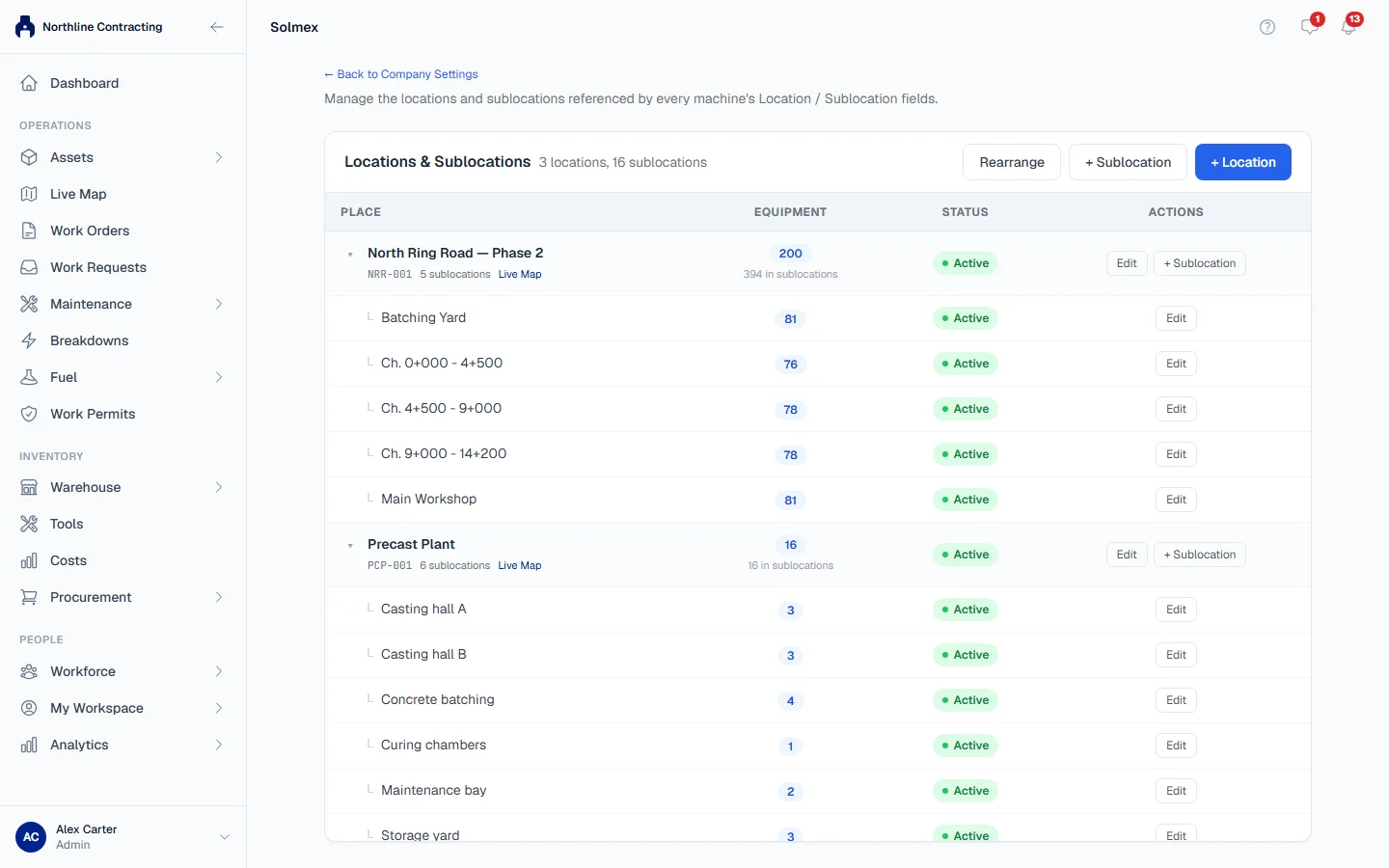
Add a Location
- Click + Location.
- Fill in Location Code and Location Name. Both are required.
- Optionally add the Client, a Start Date and an End Date (useful when a Location is a project with a fixed duration).
- Click Create Location.
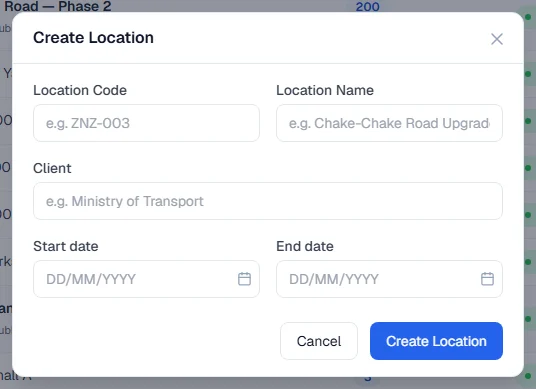
Add a Sublocation
- On the Location's row, click + Sublocation. (You can also use + Sublocation in the toolbar and choose the Location in Inside which location?)
- Type the Sublocation Name, for example "Workshop Bay 2" or "Main Yard".
- Click Create Sublocation.
Two different Locations can each have a Sublocation with the same name. Inside one Location, names must be different: "Yard A" and "yard a" count as the same name.
Move Sublocations to another Location
- Click Rearrange.
- Choose a new parent Location for each Sublocation you want to move.
- Click Save. Nothing moves until you save, and all the moves save together.
Locations themselves cannot be moved; only Sublocations can.
Retire a Location or Sublocation
Locations and Sublocations are never deleted, because past records still refer to them. To stop using one:
- Click Edit on its row.
- Switch the status to Inactive and save.
An inactive Location or Sublocation disappears from the pickers used for new records. Machines already in it keep their assignment, and Solmex warns you how many there are before you save.
Troubleshooting
| Message | What it means |
|---|---|
| "A Location with this code already exists" | Another Location already uses that code. Choose a different code. |
| "'…' is already a Sublocation of this Location" | That Location already has a Sublocation with this name (ignoring capitals and extra spaces). Use the existing one or choose another name. |
| You cannot see + Location | Adding a Location needs the Locations: edit permission and access to every Location. Ask an administrator. |
Next
Add equipment one machine at a time, or import your equipment from Excel.