
Filter, search and sort a list
Narrow any register in Solmex with the filter bar, search, column filters and sorting, and share exactly what you are looking at.
Most pages in Solmex are a list of records: machines, work orders, breakdowns, parts, purchase requests. They share one way of narrowing the list down, so once you have learned it on one page you know it everywhere. This article covers the filter bar, search, column filters, sorting and saved views.
The filter bar
Above the list is a single row of filter pills. Each pill carries an icon and the name of what it filters, such as Location or Status.
- Click a pill. A small window opens with the choices for that filter.
- Pick one or more values, or type a date range in From and To. Long lists have a Search… box at the top.
- Click Apply. The pill now shows what it holds, for example "Location · North Yard", and the list narrows.
To remove one filter, click the × on its pill, or open it and click Clear. To remove every filter at once, click Clear all at the end of the row.
The most used filters are always in the row. The rest wait behind Add filter: click it, type in Search fields… to find the one you want, and it joins the row as a pill. When several values are chosen, a pill says how many, such as "3 selected".
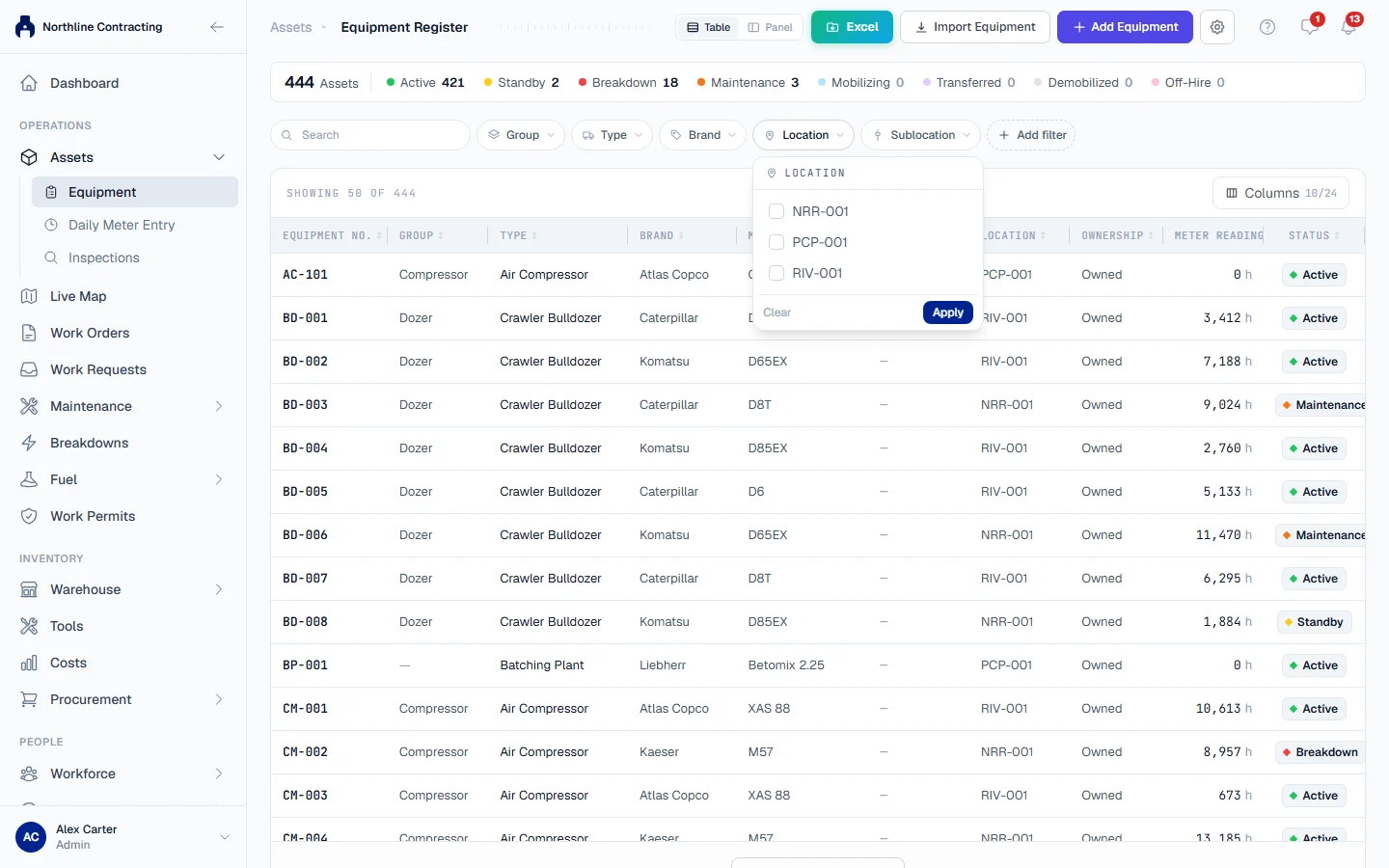
Search
The search box is the first thing in the filter bar. Type part of a number, name or description and the list narrows as you type. Search works together with the filters: a search for "pump" with the Location filter set finds the pumps in that Location only.
Filters in the column headings
On some pages, such as the Status tab of Daily Maintenance and of Preventive Maintenance, a column heading carries a small funnel. Clicking it opens the same choices as that column's pill in the filter bar. They are one filter with two ways in: set it in either place and both light up.
Sorting
Click a column heading to sort the list by that column. Click it again to reverse the order. Where a page offers a sort order of its own, such as most urgent first, it is the default until you choose a column.
The counts above the list
Many registers show a line of counts above the list, starting with a total. These counts usually also act as filters: on the Equipment Register, for example, clicking Standby shows only machines on standby. See Find machines on the Equipment Register.
Share what you are looking at
Your filters, search, sort and tab are part of the page's web address. That means:
- Copy the address from your browser and send it to a colleague: they open the same list, filtered the same way (as far as their own access allows).
- Bookmark a list you open every morning.
- Your browser's back button returns to the filters you had a moment ago.
Saved views
Some pages, such as Daily Maintenance and Fuel Management, let you save a set of filters under a name. Open Views, choose Save this view and name it. Pick it from Views later to apply it in one click. Saved views are kept in this browser only, so they do not follow you to another computer.
On a phone
On a narrow screen the filter row would hide most filters off the edge, so it changes shape:
- The search box takes a full row.
- A Filters button opens every filter on one screen. Change what you need, then press Done.
- The filters that hold a value appear below as chips you can remove one by one, with Clear all beside them.
Rules worth knowing
- Filters run on the whole register, not only the rows on screen. A long list loads in pages, but a filter or search looks through every record, and so do the counts and the Excel export.
- The export follows the filters. What the list shows is what the file contains. See Export to Excel.
Troubleshooting
| What you see | What to do |
|---|---|
| The list is empty and says nothing matches | A filter is still set. Look for pills holding a value and click Clear all. |
| A colleague's link shows fewer records than they see | You may be limited to certain Locations, or your role may not include part of the data. See Location access. |
| No matches in a filter's choices | Nothing in the list has that value. Clear the search inside the filter window. |