
Work a breakdown through to repair
Record a diagnosis, raise a repair work order, flag what is holding the repair up and say when the machine should be back. Solmex tracks each stage for you.
Once a breakdown is logged, its page guides maintenance from "what is wrong?" to "it is fixed". You never move a breakdown between stages by hand: Solmex works out the stage from what has been recorded, such as a diagnosis or a work order being started.
Before you start
- To record a diagnosis, raise a work order, set a blocker or set an expected return date, you need Breakdowns: Edit.
- To resolve or cancel a breakdown you need Breakdowns: Close.
- A logged breakdown. See Report a breakdown.
The stages
Open the breakdown from the Breakdowns page. The Resolution Progress panel at the top shows where it has got to, and the current stage says what to do next.
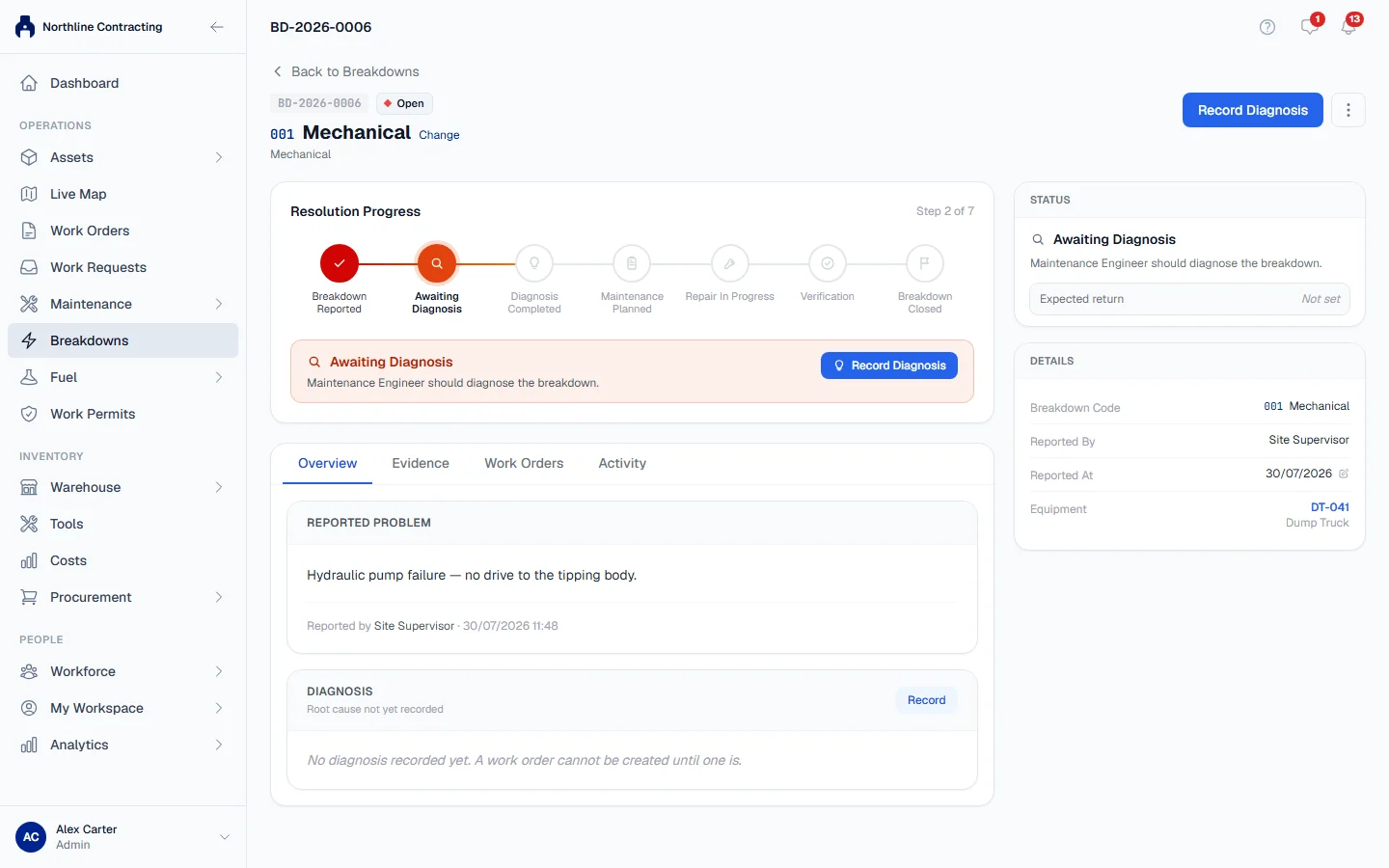
| Stage | What it means | Next action |
|---|---|---|
| Breakdown Reported | The breakdown was logged. | |
| Awaiting Diagnosis | Nobody has recorded what is wrong yet. | A maintenance engineer diagnoses the fault. |
| Diagnosis Completed | The cause is recorded. | Create and schedule a work order. |
| Maintenance Planned | A repair work order exists. | Start the work order. |
| Repair In Progress | The work order has been started. | |
| Verification | The work order is finished and waiting to be closed. | Check the repair and close the work order. |
| Breakdown Closed | The breakdown is resolved and the machine is back in service. |
The large button at the top of the page always offers the next step. Less common actions are in the More actions menu (the three dots).
1. Record the diagnosis
- Click Record Diagnosis.
- Describe the root cause and what you found.
- Click Save Diagnosis.
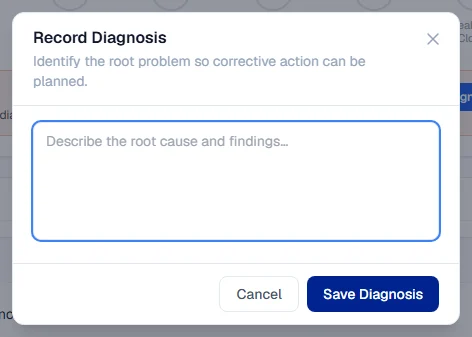
The stage moves to Diagnosis Completed. If you learn more later, use Update Diagnosis in the More actions menu.
2. Raise a repair work order
- Click Create Work Order. The button appears once a diagnosis is recorded.
- Check the Title. It starts as "Repair" followed by the machine number.
- Check the Description. It is copied from the reported problem.
- Set the Priority (High by default), the Scheduled Date, and who it is Assigned To.
- Tick Requires a Work Permit if the repair needs one. It is unticked by default; when ticked, work cannot start until a permit is issued and signed. See Work orders that need a work permit.
- Click Create Work Order. Solmex opens the new work order.
The work order is linked to the breakdown. You can see it on the breakdown's Work Orders tab. See The work order page.
3. Follow the repair
You carry out the repair on the work order itself. The breakdown follows it:
- When someone clicks Start work on the work order, the breakdown's status changes to In Progress.
- When the work order is finished, the breakdown moves to Verification.
- When the work order is closed, the breakdown is resolved automatically and the machine returns to service.
Say what is holding it up
If the repair is stuck, record why. This does not change the stage; it explains why the machine is still down.
- Click Set Blocker (after diagnosis it sits beside the main button; before that, it is in More actions).
- The Blocker dialog opens. Choose a Blocker: Waiting for Spare Parts, Waiting for Vendor, Waiting for Approval, Waiting for Equipment Availability or Waiting for Shutdown Window.
- Add a Note if it helps, such as an order number or a vendor's promised date.
- Click Save.
To clear it, click Change Blocker and choose None: no active blocker.
The repair work order has a blocker of its own: see Set and clear a blocker.
Say when the machine should be back
- In More actions, click Set Expected Return.
- Choose the Expected return date and click Save.
This is your estimate. It is not taken from the work order's scheduled date, which is when the repair starts. It appears on the Breakdown Status Report that goes to management. To remove it, leave the date empty and save.
Keep everyone informed
- Activity tab: click + Add Update to post a note, such as "Pump ordered, arriving Thursday". Every change made on the breakdown is also listed here with who made it.
- Evidence tab: add Problem Evidence photos while the repair is open, and Resolution Evidence photos once the breakdown is resolved.
Rules worth knowing
- The stage comes from the records, not from a dropdown. Nobody can mark a repair "in progress" without a work order actually being started.
- A blocker and an expected return date can only be set while the breakdown is open. On a finished breakdown they would describe a repair that is no longer happening.
- A cancelled work order does not count towards the stages.
Troubleshooting
| What you see | What to do |
|---|---|
| "No diagnosis recorded yet" in the Diagnosis card, and no Create Work Order button | A work order cannot be created until a diagnosis is recorded. Click Record Diagnosis first. |
| "Diagnosis is required." | Write something in the diagnosis box before saving. |
| "Cannot set a blocker: this breakdown is already resolved, so its record is final." (or the same message for another action) | The breakdown is already resolved, so it can no longer be changed this way. If the machine has failed again, log a new breakdown. |
| The action buttons are missing | You need Breakdowns: Edit (or Breakdowns: Close to resolve). Ask your administrator. |