
Help CenterMessaging and Notifications
Chat groups and moderation
Who can create team, department and custom groups, what owners and moderators can do, and how a chat administrator removes a message.
A chat group is a conversation for several people: a crew, a department, or a group gathered for a project. This article explains who can create each kind of group, how members and roles work, and how messages are moderated.
Before you start
Creating and managing groups depends on a chat role, given through the user's role in Settings. In the Roles page these are the Chat permissions:
| Permission | Shown in chat as | Can create |
|---|---|---|
| Chat: Administration | Project Admin | Any group, for any team or department |
| Chat: Department Admin | Department Admin | Department groups for their own department, and custom groups |
| Chat: Team Admin | Team Admin | Team groups for their own team |
| None of these | No groups. Direct messages only. |
A person's team and department come from their employee record, so a Department Admin or Team Admin needs to be linked to an employee who belongs to one. See Add and manage employees. For roles in general, see Roles and permissions.
Create a group
- In the chat panel, click New message, then choose Group. The New group window opens. You only see this choice if you may create at least one kind of group.
- Pick Team group, Department group or Custom group. Only the kinds you may create are offered.
- For a team or department group, choose it under Select team… or Select department….
- Type a Group name.
- Under Members, search and tick the people to add. Only people who may join are listed.
- Click Create group.
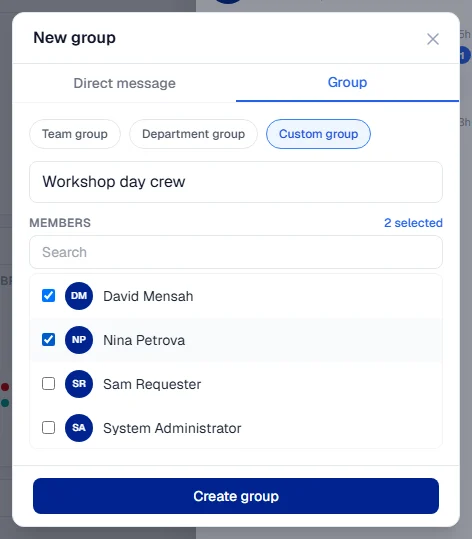
You become the group's Owner. Each member is told they were added by a notification.
Team chats that run themselves
Some team conversations are created by Solmex for each team on your organisation chart. Their Group info says they are a system team chat whose membership follows the team roster. People join and leave as they join and leave the team, so these groups have no owner and cannot be renamed, deleted or edited by hand. To change who is in one, change the team in Organisation structure.
Owners, moderators and members
Open a group and click Group info to see its members and their roles.
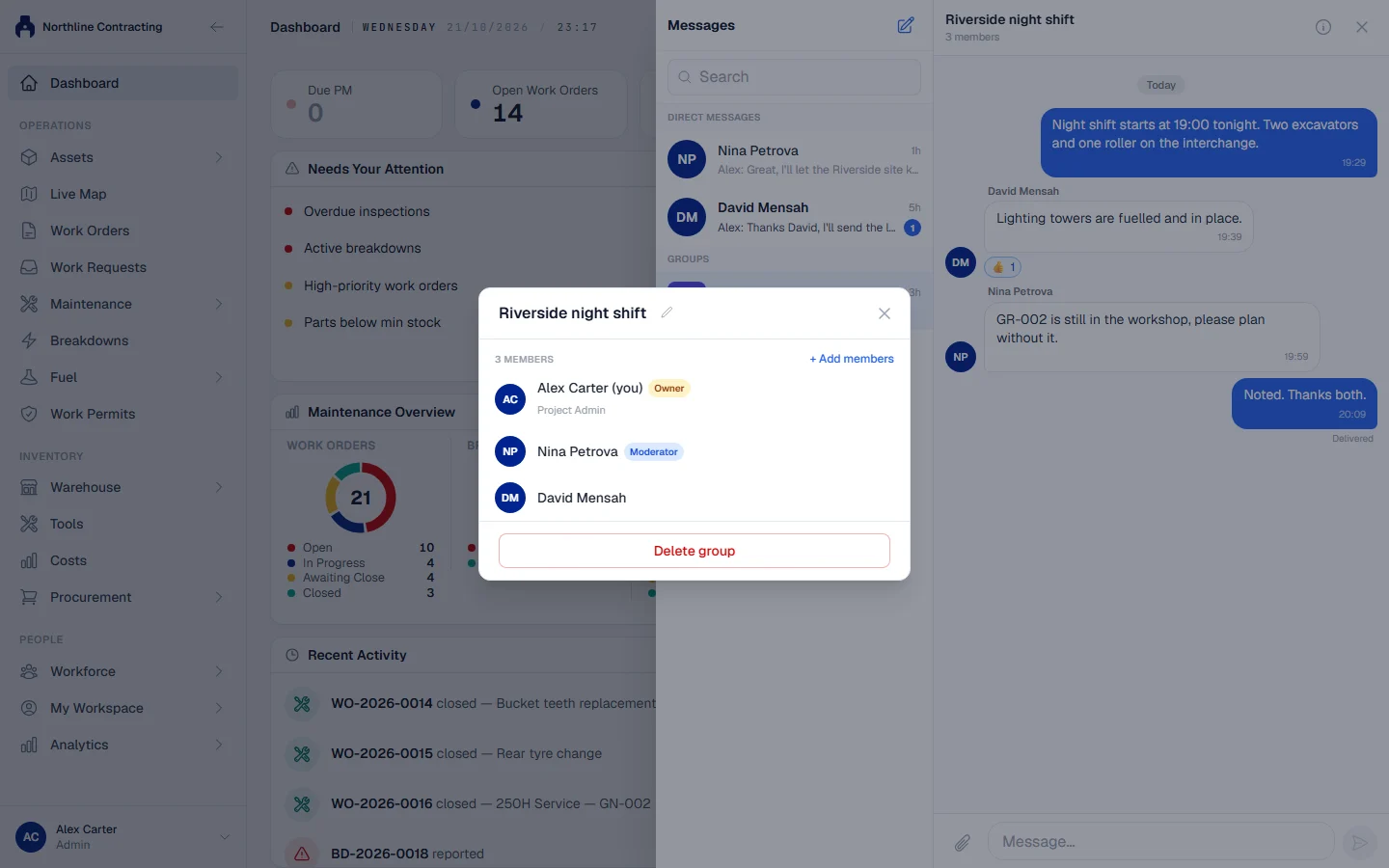
| Role | Can |
|---|---|
| Owner | Rename group, Make moderator or Remove moderator, Transfer ownership, add and remove members |
| Moderator | Add and remove members, if they also hold a chat role above |
| Member | Read and post |
A group has exactly one owner. Transfer ownership makes another member the owner, and you become an ordinary member. The new owner must already be in the group.
A Project Admin can do everything an owner can, in every group. A group is deleted with Delete group by a Project Admin, or by its owner when they still hold the chat role that let them create it. A deleted group disappears for every member, but its history is kept for your company's records.
If an owner leaves the company or loses their chat role, Solmex hands the group to someone who qualifies, so no group is left without an owner.
Remove a message
Chat administrators can take down another person's message:
- Open the message's actions and choose Remove message (moderation).
- Optionally type a reason. It is kept in the audit trail, not shown in the chat.
- Confirm.
The message is replaced with "Message removed by" and the moderator's name, so everyone can see it was taken down and by whom. The original is kept in your company's records.
Who may remove which messages:
- A Project Admin may remove any message.
- A Department Admin may remove messages from people in their own department.
- A Team Admin may remove messages from people in their own team, inside groups they own or moderate.
Nobody can remove a message from someone with the same or a higher chat role, except a Project Admin.
Troubleshooting
| What you see | What to do |
|---|---|
| No Group choice in New message | You hold no chat role that may create groups. Ask your administrator. |
| No team or department to choose | Your user is not linked to an employee in a team or department. |
| "Team groups may only contain members of that team" | Add only people from the group's team. |
| "Department groups may only contain members of that department" | Add only people from the group's department. |
| An error saying the owner cannot be removed | Use Transfer ownership, then remove them. |
| "New owner must already be a member of the group" | Add the person first, then transfer ownership. |
| "You cannot remove a participant of equal or higher organizational role" | Ask a Project Admin. |
| "You are not allowed to remove this message." | The sender's role is the same as or above yours, or they are outside your team or department. |