
Fuel Management
Read where your fuel is going, what it costs, which machines burn the most, and which entries deserve a second look, then export it as a report.
Fuel Management is the page you read rather than type into. It answers where the fuel is going, what it is costing, which machines burn more than they should, and which fill-ups need investigating. Nothing on it changes a record: corrections are made where the record lives, on the machine's Fuel or Meter Readings tab.
Before you start
- You need Fuel: View to open the page.
- The Excel and CSV exports need Fuel: Export or Analytics: Export. The Report (PDF) needs Fuel: Export.
Open the page and choose what to look at
- In the sidebar, open Fuel > Fuel Management.
- Choose a Period: Today, Yesterday, Last 7 days, Last 30 days, Last 90 days, Month to date, Quarter to date, Year to date, or Custom.
- Narrow it if you need to: by Location, Sublocation, Equipment Group, Equipment Type, Equipment Status, Owner, Fuel Station, Fuel Type, Filled By, Recorded By, department, or a search for one machine.
Every tab reads the same filtered set of fill-ups, so the figures on one tab always agree with the others. Each active filter shows as a chip you can remove. The filters live in the page address, so you can bookmark a view or send the link to a colleague.
To keep a view you use often, click Save this view and give it a name. Saved views are kept in your browser.
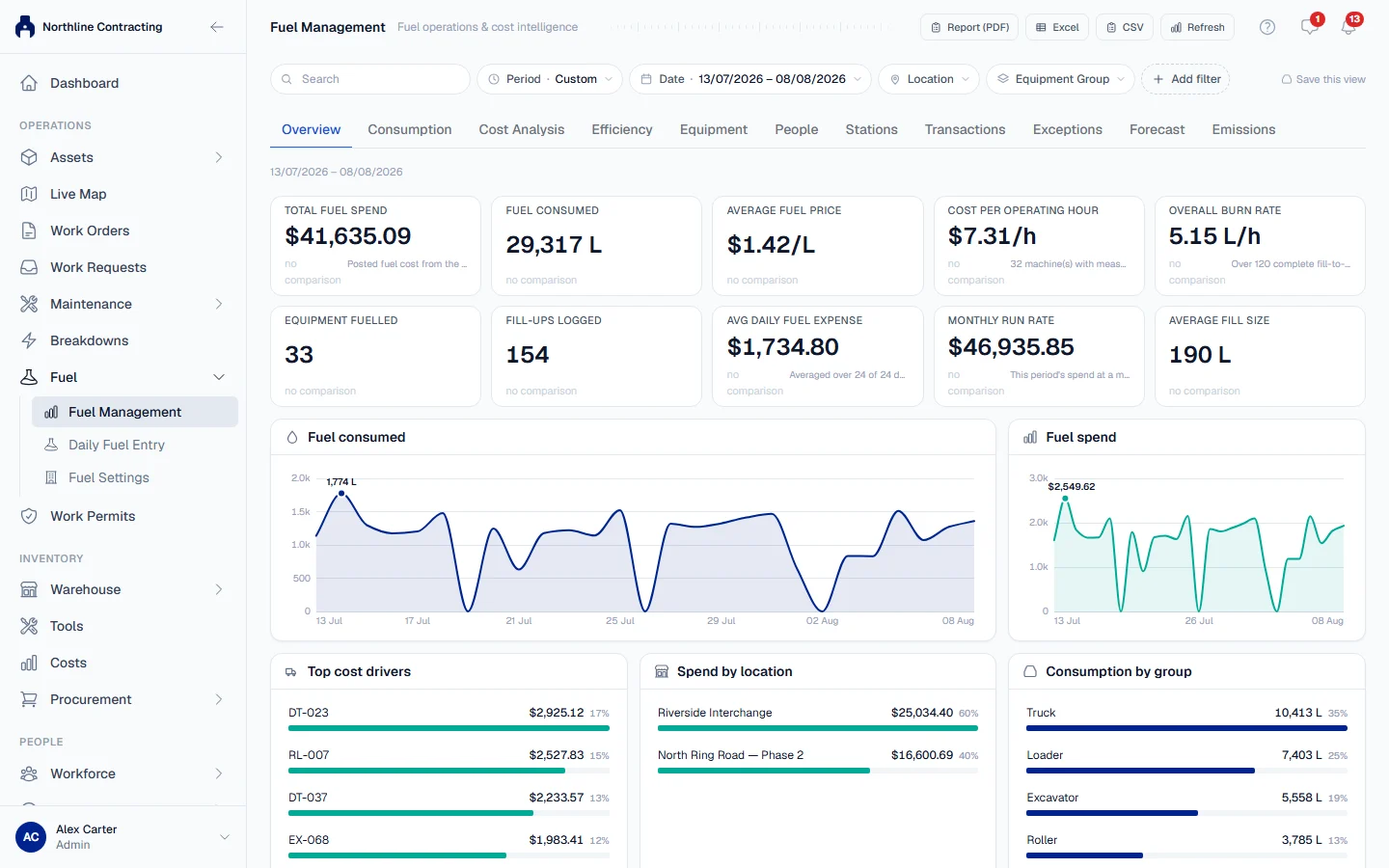
The tabs
| Tab | What it shows |
|---|---|
| Overview | Headline figures, trends, fuel mix, top cost drivers and recent exceptions. |
| Consumption | Where the litres went: by group, type, Location, station, attendant and day of the week. |
| Cost Analysis | Where the money went, from the Costs ledger, with the price per litre over time. |
| Efficiency | Litres per hour or per 100 km, and cost per operating hour, against each group's own median. |
| Equipment | One row per machine: fill-ups, litres, spend, last fill and last station. |
| People | Fuel attendants, recorded on each fill-up, and assigned operators, attributed from the machine. |
| Stations | Volume and price per station, and stations whose price drifts from their listed price. |
| Transactions | Every fill-up in the period. Click a row to open its detail. |
| Exceptions | Findings worth investigating, and how complete your fuel records are. |
| Forecast | A projection of spend and volume from the period's trend. |
| Emissions | Estimated CO₂e from litres burned. |
Exceptions
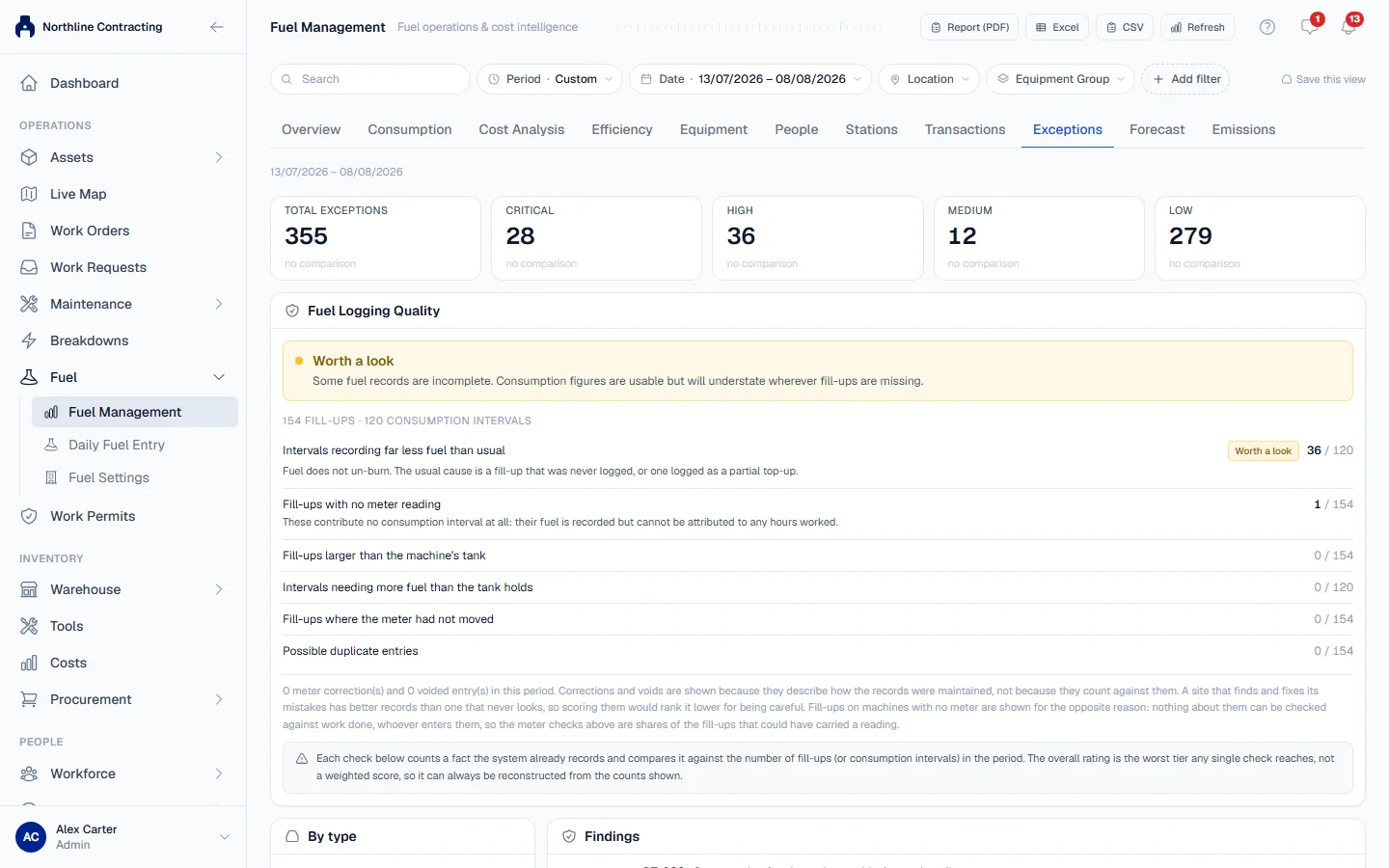
The Exceptions tab lists fill-ups that look wrong, each with a sentence saying what was found. Examples include consumption far above the machine's own baseline, a fill larger than the machine's tank, fuel logged against an off-site machine, a possible duplicate entry, a meter that did not move between fills, a price well above the period median, and a fill-up with no cost recorded.
They are things to investigate, not verdicts. A night-shift generator really does fuel at 03:00. Nothing here can be dismissed or marked resolved; a finding disappears when the record behind it is corrected.
The tab also lists the Checks that cannot be made here, and why, such as impossible travel between fills or a missing receipt. Solmex records no GPS trace with a fill-up and no receipt image, so it does not pretend to check them. The tank check is also listed there: a fill larger than the tank can only be caught on machines whose record states a Fuel Tank Capacity, so machines without one are not checked against their tank.
Fuel Logging Quality
At the top of the tab, Fuel Logging Quality says whether the period's fuel history is complete enough for its consumption figures to mean anything. It is rated Sound, Worth a look or Unreliable, and the rating is simply the worst result of any single check, shown beside the counts it comes from. A period with fewer than five fill-ups is not rated. Voided entries and meter corrections are counted for context but never lower the rating, because they are mistakes put right.
Showing amounts in USD
If your company's currency is not USD, Convert to USD shows every amount on the page in US dollars at the current rate. The button is greyed out when no rate could be fetched. Your records stay in your company's currency; the conversion is for reading only, and your browser remembers your choice for this page.
Exports
- Excel asks which columns to include, then downloads the fill-ups in the current view.
- CSV downloads the same, with every column.
- Report (PDF) produces an A3 management report for the current period and filters: an executive summary, charts, insights, exceptions, a ranking of machines, Location and station summaries, the transaction register and an appendix explaining how every figure was worked out.
Rules worth knowing
- Spend comes from Costs. A fill-up with no posted cost adds nothing to spend, and the page says how many such fill-ups there are.
- Voided fill-ups never count.
- Monthly Run Rate is the period's spend at a monthly rate: the average spend per day in the period, multiplied by the length of an average calendar month. There is no working days setting behind it.
- A machine that burned fuel but cannot be measured is listed, not dropped, with the reason. See Fuel consumption figures.
- The Forecast needs at least 14 days of history in the period. It is arithmetic on the trend, not a prediction of planned work.
Troubleshooting
| What you see | What to do |
|---|---|
| "The export could not be generated" with a note about the permission | Your role does not include Fuel: Export. |
| "The export could not be generated" otherwise | Try a narrower period, or retry in a moment. |
| "Not enough history in this window to draw a projection" | Choose a period of at least 14 days. |
| No Excel, CSV or Report (PDF) button | Your role does not include the export permission. |