
Show one Location on the dashboard
Narrow the dashboard to a single Location, and what the dashboard shows to a user who is limited to some Locations.
When your company works across several Locations, the dashboard can show the figures for all of them together or for one Location at a time. A site manager can then read their own site's breakdowns, overdue work and fuel without the rest of the company mixed in.
Before you start
- The Location selector appears only when your company has more than one active Location. With a single Location there is nothing to choose.
- An administrator can limit a user to some Locations. If that applies to you, read If you are limited to some Locations below. Limits are set as described in Limit a user to Locations.
Show one Location
- Open the Dashboard.
- Click the Location selector at the top of the page. It reads All locations when nothing is chosen.
- Pick a Location from the list. The button is highlighted and shows the Location's name, and every widget reloads with that Location's figures.
- To go back to the whole company, click the cross beside the Location's name (Show all locations), or choose All locations from the list.
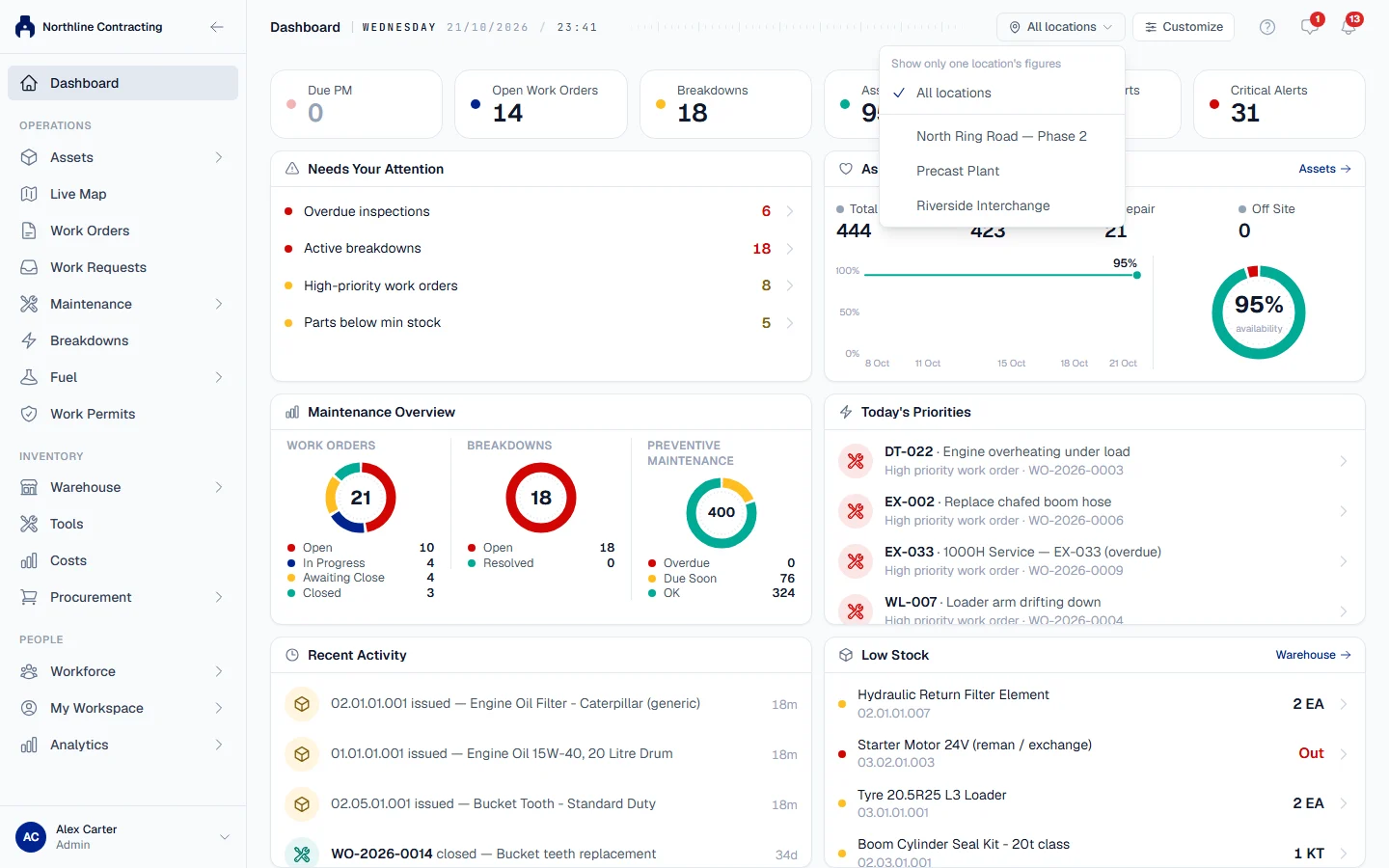
Your choice is part of the page address, so a link you copy opens the dashboard on the same Location. Solmex also remembers it in your browser for next time.
Which records count for a Location
A record belongs to a Location when its machine belongs to that Location today. So a work order, a breakdown, a fill-up or a PM counts under the Location the machine is registered to now, even if it was raised before the machine moved. Records that name a Location themselves, such as work permits and employees, count under the Location they name.
What changes while one Location is shown
Some figures cannot be split by Location, and the dashboard says so rather than showing a company-wide number as if it were the site's:
- Stock is not held per Location. The Low Stock widget keeps showing the whole company and says All locations: stock is not held per location. In Key Metrics the tile becomes Low stock (all) and is left out of Critical Alerts.
- Tools are not assigned to a Location. The Tools widget says All locations: tools are not assigned to a location.
- The 14-day availability chart in Asset Health covers every Location, so it is hidden and replaced by The trend covers all locations, so it is hidden while one location is shown.
- The day-to-day arrows under the Key Metrics tiles are not shown, because yesterday's figures were kept for the whole company only.
If you are limited to some Locations
- The selector lists only your Locations, with no All locations choice and no cross. The dashboard always shows one of them, starting with the first.
- If you have exactly one Location, its name is shown as a fixed label instead of a menu, so you always know what you are looking at.
- Stock and tools figures are not shown to you at all, because they cover every Location. The widgets say Stock is held for all locations, so it is not shown to users limited to some locations. and the same for tools.
Troubleshooting
| What you see | What to do |
|---|---|
| No Location selector | Your company has only one active Location, so there is nothing to choose. |
| "You have been limited to Locations that no longer exist, so the dashboard has nothing to show. Ask an administrator to give you access to a Location." | Your Locations were archived. Ask an administrator to give you a current one. |
| A Location is marked Archived in the list | It was archived after you chose it. Pick an active Location. |