
Create inspection templates
Build the checklist an inspector fills in, say how often it is due by calendar or by meter, and choose which equipment type it applies to.
An inspection template is the checklist an inspector works through at the machine, plus how often it is due. Every inspection starts from a template, and the template decides which machines appear on the Due list.
Before you start
- To create, edit, duplicate or deactivate templates you need Inspections: Templates. Anyone with Inspections: View can read them.
- If the template is for one kind of machine, at least one machine of that type should be on the register. See Add equipment.
Create a template
- In the sidebar, open Assets > Inspections.
- Open the Templates tab.
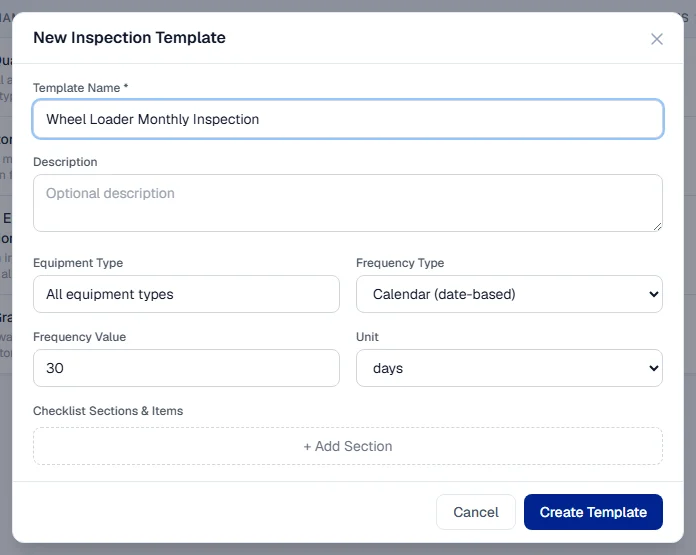
- Click + New Template. The New Inspection Template form opens.
- Type a Template Name, such as "Excavator Monthly Inspection". This is required.
- Optionally add a Description.
- Under Equipment Type, choose the type of machine the template is for, or leave All equipment types to apply it to every machine.
- Choose the Frequency Type: Calendar (date-based) or Meter (hours/km-based).
- Enter the Frequency Value and choose the Unit. Calendar templates count in days or months; meter templates count in hours or km.
- Under Checklist Sections & Items, click + Add Section and give the section a name, such as "Engine".
- Click + Add item, type the Checklist item description and choose its response type. Repeat for every check in the section.
- Add more sections as needed, then click Create Template.
The template appears on the Templates tab and is active straight away.
Response types
Each checklist item asks for one kind of answer:
| Response type | What the inspector does |
|---|---|
| Pass / Fail | Marks the item Pass or Fail. A failed item offers + Log Finding. |
| Checkbox | Ticks the item as Checked. |
| Text | Types a short answer. |
| Numeric | Enters a measured value, such as a pressure or a temperature. |
| Multiline | Writes a longer note on its own line. |
Use Pass / Fail for anything that can be wrong with the machine. It is the only type that leads straight to a finding, and the printed report counts failures from it.
Calendar or meter
- Calendar templates fall due a set number of days or months after the last completed inspection, for example every 30 days.
- Meter templates fall due after the machine has run a set number of hours or km since the last completed inspection, for example every 250 hours.
A machine that has never been inspected is not overdue on day one. Its first cycle is counted from when it arrived, or from zero on the meter. See See which inspections are due.
Manage existing templates
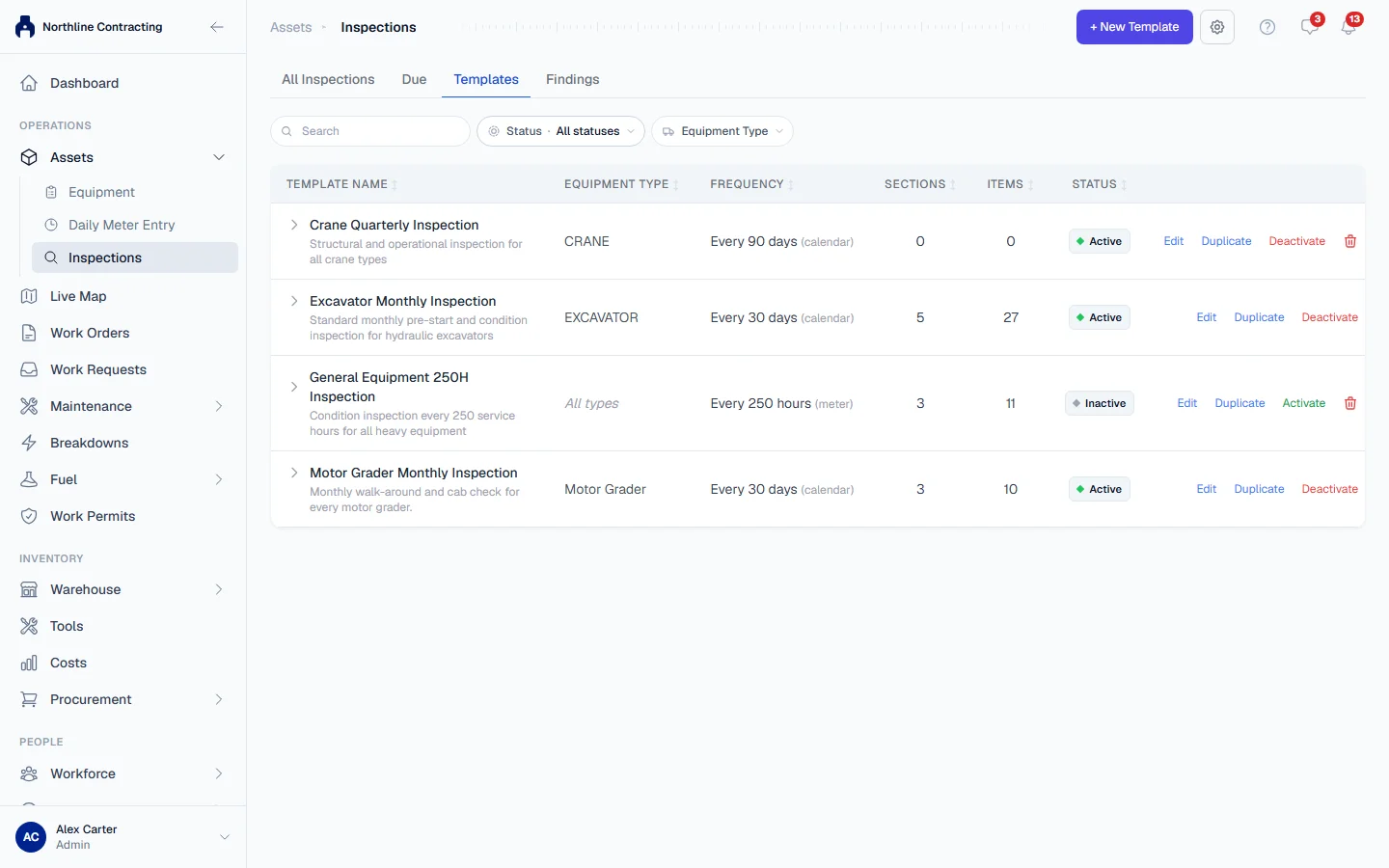
On the Templates tab, each row has these actions:
- Edit: change the name, frequency, equipment type or checklist.
- Duplicate: make a copy to adapt, for example for a second machine type.
- Deactivate: stop the template being offered for new inspections and stop it scheduling anything. Activate brings it back.
- Delete: only offered for a template that has never been used.
Click a row to expand it and see its sections and items.
Rules worth knowing
- Equipment type must match the register. A template is offered for machines whose type matches its Equipment Type. If no machine on the register carries that type, the form shows "not in the register" beside it, and the template will not schedule any inspection until you register a machine of that type.
- Meter templates use the machine's main meter. On a machine with both an hourmeter and an odometer, the hourmeter is the one the due list counts.
- A meter template needs a meter reading. A machine with no current reading never appears on the due list for a meter template.
Troubleshooting
| What you see | What to do |
|---|---|
| "Template name is required" | Type a Template Name before saving. |
| "No machine in the register carries this equipment type, so this template will not schedule any inspection." | Pick a type the register holds, or add a machine of this type. |
| "… has been used by … inspections and cannot be deleted. Deactivate it instead to stop it being offered." | Click Deactivate instead. |
| "… is planned on … maintenance schedules and cannot be deleted." | The template is scheduled for maintenance planning. Click Deactivate instead. |
| + New Template is missing | You need Inspections: Templates. Ask your administrator. |