
Record the work done
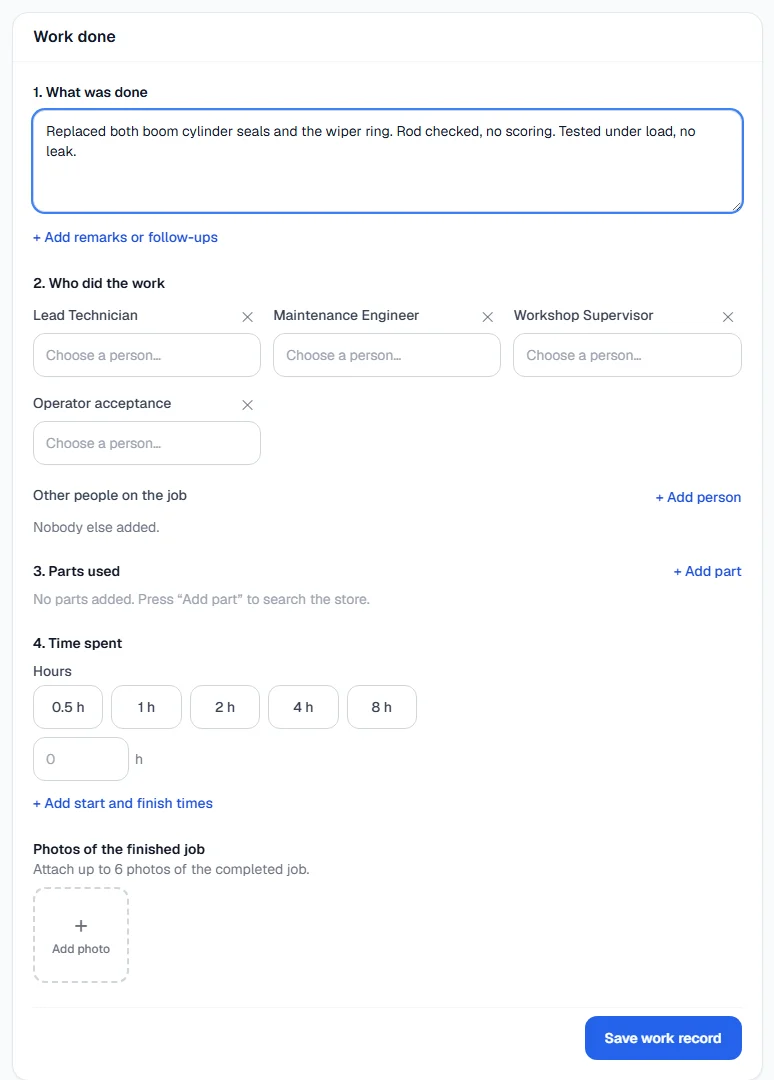
Fill in the Work done section of a work order: what was done, who did it, the parts used, the time spent and photos of the finished job.
The Work done section at the bottom of a work order is the record of carrying the job out. It is what the machine's history will show later: what was done, by whom, with which parts and in how long. Once it is signed off, it is locked.
Before you start
- You need Work Orders: Execute to save the work record. Work requesters can hold it, so technicians do not need a full seat.
- The people you name come from your company's employee list, so they must be added there first.
- Parts are chosen from your warehouse stock.
Fill in the record
Open the work order and scroll to Work done, or press Record work done at the top. On a work order with no record yet, the section opens as a blank form.
- Under 1. What was done, describe the work carried out. Click Add remarks or follow-ups for anything still to do, parts to order, or notes for the next service.
- Under 2. Who did the work, choose a person for each sign-off role your company uses, such as the lead technician or supervisor. Remove an optional role this job does not need, or add one back with + Add sign-off role.
- Still under 2., click + Add person to list anyone else who worked on the job under Other people on the job.
- Under 3. Parts used, click + Add part and search the store by code or name. The description and unit come from the part; enter the Qty.
- Under 4. Time spent, press one of the hour buttons or type the hours. To record when the job ran, click Add start and finish times, fill in Started and Finished (or press Now), and press the Use button to copy the time between them into the hours.
- Under Photos of the finished job, add up to six photos.
- Click Save work record.
The section now shows what you saved, with a record number in small print, such as JC-2026-0001. Click Edit to change it while it is still open.
What happens next
Each person named under Who did the work signs in the Signatures boxes below. When everyone required has signed, the work is finished with Finish & sign off. See Sign off a work order.
You can print the record at any time: Print record before it is signed, Print signed record after.
Rules worth knowing
- A person appears on the record once, either in one sign-off role or once among the other people on the job.
- Parts leave the store when the work is finished, not when you save. Until then you can add, change or remove them freely. Finishing issues them from stock and records their cost against the machine.
- Saving does not finish the job. You can save the record as many times as you like while the work goes on.
- A finished record is locked. To correct it, someone with Work Orders: Execute reopens it with a reason. See Close, cancel or reopen work.
Troubleshooting
| What you see | What to do |
|---|---|
| "No sign-off roles are configured. Set them up from the gear on the Work Orders page." | Your company has no sign-off roles yet. An administrator adds them: see Configure sign-off roles. |
| "The same person cannot be added twice" | Remove the person from one of the places they appear. |
| "Up to 6 photos." | Remove a photo before adding another. |
| "Finish is earlier than start." | Correct the Started or Finished time. |
| "Failed to save the work record." | Check your connection and save again. If it repeats, your role may not include Work Orders: Execute. |
| A person you need is not in the list | They are not on the employee list, or are inactive. Ask whoever manages employees to add them. |