
Print the Inspection Report and Finding Action Cards
Download the signed Inspection Report for one inspection, or print open findings as large cards to pin on a workshop wall.
Solmex prints two different documents from inspections. The Inspection Report is the full, signed record of one inspection, for filing. Finding Action Cards put one open finding on a sheet of paper, large enough to read from across a workshop, with a box to tick when the work is done.
Before you start
- Inspections: View is all you need for both documents. They show nothing you cannot already see on screen.
- Both download as PDF files.
Download the Inspection Report
- In the sidebar, open Assets > Inspections.
- Open the inspection.
- Click Export PDF. The report downloads.
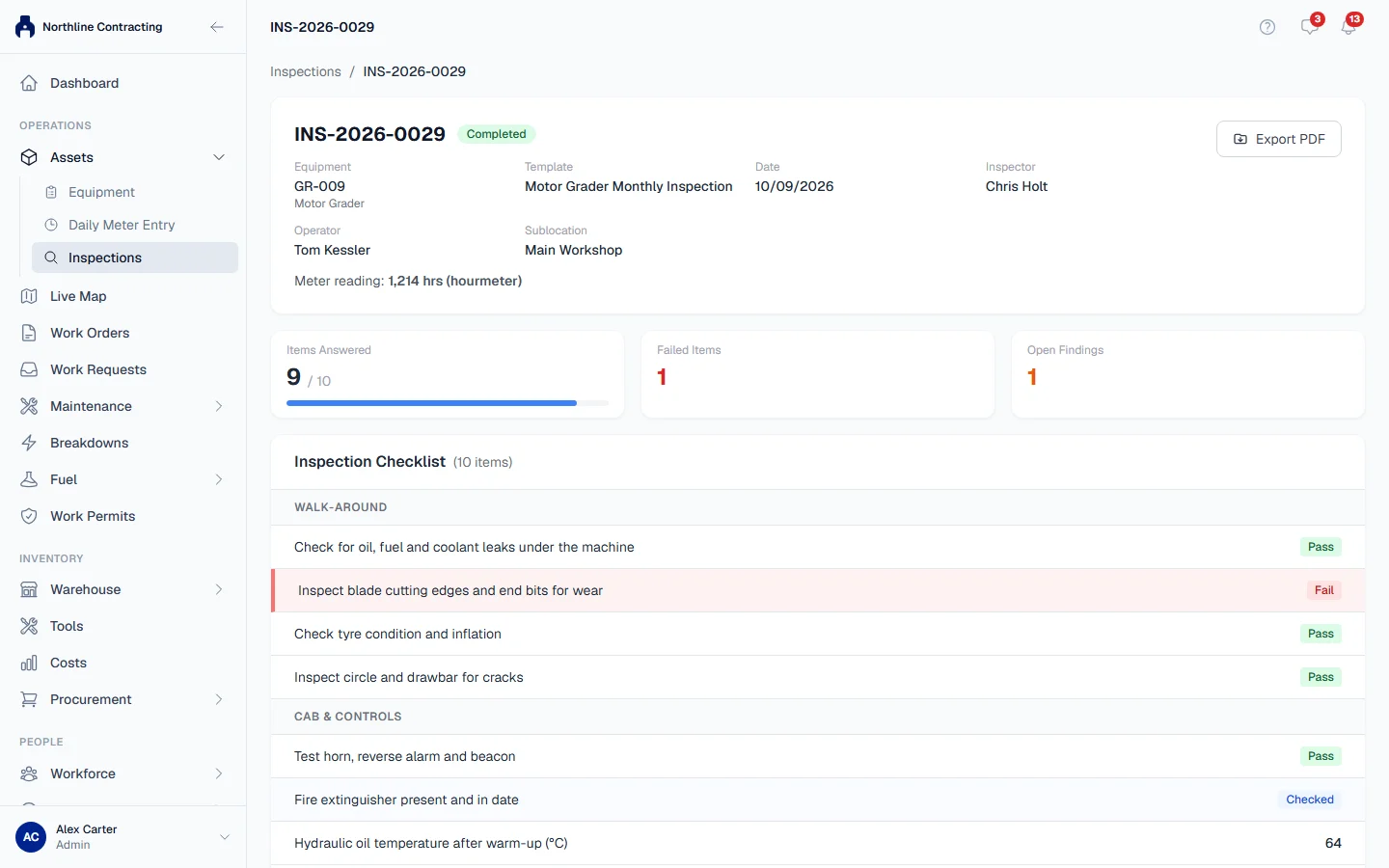
You can export a draft too, for example to walk round the machine with a printed sheet. It carries a DRAFT banner saying the answers can still change.
What the report shows
- The machine and the inspection: equipment details, the template, the date, the inspector, the Sublocation inspected in, the Operator and the meter readings, each named as hourmeter or odometer.
- The overall result, with the counts it was worked out from.
- Every checklist item with its answer, not only the failures.
- Every finding with its severity, description, recommendation and photos.
- The sign-off: the inspector's drawn signature, or Not signed, followed by blank ruled lines for anyone who countersigns the paper copy.
- Notes on this report: what Solmex does and does not record, so nobody reads more into the document than it says.
The overall result
| Result | When |
|---|---|
| ATTENTION REQUIRED | At least one item was marked Fail. |
| INCOMPLETE | Nothing failed, but some items were left unanswered. |
| PASS | Every item was answered and none failed. |
| NO CHECKLIST | The template has no checklist items. |
Two sublocations, on purpose
The report shows the Sublocation inspected in, which is where the inspection found the machine, and the Registered sublocation (current), which is where the register says it is today. An inspection from March keeps saying where the machine was in March, even after it has moved. When the two differ, the report says the machine has been seen elsewhere since.
Print Finding Action Cards
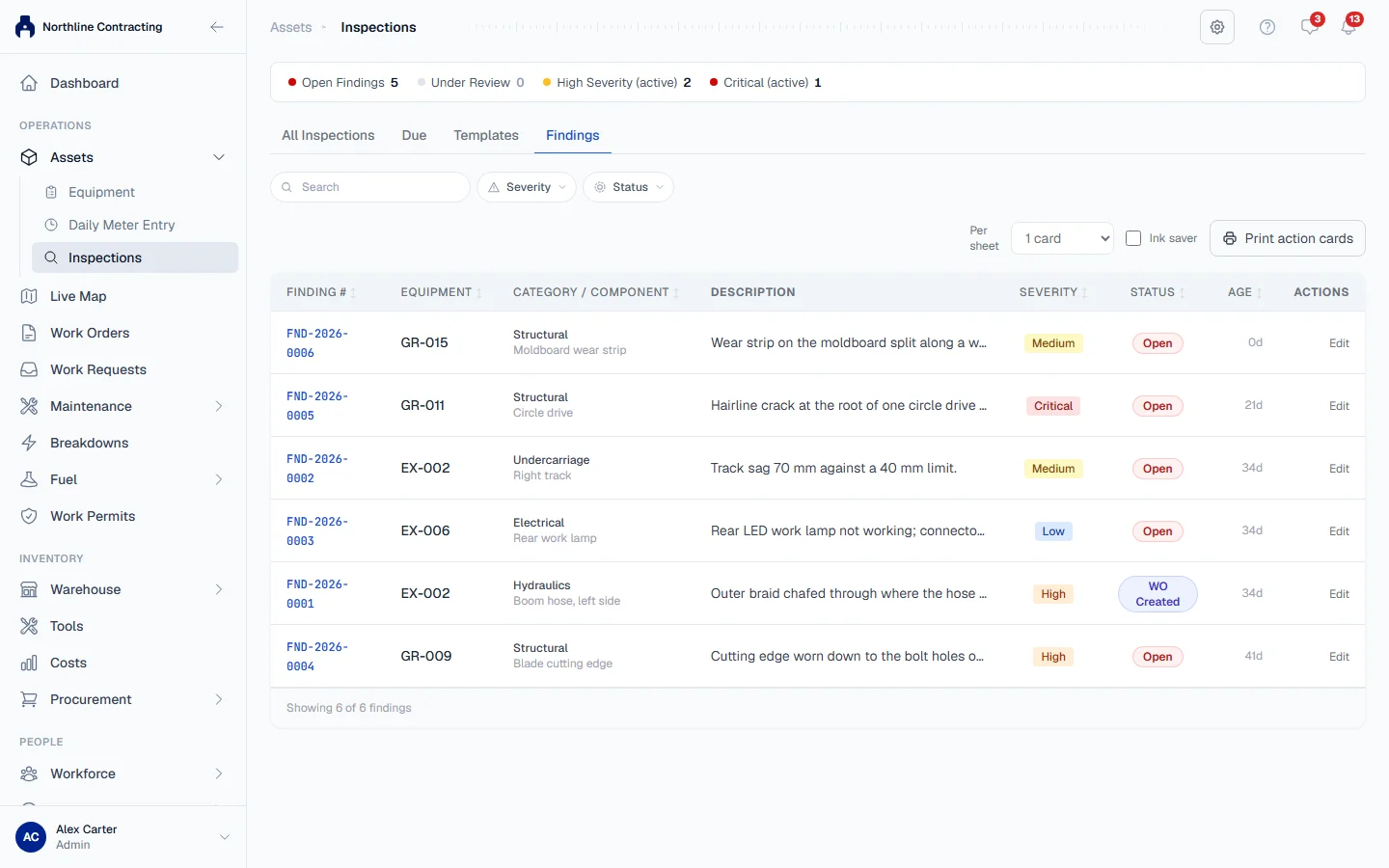
- In Assets > Inspections, open the Findings tab.
- Use the severity and status filters to choose which findings to print.
- Under Per sheet, choose 1 card or 2 cards.
- Tick Ink saver if you want to save toner. See below.
- Click Print action cards. The PDF downloads; print it and pin the cards up.
Each card shows the severity in large type, the finding number, the machine number with its make and model, the category and component, the problem, its photos, what to do and a large tick box. The inspection number, who reported it and when, the status and any work order are in small print along the bottom.
Which findings are printed
- Only findings that are still open, unless you filter by a closed status by name. A finished finding has nothing left to tick.
- Worst first: cards are ordered by severity, then oldest first, so the oldest critical finding comes off the printer first.
- Up to 90 cards in one run.
- The search box is not applied. Only the severity and status filters are.
A last sheet states the filters used, how many cards were printed, and anything left out.
One or two cards per sheet
1 card gives each finding a full A4 sheet, with up to four photos. 2 cards puts two findings on a sheet, with up to two photos each, to cut along the middle. Very long descriptions are shortened to fit, and the card says so and names the finding to read in full.
Your choice is remembered in this browser for next time.
Ink saver
Ink saver prints each card in black only and lightens the photo: about a quarter less toner and two thirds less coloured ink. Every card says at its foot that it was printed this way.
Photos on a card
Cards show the photos of the problem. If a finding has only resolution photos, those are shown instead and the caption says so. Photos that do not fit are counted on the card rather than dropped silently.
Troubleshooting
| What you see | What to do |
|---|---|
| "The report could not be generated. Please try again." | Try Export PDF again. If it keeps failing, contact support with the inspection number. |
| "Could not generate the action cards." | Try again. If it keeps failing, narrow the filters and contact support. |
| A closed finding is not printed | Closed findings are left out. Filter by its status, such as Deferred, to print it. |
| More cards than rows on screen | The search box is not applied to the cards. Use the severity and status filters instead. |