
How Analytics works
The Analytics pages, what each one answers, how their filters and period work, and how to export what you see to Excel.
Analytics is where you look back over a period: how many work orders were raised and closed, whether PM was done on time, what parts and money went where, and how reliable your equipment was. Every page works the same way, so once you know one you know them all.
Before you start
- You need Analytics: View. Each page also needs the permission of the module it reports on, listed below. A page whose module you cannot read is not shown in the sidebar, and opening its address tells you which permission is missing.
- To export a page to Excel you also need Analytics: Export. Without it the pages open as usual, with no Excel button.
- Analytics is included in the Business plan. See Plans, the free trial and seats.
The pages
In the sidebar, open Analytics. You see the pages your role can open:
| Page | What it answers | Also needs | Read more |
|---|---|---|---|
| Work Order Report | How many work orders, of which type and priority, how fast they were completed and closed. | Work Orders: View | Work order and maintenance history reports |
| PM Compliance Report | Were services done when they fell due, and which machines are overdue. | Preventive Maintenance: View | PM and work permit compliance reports |
| Equipment Maintenance History | Every maintenance event in the period, and one machine's full timeline. | Nothing extra | Work order and maintenance history reports |
| Breakdown Analysis Report | Availability, time between failures, repair time and the causes behind downtime. | Breakdowns: View | Breakdown Analysis |
| Spare Parts Consumption | Where parts and lubricants went, by category, part, machine and maintenance type. | Warehouse: View | Cost and spare parts reports |
| Work Permit Compliance | How many permits were issued, and whether they were closed before they ran out. | Work Permits: View | PM and work permit compliance reports |
| Cost Report | What was spent, by category, source, machine and Location. | Costs: View | Cost and spare parts reports |
| Tracking Meters | How a tracked value, such as pressure or pH, moved on each machine against its expected range. | Nothing extra | Tracking meter analytics |
| Automatic Reports | Reports Solmex generates and emails on a schedule. | Analytics: Schedule | Automatic reports |
Choose the period and filters
- Open a page. It opens on the last 30 days the first time.
- Change the Date Range to the period you want. It is required: every figure on the page is for that period.
- Narrow the report with the filters in the bar, such as Location, equipment, status or priority. Click Add filter for the ones not shown.
- To remove one filter, click the cross on it. To go back to the last 30 days with no filters, clear them all.
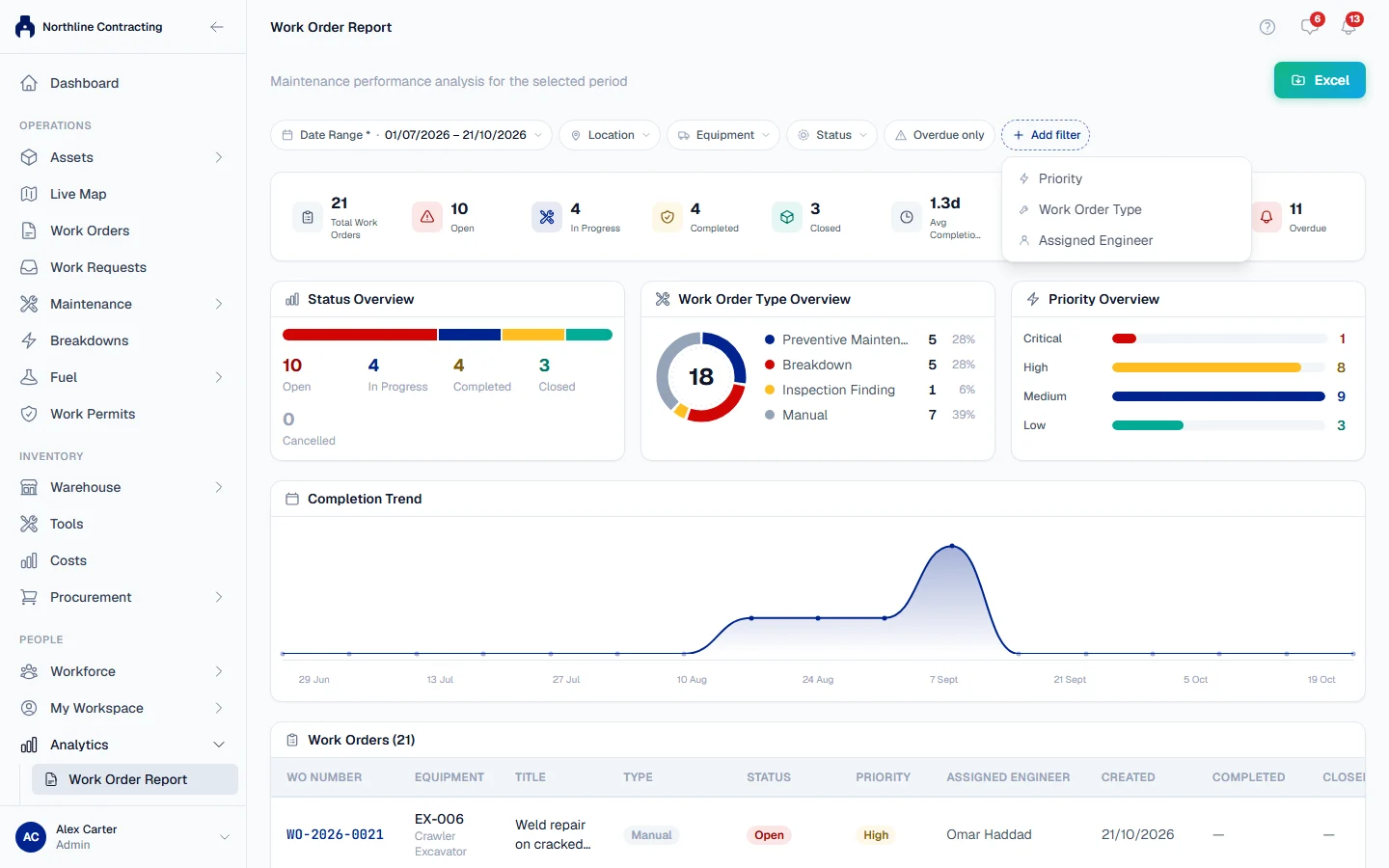
The figures, charts and the register at the bottom all follow the same filters, so the cards never describe one set of records and the table another.
Share or bookmark a view
On every page, the period and filters are written into the page address. Copy the address and send it, and the other person opens exactly the same view (with the figures their own permissions allow). The back button steps back through your filter changes.
Each report page, apart from Tracking Meters, also remembers your last filters in your browser. The next time you open it with no filters in the address, it picks up where you left off, with the end date moved forward to today.
Export to Excel
This is how the reports pages export. Tracking Meters has its own export, described in Tracking meter analytics.
- Set the period and filters.
- Click Excel at the top of the page. The button is there only if your role has Analytics: Export.
- In Export to Excel, untick the columns you do not want under Columns to export and drag the rest into the order you want.
- Click Export Excel. The workbook downloads, with a summary sheet in front of the register and your company's name and the period at the top.
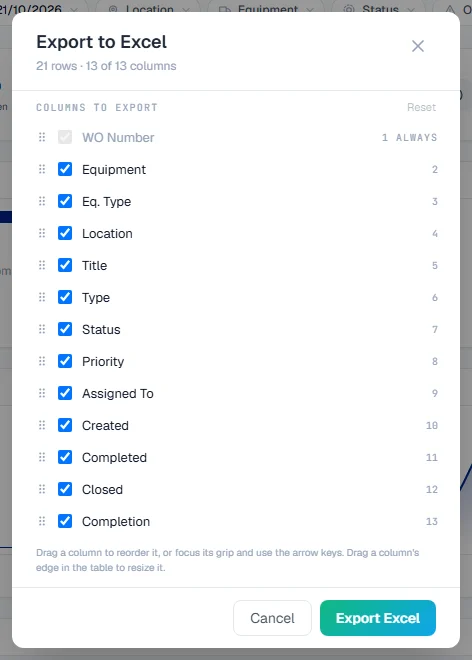
The file holds every row the filters match, not only the rows loaded on screen. The Excel button is greyed out while there is nothing to export.
Open the record behind a row
Most registers link to their records: click a row to open the work order, machine or permit it describes. Use your browser's back button to return to the report with your filters in place.
Troubleshooting
| What you see | What to do |
|---|---|
| "Failed to load report." | Your role may lack the module permission the page needs (see the table above). Ask your administrator. If you have it, reload the page. |
| "No data for this period." | Nothing was recorded in the period. Widen the Date Range. |
| A message that no records match the current filters | Your filters exclude everything. Clear some of them. |
| "Excel export failed. Please try again." | The workbook could not be built. Try again; if it keeps failing, narrow the period. |
| No Excel button | Your role does not include Analytics: Export. Ask your administrator. |
| A page from the table above is missing from the sidebar | Your role lacks the module permission in the Also needs column. Ask your administrator. |
| Analytics shows a lock in the sidebar | Your plan does not include Analytics. See Plans, the free trial and seats. |