
Help CenterManaging Purchases and Stock
Transfer stock
Move parts from one storage location to another with a stock transfer, keeping each part's price and age, so work orders and PMs find them where they look.
A stock transfer moves parts from one storage location to another: from the receiving bay to the rack they belong on, from one store to another, or out of a location you are about to archive. The stock leaves one place and arrives at the other in the same step.
Before you start
- You need Warehouse: Edit.
- If your account is limited to some Locations, you cannot post a transfer: warehouse stock belongs to no single Location.
- Both storage locations must already exist. See Set up storage locations.
Post a transfer
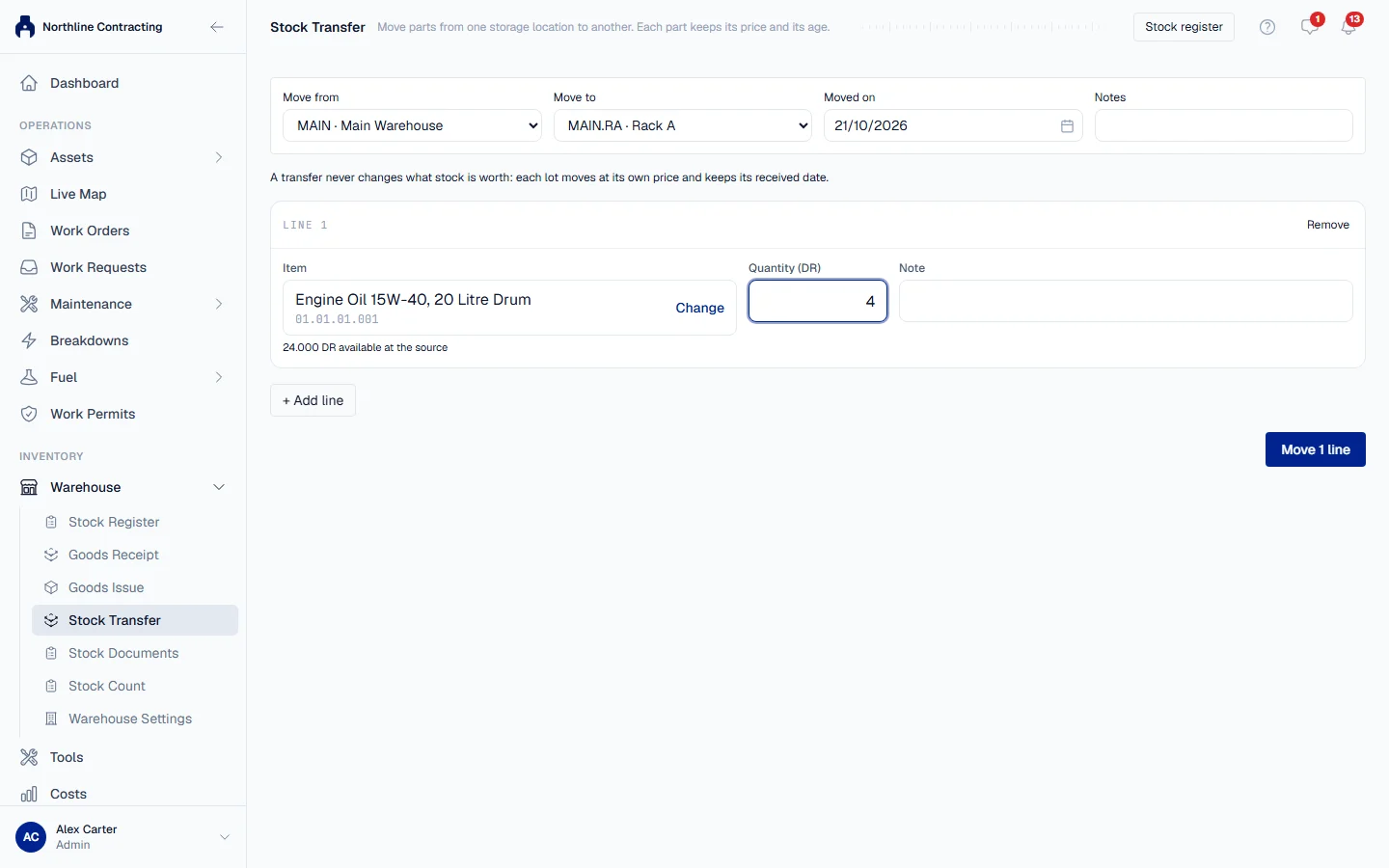
- In the sidebar, open Warehouse > Stock Transfer. To move one part, you can also expand its row on the Stock Register and click Stock Transfer; that part is placed on the first line for you.
- In Move from, choose where the parts are now. Archived locations are offered here too, so you can empty one.
- In Move to, choose where they are going. Only active locations are offered.
- Check Moved on. It defaults to today and cannot be a future date.
- On the first line, pick the part. The line shows how many are available at the source.
- Enter the Quantity, and a line note if useful.
- Click + Add line for each further part.
- Click Move, which names how many lines it will move.
A green message gives the transfer's number, such as TRF-2026-0001, with the number of lines and the total quantity, and a link to open it under Stock Documents.
What a transfer does to value
Rules worth knowing
- All or nothing. If any line cannot be moved, for example because there is not enough at the source, nothing is posted.
- A posted transfer cannot be edited. To undo one, transfer the parts back.
- Every transfer is kept. Open it again from Warehouse > Stock Documents.
Troubleshooting
| What you see | What to do |
|---|---|
| "... has 2 available at Main Store, not 5" | There is not enough at Move from. Reduce the quantity or choose the location the stock is in. |
| "... is archived and cannot receive stock" | Move to is archived. Choose an active location, or restore that one on the Warehouse Setup tab. |
| "A transfer needs two different locations" | Move from and Move to are the same. |
| You cannot open Stock Transfer | Your role does not include Warehouse: Edit. |