
Find your way around
How the sidebar, the page header, the user menu, Settings and the phone tab bar are laid out, and where to find help on any page.
Every page in Solmex sits inside the same frame: a sidebar on the left, a header across the top, and the page itself. This article walks through that frame so you always know where to look, whichever module you are working in.
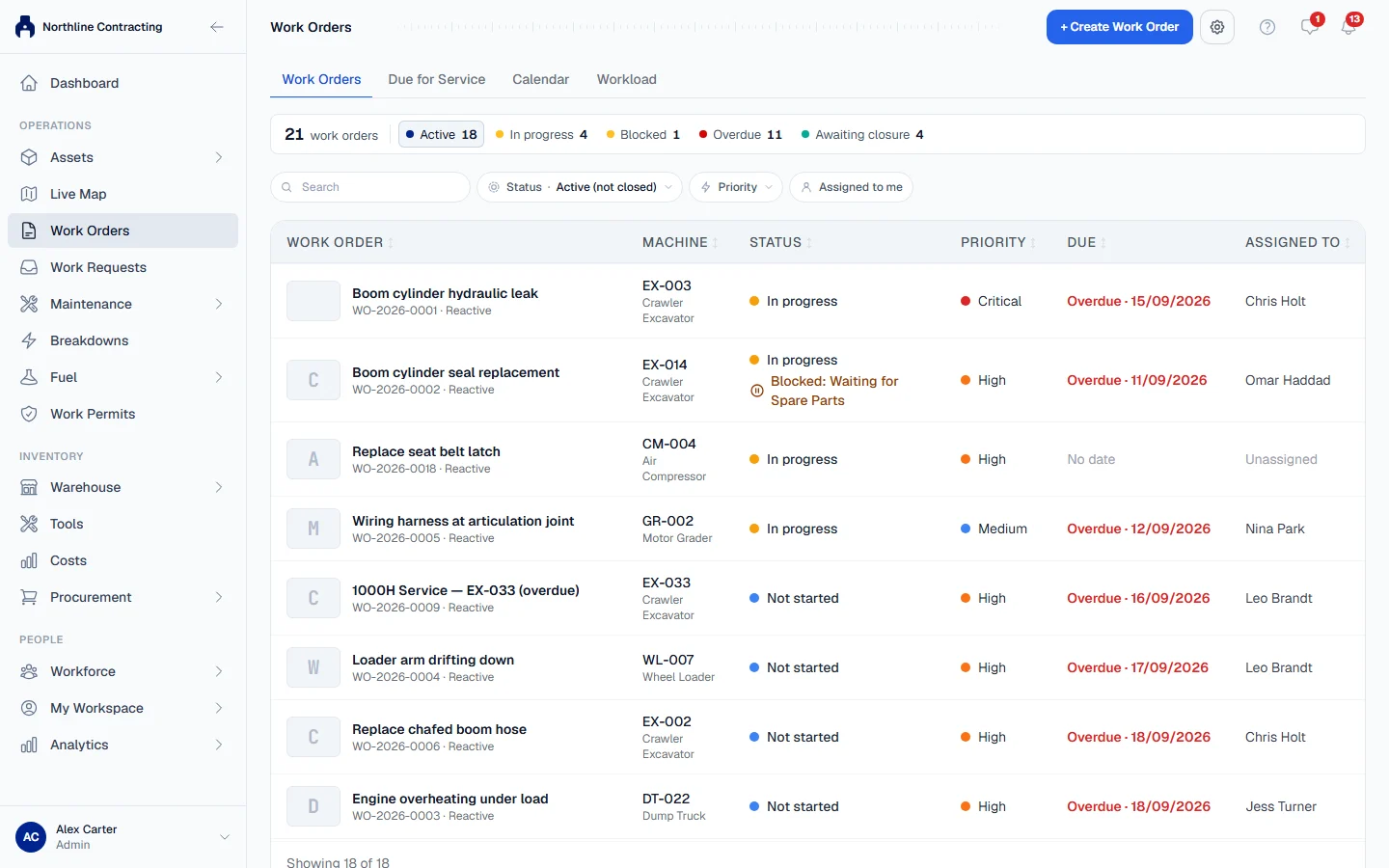
The sidebar
The sidebar lists the modules you can open. It starts with Dashboard, then groups the rest under three headings:
| Heading | What you find there |
|---|---|
| Operations | Assets (the equipment register, Daily Meter Entry, Inspections), Live Map, Work Orders, Work Requests, Maintenance, Breakdowns, Fuel and Work Permits. |
| Inventory | Warehouse, Tools, Costs and Procurement. |
| People | Workforce and My Workspace (your own profile, leave, timesheets, notifications and approvals). |
Analytics follows on its own, with the reports.
Some entries open a group of pages. Click the group name to open or close it. On a wide screen you can shrink the sidebar to icons with Collapse sidebar, and bring it back with Expand sidebar.
If you are on a work requester seat, the sidebar is shorter: Home, Report a problem, and under Also yours anything else your role allows.
Your name, the user menu and Settings
Your name and role sit at the foot of the sidebar.
- Click your name to open Settings.
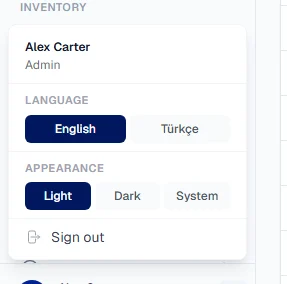
- Click the small arrow beside your name to open the user menu. It holds Language, Appearance and Sign out.
Settings is one page with tabs. You see only the tabs your role allows:
| Tab | What it holds |
|---|---|
| General | Your company name, your plan, and your own preferences: language, currency, date format and time zone. |
| Company Settings | Company identity, logo, base currency and file upload limits. See Set up your company. |
| Plan | Your plan and what it includes. |
| Label Service | Label sizes and the print history. See Labels and QR codes. |
| Users, Roles, Permissions | Who can sign in and what they can do. |
| Audit Log, Session Activity | Who changed what, and who signed in when. |
| Data Export | Taking your records out of Solmex. |
The page header
Across the top of every page is the header. On the left is the page title; on the right are three buttons:
- Help for this page (the "?" icon) opens the Help Center article for the page you are on, in a new tab. If you read Solmex in Türkçe, it opens the Turkish Help Center.
- The chat button, when your plan includes chat.
- Notifications (the bell). See Notifications in the app.
Page actions, such as Add Equipment or an Excel export, sit in the same header row as the title.
On a phone
Below tablet width the sidebar is hidden, and a tab bar appears at the bottom of the screen instead. It shows up to five buttons, depending on your role:
- Home: the dashboard.
- Work: work orders, or Requests if you can only see work requests.
- Assets: the equipment register, or My Leave if you cannot see equipment.
- Scan: read a Solmex QR label with the camera. See Labels and QR codes.
- More: opens the full sidebar.
A work requester sees Home, Report, Scan and More. See Use Solmex on a phone.
Troubleshooting
| What you see | What to do |
|---|---|
| A module a colleague uses is missing from your sidebar | Your role does not include it. Ask an administrator to check your role under Settings > Roles. |
| A module shows a lock | Your role allows it but your company's plan does not include it. An administrator can see the plan under Settings > Plan. |
| The "?" opens the Help Center home rather than an article | That page has no article of its own yet. Search the Help Center for the page name. |