
Set up your company
Add your company name, address and logo, set the base currency and upload limits, and find your way around Settings.
Your company details appear on every document Solmex produces: work orders, inspection reports, PDFs and exports. Set them up first.
Before you start
- You need the Settings: Edit permission. The person who created the company has it.
- Have your logo ready as a PNG, JPG or SVG file.
Open Settings
Click your name at the bottom of the sidebar. Settings opens with a row of tabs. You only see the tabs your role allows.
| Tab | What it is for |
|---|---|
| General | Your organisation's name and ID, your sign-in link, and your own preferences. |
| Company Settings | Company identity, logo, currency, Locations and upload limits. |
| Plan | What your plan includes and how much of it is in use. |
| Users, Roles, Permissions | Who can sign in and what they can do. |
| Audit Log, Session Activity | Who changed what, and who signed in when. |
| Data Export | Download all your data. |
Fill in Company Settings
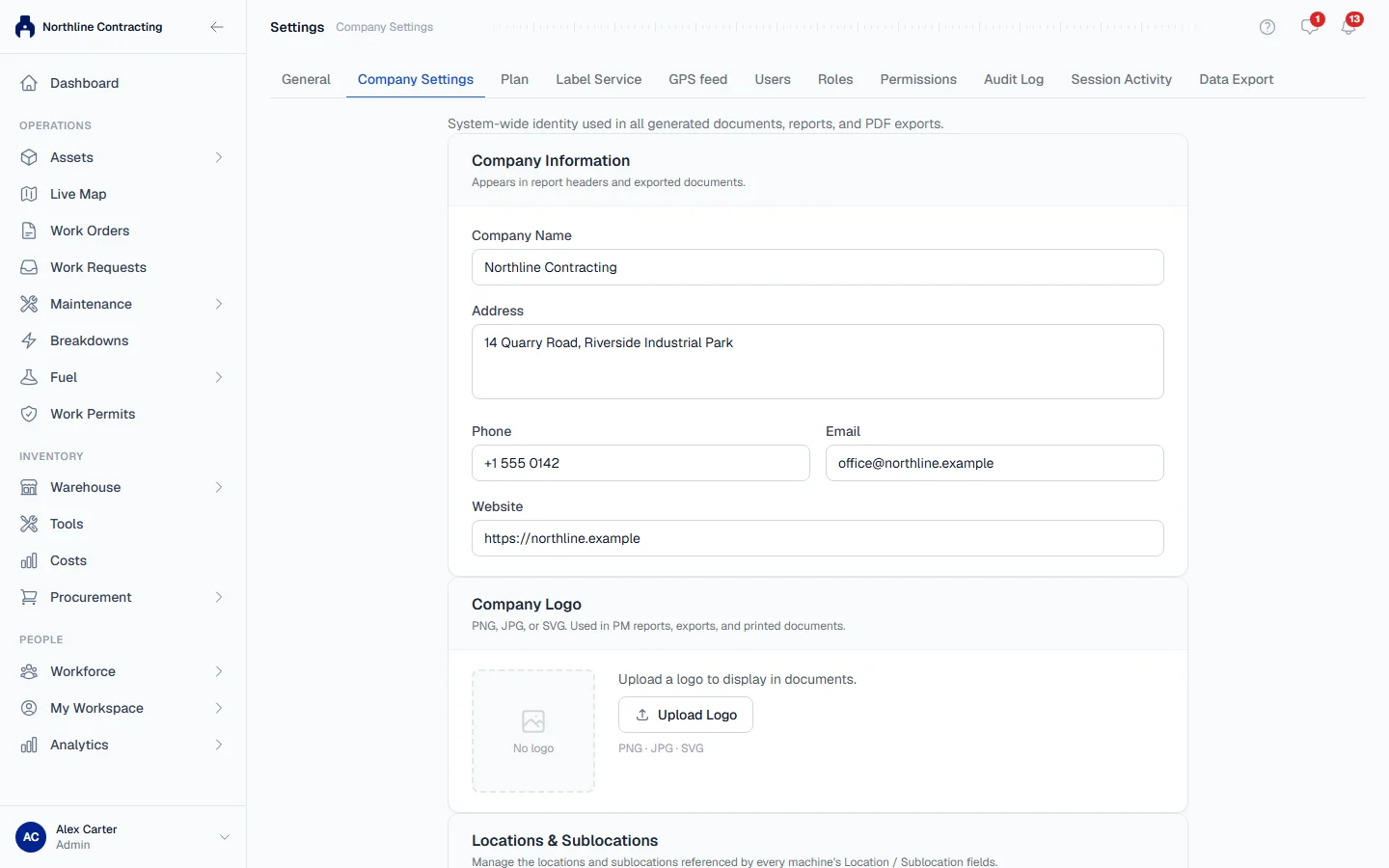
- Open the Company Settings tab.
- Under Company Information, enter the Company Name, Address, phone, email and Website.
- Under Company Logo, click Upload Logo and choose your file. It appears on reports, exports and printed documents.
- Under Financial Settings, set the Base Currency, such as USD, EUR or TRY.
- Optionally adjust the Workforce Settings and File Upload Limits.
- Click Save Settings.
Your own preferences
On the General tab, each user can set their own Language (English or Türkçe). It is saved to your account and applies on every device. Dates are always shown as DD/MM/YYYY.
To switch between light and dark mode, click the arrow next to your name at the bottom of the sidebar and choose Appearance: Light, Dark or System.
Your Organization ID
The General tab shows your Organization ID. Quote it when you contact Solmex support, so we can find your company quickly.
Next
Add Locations and Sublocations. They are reached from the same tab, under Locations & Sublocations.