
Set up maintenance teams
Create the crews that carry out maintenance, with their lead, members, service vehicle and the Sublocations they cover, so work can be recorded and compared by team.
A maintenance team is a crew: who leads it, who is on it, which service vehicle it drives and where it works. When work is recorded under a team, the dashboards can show how much each team did and how much of it was on time. The same teams are used by Daily Maintenance and Preventive Maintenance.
Before you start
- You need Routine Maintenance: Manage to create, edit or archive a team. Anyone with Routine Maintenance: View or Preventive Maintenance: View can see the teams.
- If the team's service vehicle is a machine on your Equipment Register, add it there first. See Add equipment.
Open the teams page
- In the sidebar, open Maintenance > Daily Maintenance (or Preventive Maintenance).
- Click Settings at the top right, then Maintenance teams.
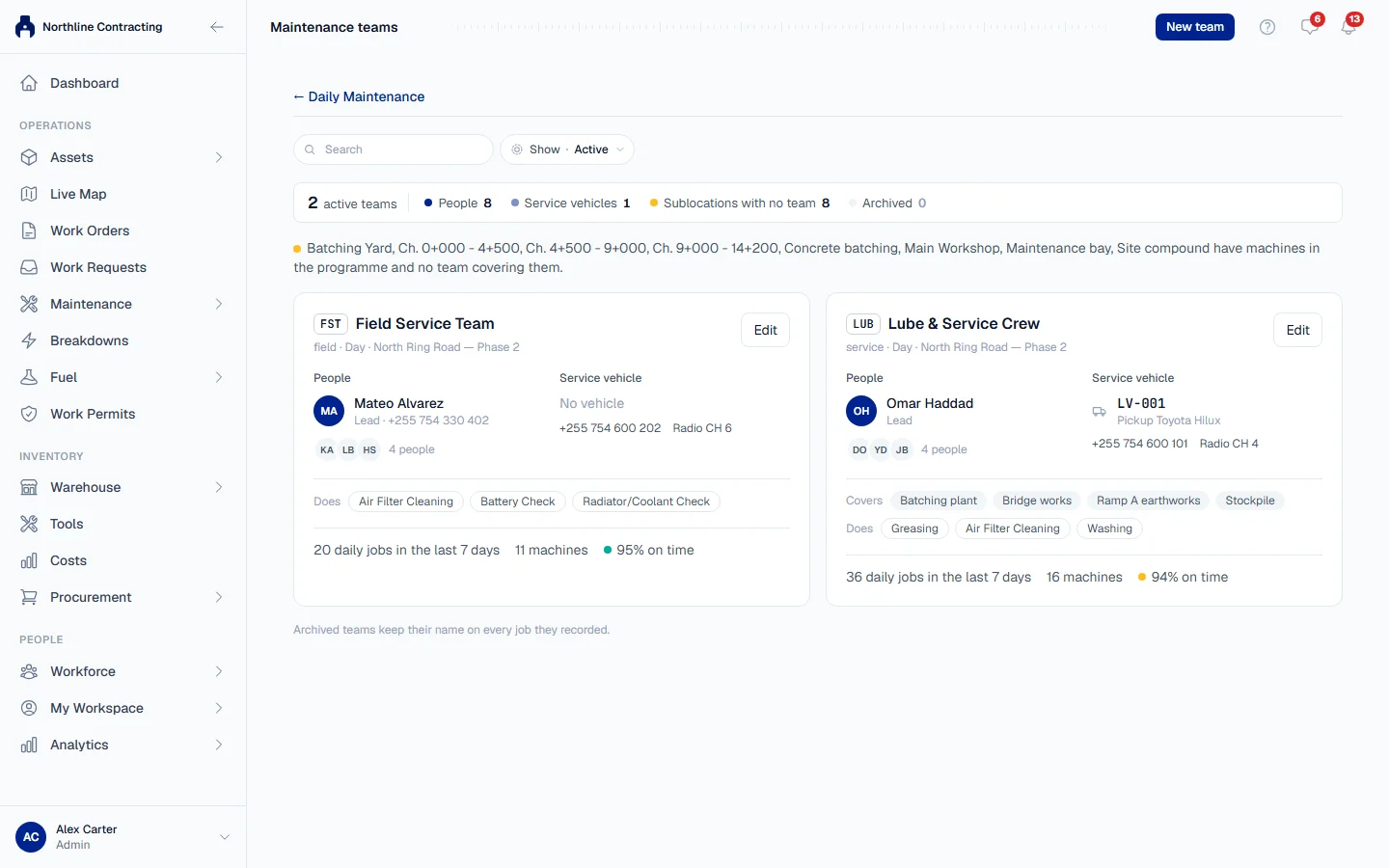
Each team is shown as a card with its lead, people, vehicle, what it covers and how many daily jobs it recorded in the last 7 days. Above the cards, Solmex names any Sublocation that has machines in the programme but no team covering it.
Create a team
- Click New team.
- Fill in the sections described below. Fields marked with a star (*) are required.
- Click Save team.
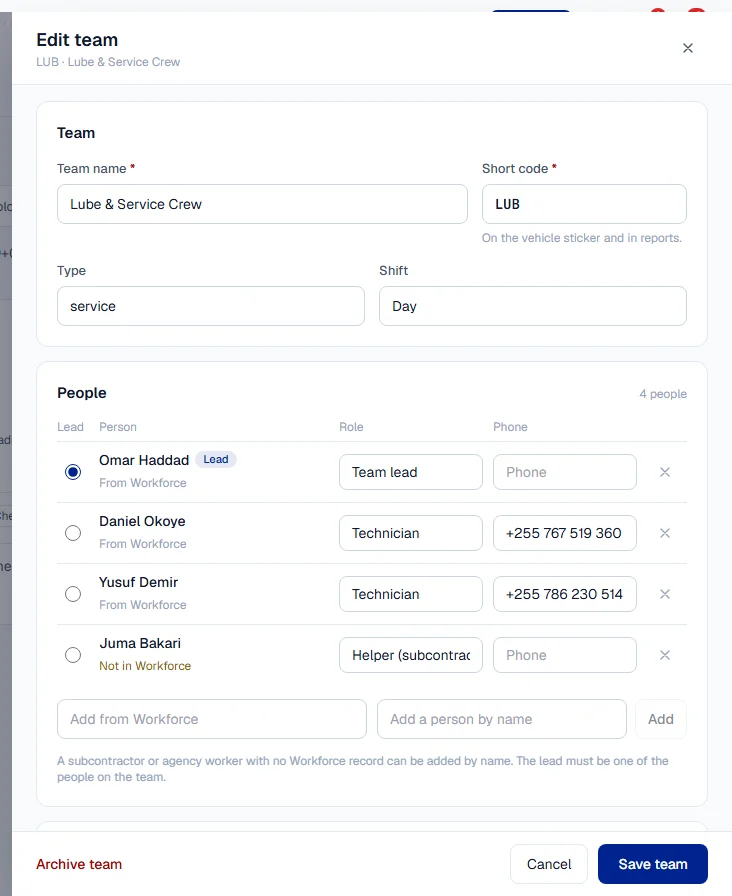
Team
| Field | Notes |
|---|---|
| Team name * | Such as "Preventive Maintenance Team A". |
| Short code * | Printed on the vehicle sticker and in reports. Must be unique. |
| Type | Such as "Preventive maintenance" or "Lubrication". |
| Shift | Such as "Day shift, 07:00 to 17:00". |
People
Add at least one person, then choose one of them in the Lead column. Each person can have a Role and a Phone.
- Add from Workforce picks someone from your employee records.
- Add a person by name adds anyone else, such as a subcontractor or agency worker with no employee record.
Service vehicle (optional)
Choose one:
- No vehicle.
- From the asset register: find the vehicle by asset number, type or plate. Its sticker number, plate and status are read from its own record, so they never go out of date here.
- Not in the register: type a description, sticker number and plate by hand.
Where and what
| Field | Notes |
|---|---|
| Location | The Location the team works in, or Any location. |
| Sublocations covered | The places the team is responsible for. |
| Jobs this team does | The daily jobs the team carries out. |
Contact
Team phone, Radio channel, WhatsApp number, Email and Notes are all optional.
How teams are used
- On the Record tab, you pick the team once for the whole batch. If you are a member of exactly one team, it is picked for you. You can change the team for any one machine.
- When a preventive maintenance service is logged, you can say which team did it. See Log a completed PM.
- The Dashboard shows Work by team and lets you group the overdue backlog by team.
Archive and restore a team
- Click Edit on the team's card, then click Archive team.
- Confirm.
An archived team keeps its name on every job it recorded, but can no longer be picked for new work. Set Show to Archived to find it and Restore team to bring it back. Teams are never deleted.
Troubleshooting
| What you see | What to do |
|---|---|
| "Give the team a name." / "Give the team a short code." | Fill in Team name and Short code. |
| "Add at least one person." | Add someone in People. |
| "Choose one lead." | Choose exactly one person in the Lead column. |
| "Pick the vehicle, or choose No vehicle." | You chose From the asset register but did not pick a vehicle. |
| "The ... is already used by team ..." | Another team already has that name or code. If it says "archived; restore it instead", restore that team. |
| "Choose exactly one team lead from the people on the team" | The lead must be one of the team's people. |
| No New team button | You need Routine Maintenance: Manage. |