
Carry out an inspection
Start an inspection, record where you found the machine, its meter reading, its operator and photos, answer the checklist, then sign and complete it.
An inspection is a person standing in front of a machine and working through a checklist. Solmex keeps the answers, the meter reading, who was operating it, photos and a signature as one record that cannot be changed once it is completed.
New Inspection  →  Answer the checklist  →  Meter, operator, photos  →  Log findings  →  Complete
(draft) (locked)Before you start
- You need Inspections: Edit. A work requester can carry out inspections when their role gives them this permission.
- An active inspection template must exist for the machine. See Create inspection templates.
- The inspector is picked from your employee list, so the person doing the inspection needs an employee record.
Start the inspection
- In the sidebar, open Assets > Inspections.
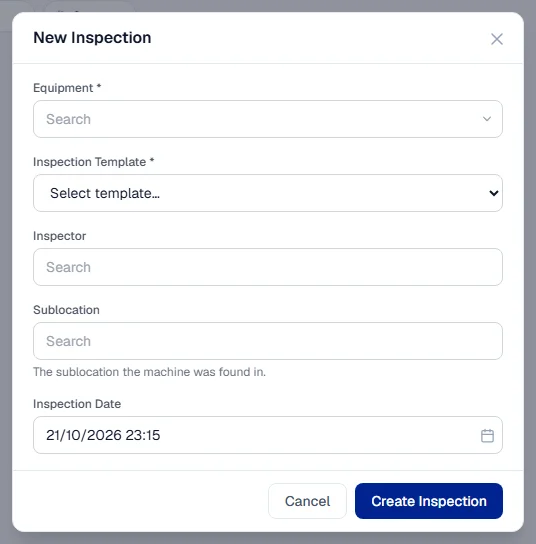
- Click + New Inspection. The New Inspection form opens.
- Choose the Equipment. Type part of its number to find it.
- Choose the Inspection Template. The list shows how often each one is due.
- Under Inspector, search for the person carrying out the inspection.
- Under Sublocation, choose the Sublocation where you found the machine.
- Check the Inspection Date. It is filled in with the current date and time.
- Click Create Inspection. The inspection sheet opens as a draft.
Answer the checklist
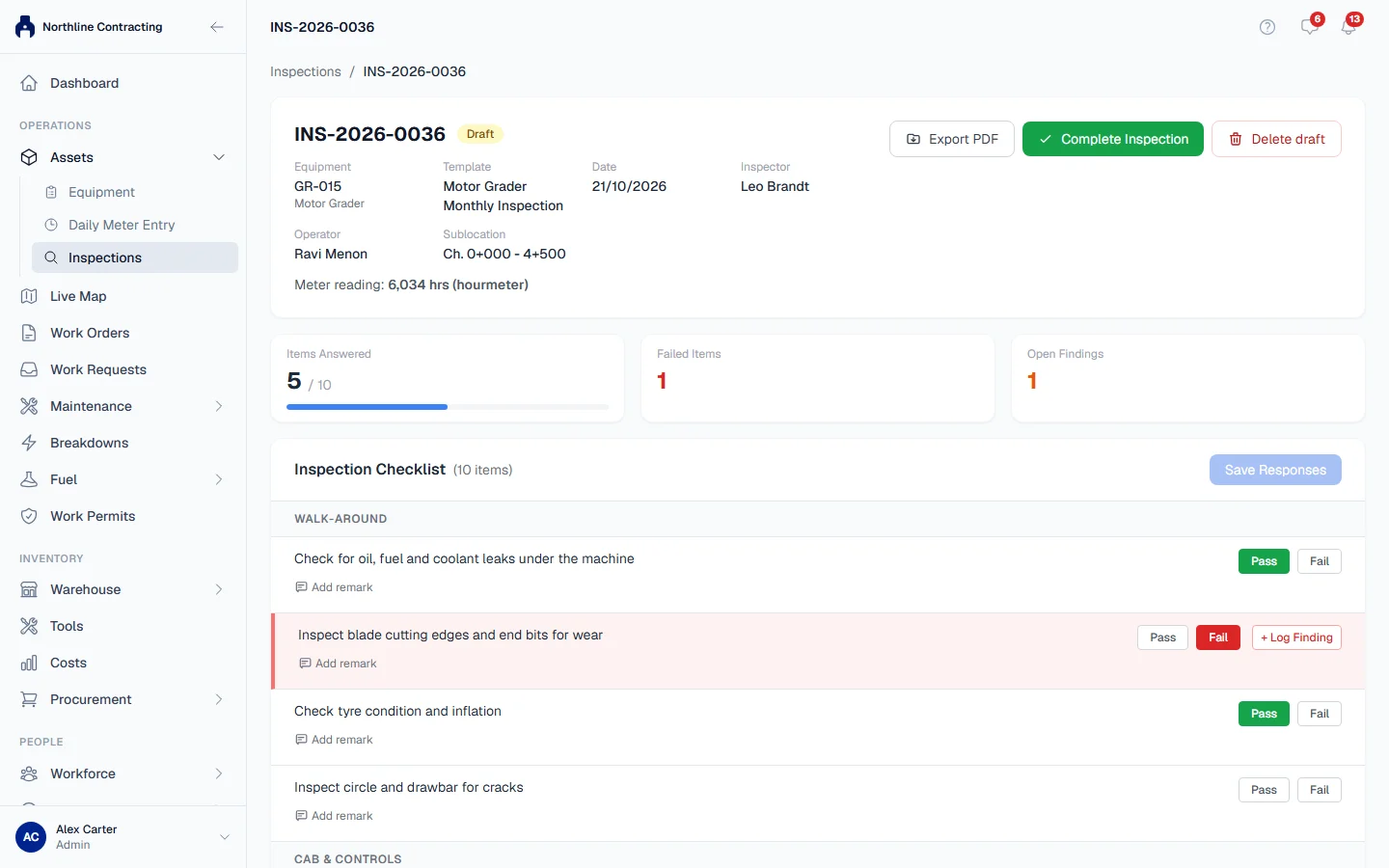
- Work down the Inspection Checklist. Each item asks for the answer its template set: Pass or Fail, a tick, a value or a note.
- To add a note to an item, click Add remark under it.
- On a failed item, click + Log Finding to raise the fault straight away. See Log and follow up findings.
- Click Save Responses. While anything is unsaved, the sheet shows "You have unsaved changes".
Record the meter reading
Under Meter reading, type what the machine reads now and click Save. A machine with both meters shows one box for the Hourmeter and one for the Odometer; fill in the ones you read and leave the others blank.
If you type a figure lower than the machine's last recorded reading, Solmex warns you but lets you save. Correct the machine's own meter history on its Meter Readings tab, not here.
A machine recorded as having no meter does not show this card at all.
Record the operator
Under Operator, type the name of the person operating the machine and click Save. The name you save becomes the machine's operator on the register. If the machine already has one, Solmex offers Use … (the machine's current operator).
To photograph the operator's ID card, click Photograph ID under Operator ID card. A new photo replaces the old one.
Add machine photos
Under Machine photos, click Add photo to add up to five photos of the machine's condition. These are a record of how it looked, not a fault report: anything that needs fixing belongs in a finding, with its own photos.
Complete and sign
- Click Complete Inspection. Your answers are saved first.
- If any items are unanswered, the dialog says how many. You can still complete.
- Add Overall Remarks if you want to.
- To sign, check the Printed name and draw in the Inspector signature box. Clear starts again.
- Click Sign & complete. If you did not draw a signature, the button reads Complete Inspection.
The status changes from Draft to Completed and the sheet is locked. The Sign-off card shows who signed. An unsigned inspection prints a ruled line to sign by hand.
What happens next
- The machine moves. Choosing a Sublocation moves the machine there on the equipment register, because an inspection is the best evidence of where it is. The form tells you before you save. An inspection dated before a newer record of the machine's whereabouts does not move it, but still records where it was found.
- The schedule restarts. A completed inspection resets the due date for that machine and template. A draft does not.
- You can print it. Click Export PDF. See Print the Inspection Report and Finding Action Cards.
On a phone
You can carry out inspections in your phone's web browser today. The Solmex mobile app is coming soon and will also work without a signal.
Troubleshooting
| What you see | What to do |
|---|---|
| "An inspection cannot be dated in the future: nobody has inspected the machine yet." | Set the Inspection Date to now or earlier. |
| "Inspection template not found or inactive" | The template was deactivated. Choose another, or ask someone with Inspections: Templates to activate it. |
| "Lower than the last recorded reading (…). You can still proceed." | Check the reading. If it is right, save anyway. |
| "… is recorded as having no meter fitted, so there is …" | The machine has no meter. Leave the meter reading blank. |
| "Up to 5 photos." | Remove a machine photo before adding another. |
| "This inspection is completed and can no longer be changed." | Completed inspections are locked. Start a new inspection if something was missed. |
| "Finding … has work order … raised against it. Cancel or unlink the work order before deleting this inspection." | Deal with the work order first, then delete the draft. |