
The dashboard
Arrange your own dashboard: add, hide, resize, collapse and reorder widgets, or go back to the standard layout for your role.
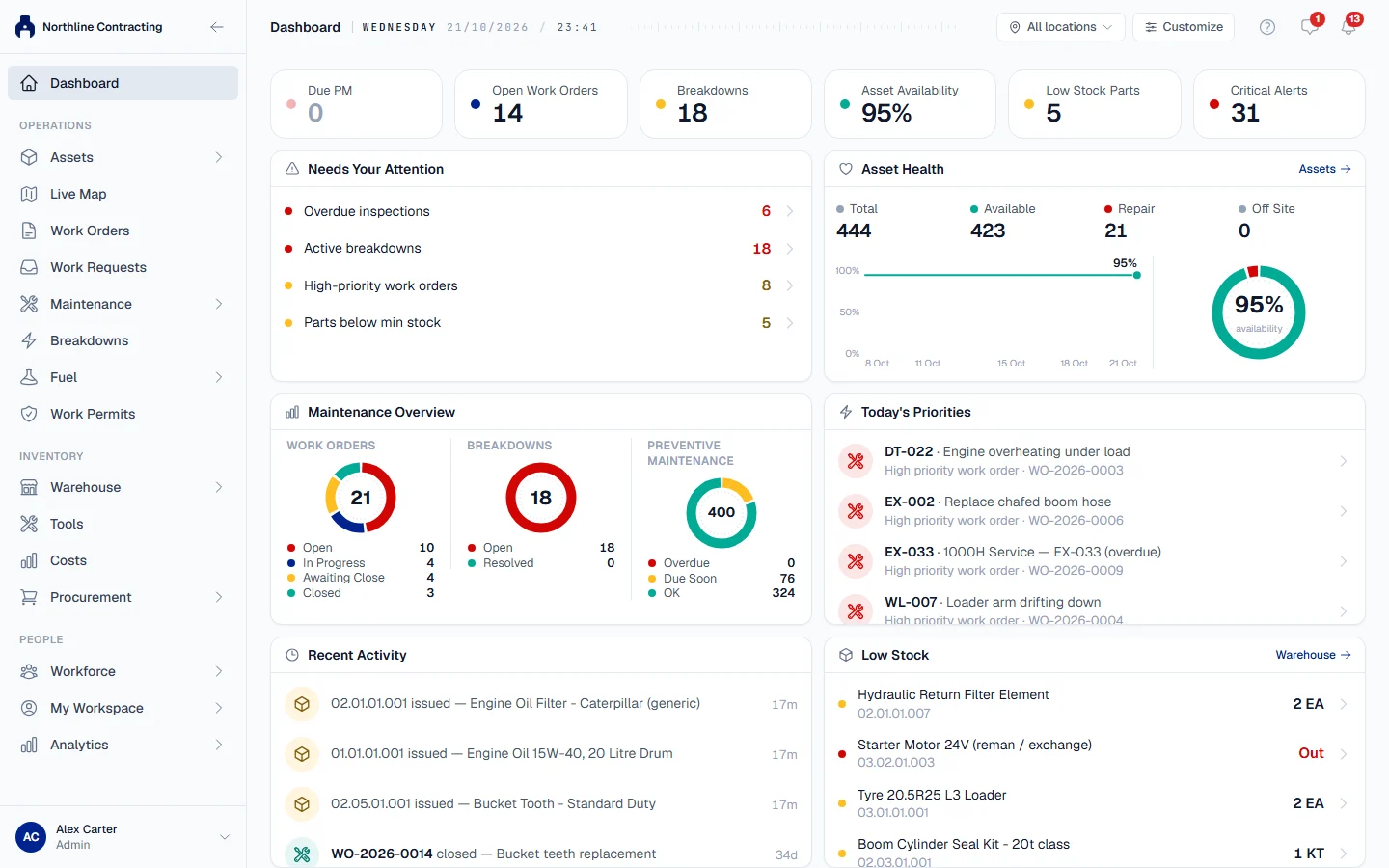
The Dashboard is the first page you see after signing in. It is a board of widgets, each answering one question about your work, such as what is broken, what is overdue or what fuel is costing you. Every person has their own dashboard, so arranging yours changes nothing for anybody else.
Before you start
- Every signed-in user has a dashboard. You need no permission to open it.
- Each widget has its own permission. You only see, and can only add, widgets for modules your role can read. For what each widget shows and needs, see Dashboard widgets.
- You can customise on a computer, a tablet or a phone. On a phone the dashboard is a single column: you can add, hide and collapse widgets there, and restore the standard layout, but moving and resizing need a wider screen.
Your first dashboard
The first time you open the dashboard, Solmex fills it with a standard layout chosen from your role's name: one for administrators, one for managers, one for maintenance planners, one for workshop supervisors, one for warehouse staff and a general one for everybody else. Widgets your role cannot read are left out. From then on the dashboard is yours, and Solmex saves every change you make to your account, so it looks the same on any computer you sign in from.
Customise your dashboard
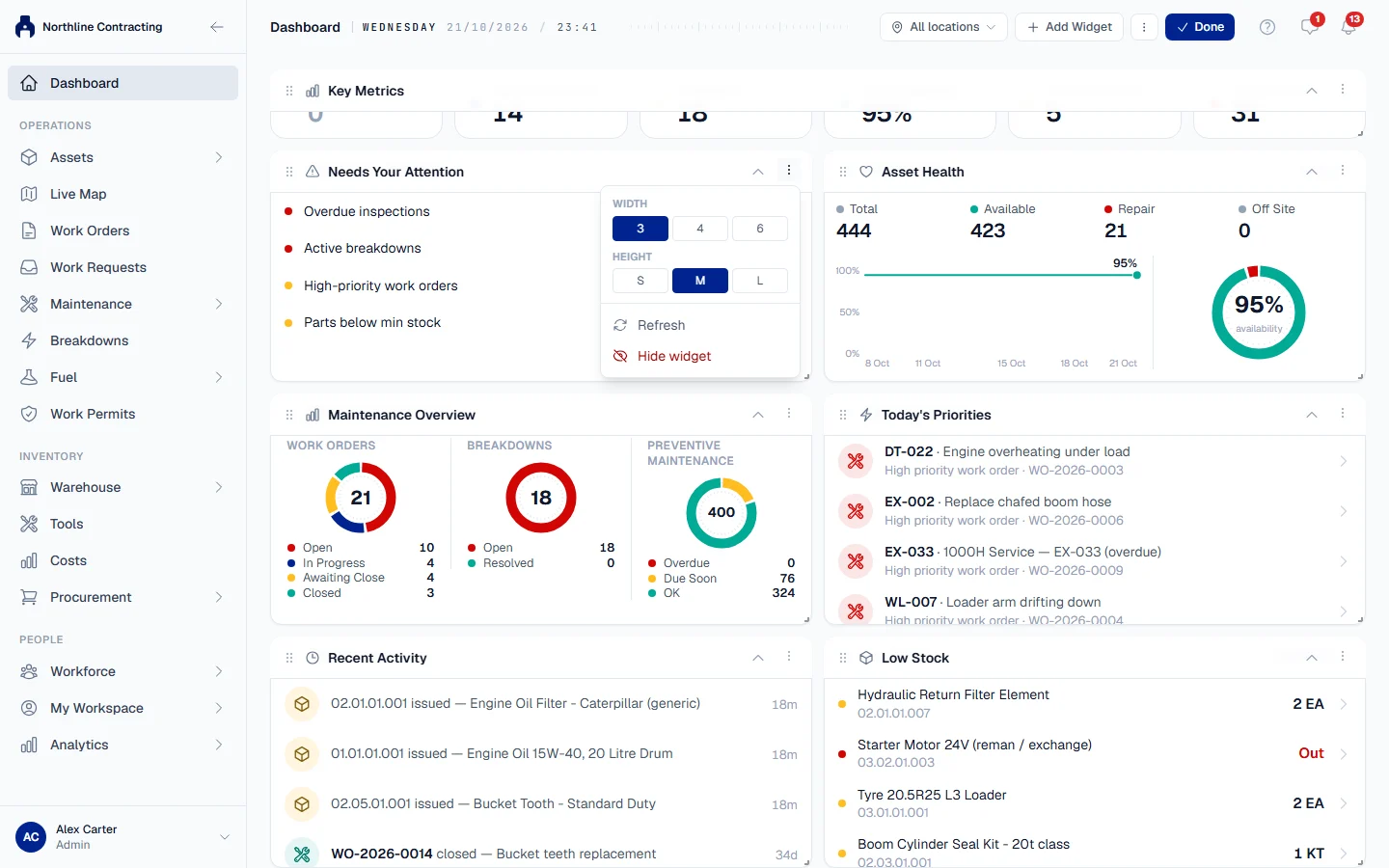
- Click Customize at the top of the dashboard. Each widget gains a title bar with a grip, and Add Widget appears beside the button.
- To move a widget, drag it by its title bar. The others make room.
- To add a widget, click Add Widget. The Add a widget window lists only widgets you have access to, grouped by category. Search with Search widgets…, then click a widget to add it. A widget already on your board is marked Added.
- To resize or hide a widget, open its Widget menu (the three dots on its title bar). Choose a Width and a Height (S, M or L), click Refresh to reload its figures, or Hide widget to take it off the board. On a phone the menu offers only Refresh and Hide widget, and a note at the top of the page says so.
- To fold a widget down to its title bar, click the arrow on its title bar (Collapse). Click it again (Expand) to open it. A collapsed widget stays collapsed outside edit mode too, which keeps a long dashboard short.
- Click Done when you are finished.
Hiding a widget only removes it from your board. Add it back at any time from Add Widget.
Go back to the standard layout
- Click Customize.
- Open the three dots menu beside Add Widget (Dashboard options) and choose Restore Default Layout.
- Confirm with Restore Default. Your arrangement is replaced by the standard layout for your role.
Reading the dashboard
- Most widgets carry a link in their header, such as Assets or Fuel, that opens the page behind the figures. Many figures are links too: clicking Breakdowns in Key Metrics opens the breakdowns that are active.
- On a phone, a list widget shows its first five rows and then a View all link to the full list.
- If your company works across several Locations, a Location selector sits at the top of the dashboard. See Show one Location on the dashboard.
Troubleshooting
| What you see | What to do |
|---|---|
| Your dashboard is empty. | You hid every widget. Click Add your first widget, or restore the default layout. |
| A widget you expect is not in Add a widget | Your role does not include that module's permission, or your plan does not include the module. Ask your administrator. See Roles and permissions. |
| No Width or Height in the widget menu | You are on a phone, where the dashboard is one column. Open the dashboard on a computer or tablet to move or resize widgets. |
| A widget is marked Added and cannot be clicked | It is already on your board. Each widget can appear once. If you cannot see it, it may be collapsed or lower down the page. |