
Roles and permissions
Each user has one role, and a role is a set of permissions such as "Work Orders: Edit". Use the roles you start with, adjust them, or create your own.
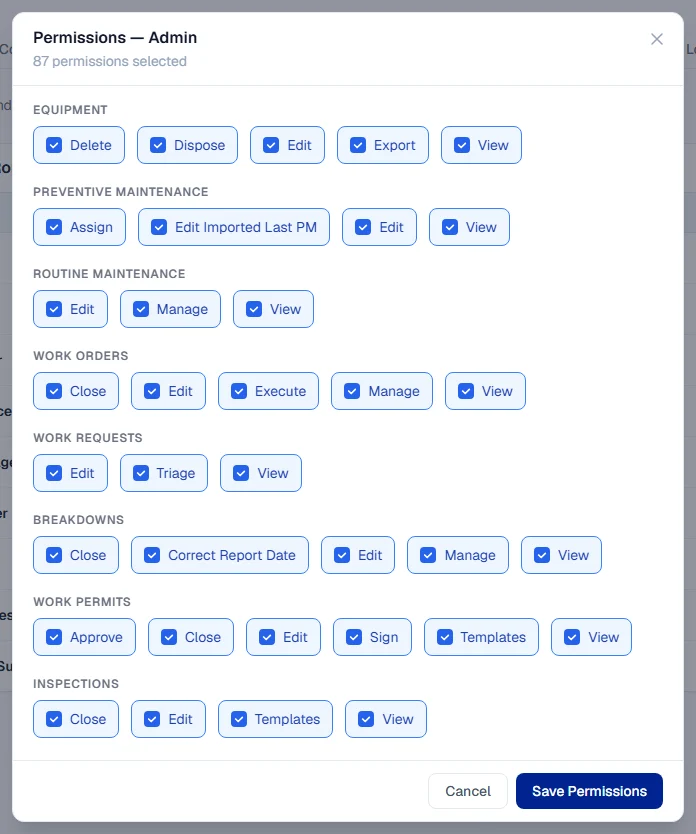
A role decides what a user can see and do. A role is simply a list of permissions, each naming a module and an action, such as Work Orders: View or Breakdowns: Close.
Before you start
You need the Administration: Manage permission, which the Admin role has.
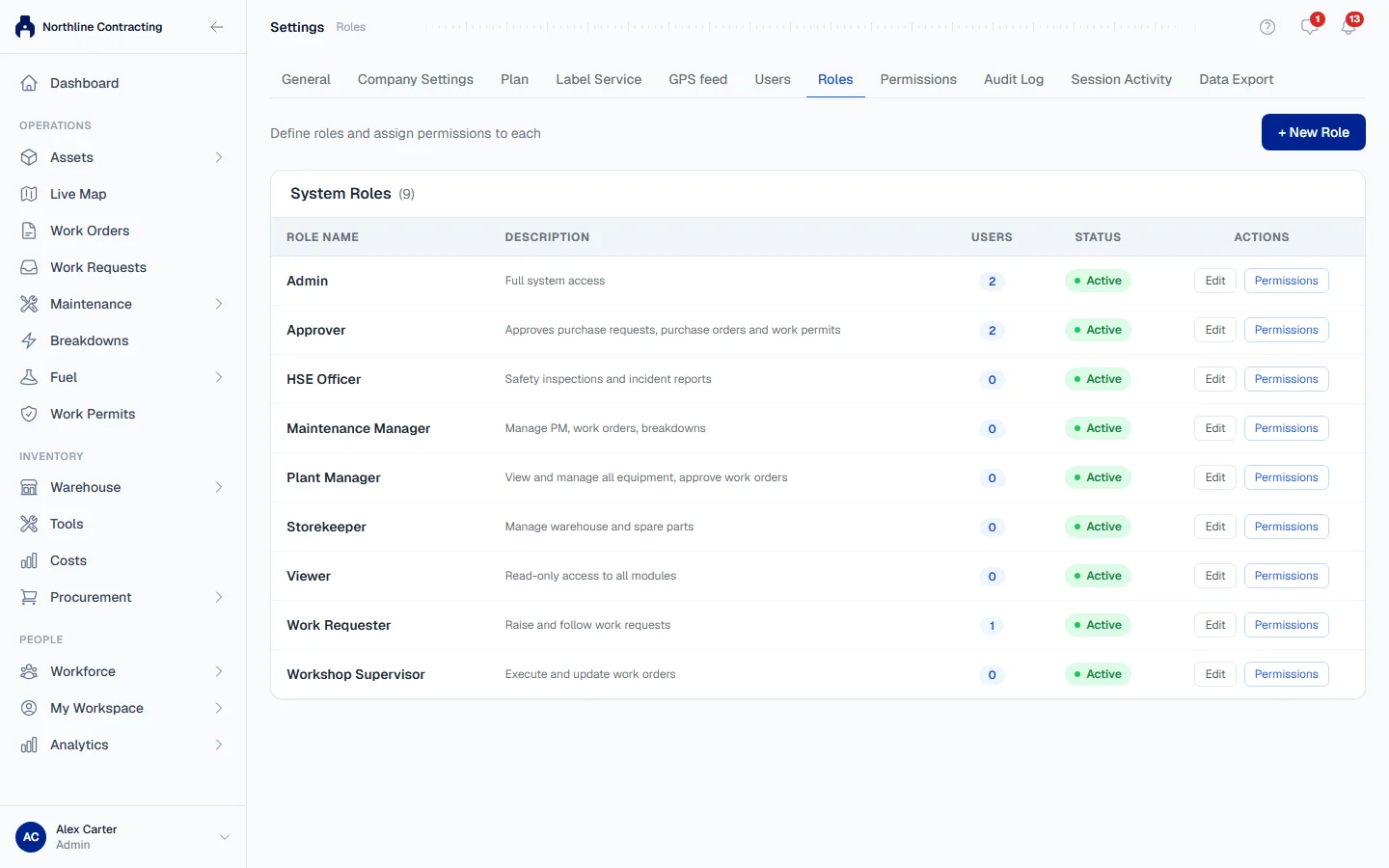
The roles you start with
Every new company starts with these roles. Rename or adjust them to match how you work.
| Role | Intended for |
|---|---|
| Admin | Full system access. The person who created the company has this role. |
| Plant Manager | Viewing and managing all equipment and work orders. |
| Maintenance Manager | Preventive maintenance, work orders and breakdowns. |
| Workshop Supervisor | Carrying out and updating work orders. |
| Storekeeper | The warehouse and spare parts. |
| HSE Officer | Safety inspections. |
| Viewer | Read-only access. |
How permissions are named
Most modules have two basic actions:
- View: see the module and its records.
- Edit: create and change records.
Riskier actions have their own permission, so you can give them to fewer people. For example:
| Permission | Allows |
|---|---|
| Work Orders: Close | Starting and closing work orders. |
| Breakdowns: Close | Resolving or cancelling a breakdown. |
| Equipment: Export | Downloading the register to Excel. |
| Equipment: Dispose | Recording a machine as sold or scrapped. |
| Work Requests: Triage | Turning requests into work orders or breakdowns, or closing them. See Triage work requests. |
| Users: Delete | Disabling and enabling accounts. |
Documents and photos belong to the record they are attached to. Adding a document to a machine needs Equipment: Edit, not a separate documents permission.
Change a role's permissions
- Open Settings > Roles.
- Click Permissions on the role's row.
- Tick or untick permissions. They are grouped by module.
- Click Save Permissions.
The change applies to everyone with that role the next time their screen loads.
Create a role
- Open Settings > Roles and click + New Role.
- Enter a Role Name and Description, then click Create Role.
- Click Permissions on the new role and choose what it allows.
- Give it to users from Settings > Users.
Stop using a role
Roles are never deleted. Click Edit on the role and switch its Status to Inactive. Move its users to another role first.
Permission or plan?
Two different things can stop someone using a feature:
- Their role: the module is visible but an action is refused, or the module is missing from their menu. An administrator fixes this here.
- Your plan: the module shows a lock. See Plans, the free trial and seats.
A work requester seat also limits a user, whatever their role: see Invite your team.