
Log and follow up findings
Raise a finding for a fault found during an inspection, turn it into a work order, and close it once the repair has been checked.
A finding is a fault an inspector found on a machine, such as a leaking hose or a cracked mirror. It stays on the Findings list, with its severity and photos, until someone checks that it has been dealt with and closes it.
Finding Reported → Work Order Created → Work Done Recorded → Finding ClosedBefore you start
- To log or correct a finding you need Inspections: Edit.
- To create a work order from a finding you need Work Orders: Edit.
- To link an existing work order, or to close a finding, you need Inspections: Close.
- Findings are logged on a draft inspection. See Carry out an inspection.
Log a finding
- Open the draft inspection.
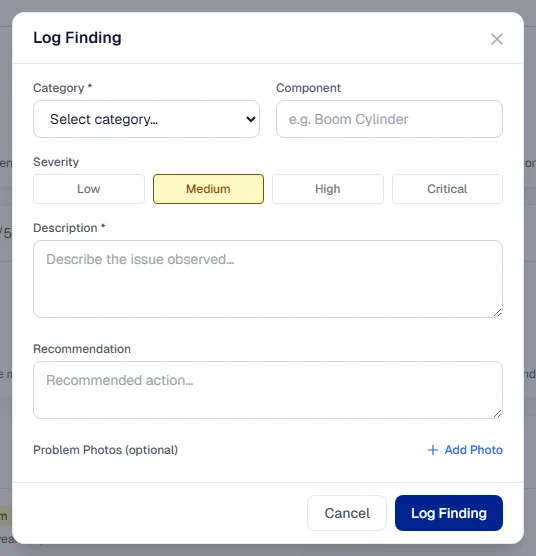
- On a failed checklist item, click + Log Finding. Or, in the Findings card further down the sheet, click Log Finding.
- Choose a Category. This is required.
- Optionally name the Component, such as "Boom Cylinder".
- Choose the Severity: Low, Medium, High or Critical. It starts at Medium.
- Type a Description of what you saw. This is required.
- Optionally add a Recommendation: what should be done.
- Under Problem Photos (optional), click Add Photo to attach photos of the fault.
- Click Log Finding.
The finding gets a number and appears in the inspection's Findings card with the status Open.
Follow it up
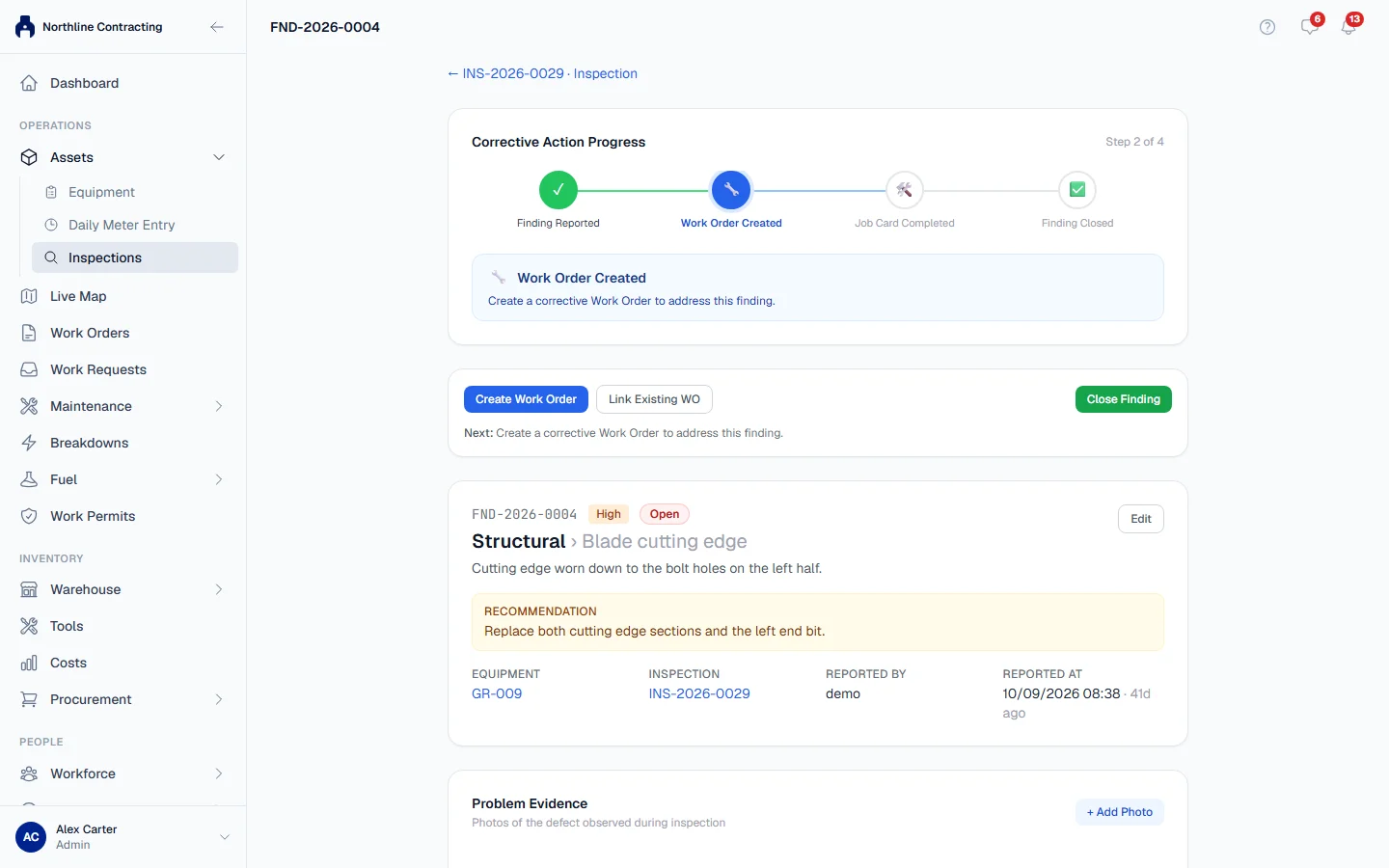
Open the finding with Review → on the inspection, or from the Findings tab of Assets > Inspections. The finding page shows Corrective Action Progress and, under it, the next thing to do.
Create a work order
- Click Create Work Order.
- Check the Title and add a Priority, Scheduled Date, Assigned to and Description.
- Tick Requires a Work Permit before work can start if the repair needs one. See Work orders that need a work permit.
- Click Create Work Order.
The finding moves to WO Created and the work order appears under Linked Work Orders. The repair is carried out on the work order: see The work order page.
Link a work order that already exists
If a work order is already open for the job, click Link Existing WO, search by number or title, and choose it. Only open work orders for the same machine are offered.
Close the finding
When the repair is done and checked:
- Click Close Finding.
- Choose the Outcome: Resolved & verified when the repair was checked and accepted, Deferred when the finding is real but the action is postponed, or Rejected when it was not a real defect.
- Add Closure Notes saying what was checked.
- Optionally add photos under Resolution Evidence to show the repaired machine.
- Click Close Finding.
If no linked work order has a finished Work done record yet (see Record the work done), the dialog warns you. You can still close, for example when the fix was checked another way.
Correct a finding
To fix a mistake in a finding's category, component, description, recommendation or severity, click Edit on the finding or on its row in the Findings list. The correction is recorded in the finding's history. Its status, work order and closure are not changed. A closed finding cannot be edited.
The Findings list
The Findings tab of Assets > Inspections lists every finding with its Severity, Status and Age in days. Filter by severity or status, or search by finding number, equipment, category, component or description. From here you can also print the findings as wall cards. See Print the Inspection Report and Finding Action Cards.
| Status | Meaning |
|---|---|
| Open | Logged, nothing done yet. |
| Under Review | Being looked at. |
| Planned | Action is planned. |
| WO Created | A work order has been raised for it. |
| Resolved | Closed as resolved and verified. |
| Deferred | Closed, but the action is postponed. |
| Rejected | Closed as not a real defect. |
Rules worth knowing
- One active work order per finding. A second one is refused while the first is still open.
- Findings are logged during the inspection. Once an inspection is completed, no more findings can be added to it.
- Photos of a closed finding can be deleted only by an administrator, because they are evidence of what was verified.
Troubleshooting
| What you see | What to do |
|---|---|
| "Category and description are required" | Choose a Category and type a Description. |
| "Cannot add findings to a completed inspection" | Start a new inspection to record the fault. |
| "This finding already has an active work order (…)." | Open the existing work order from Linked Work Orders instead. |
| "Work order … is already linked to another finding" | Choose a different work order, or create a new one. |
| "Work order … has been closed, so it cannot be linked" | Only open work orders can be linked. Create a new one. |
| "This finding is closed and can no longer be changed." | Closed findings are locked. |
| "Photos from closed findings can only be deleted by an administrator" | Ask your administrator. |