
Add equipment
Register a machine on the Equipment Register with its identity, ownership, location, status and meters. Every other part of Solmex refers to this record.
Each machine you maintain needs one record on the Equipment Register. Work orders, inspections, meter readings, fuel, parts and costs all point at it. This article adds one machine by hand. To add many at once, use Import equipment from Excel.
Before you start
- You need the Equipment: Edit permission.
- At least one Location must exist. See Add Locations and Sublocations.
- Have the machine's number, type and fuel type to hand. Everything else can be added later.
Add a machine
- In the sidebar, open Assets > Equipment. The page is called Equipment Register.
- Click Add Equipment. The Register New Equipment form opens above the list.
- Fill in the fields described below. Fields marked with a star (*) are required.
- Click Register Equipment. Solmex opens the new machine's page.
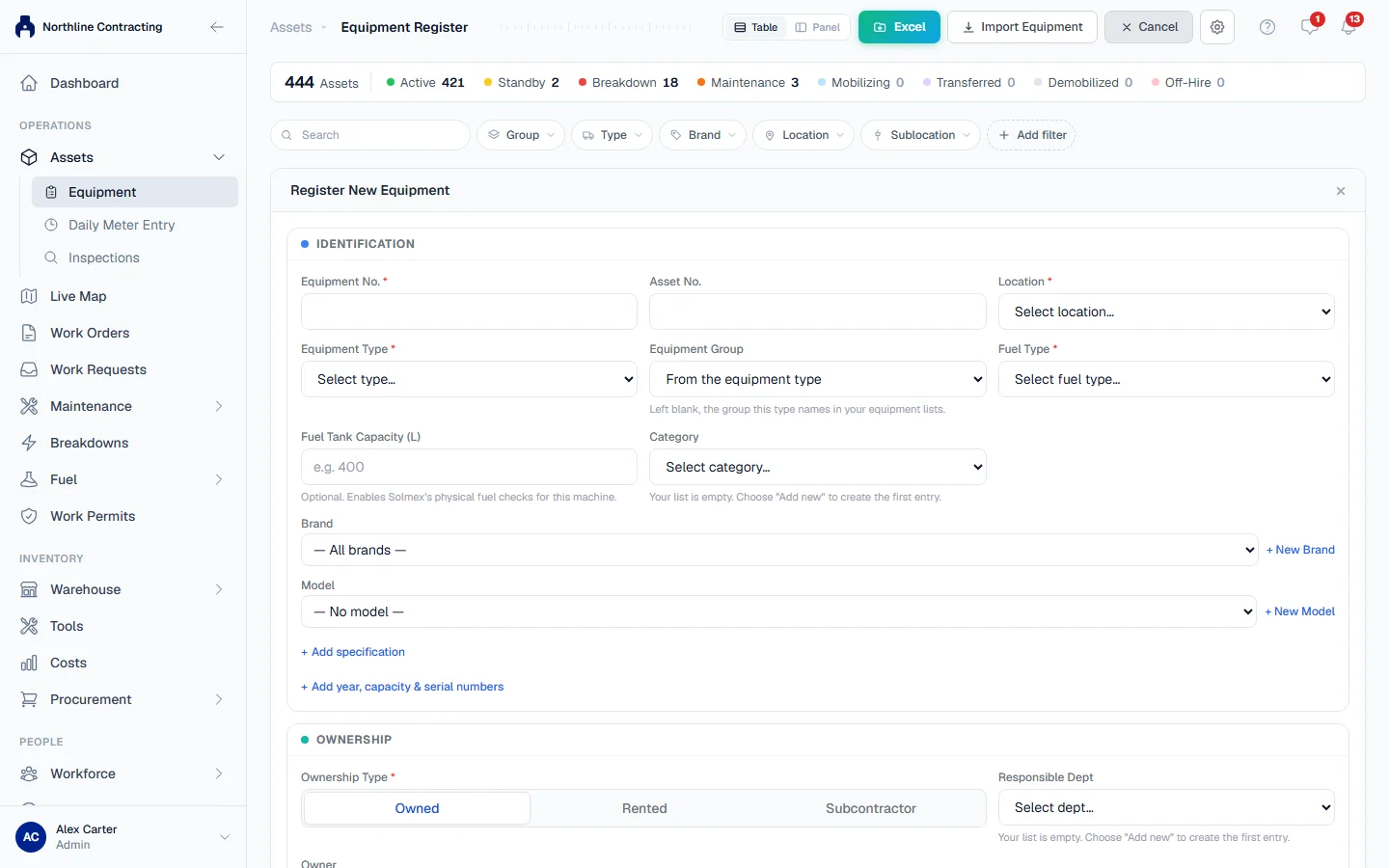
The fields
Identification
| Field | Notes |
|---|---|
| Equipment No. * | Your number for the machine. Must be unique. |
| Asset No. | Your finance or asset tag number, if different. |
| Location * | Where the machine belongs. Chosen for you if you have only one. |
| Equipment Type * | What the machine is, such as "Excavator" or "Air Handling Unit". Pick from your list or choose + Add new type… |
| Equipment Group | A broad family, such as "Earthmoving". Left blank, the group your type belongs to is used. |
| Fuel Type * | Diesel, Petrol, Electric, or None: not fuel-powered. There is no default on purpose: choose what is true. |
| Fuel Tank Capacity (L) | Optional. When stated, Solmex can check fuel fills against what the tank can physically hold. |
| Category, brand and model | Optional. Click Add year, capacity & serial numbers for year, plate number, serial and engine numbers. |
Types, groups, categories and departments are your company's own lists. A new value you type is saved to your lists when the machine is registered, and you can manage the lists later from the register's Settings gear, Equipment Lists.
Ownership
Choose Owned, Rented or Subcontractor. For a rented or subcontracted machine, you can also record the rental company, the daily rate and the rental dates.
Deployment
| Field | Notes |
|---|---|
| Current Sublocation | Where the machine is now. Only Sublocations of the chosen Location are offered. |
| Arrival Date | When it arrived. Defaults to today. |
| Status * | Active, Standby, Maintenance, Transferred or Demobilized. See the note below. |
Meters
Under Meter Types, choose how the machine is measured:
- Hourmeter: engine hours (SMR). On by default.
- Odometer: kilometres.
- Both, if the machine has both.
- No meter fitted: for equipment with neither, such as a trailer, a static tank or a hand tool.
When a meter is on, you can enter its current reading in Initial Hourmeter (hrs) or Initial Odometer (km). Leave it blank if you do not know it yet. A blank is recorded as "not stated", never as zero.
Click Add PM & compliance dates to record the last service (date and meter reading) and insurance or registration expiry dates. The last service becomes the machine's starting point when you assign a PM template.
About status
A machine's status says whether it is available for work. Breakdown is never chosen by hand: Solmex sets it automatically while the machine has an open breakdown, and returns it when the breakdown is resolved. See Report a breakdown and Resolve a breakdown. Disposed is set only through Dispose of… on the machine's page, for a machine you no longer have.
After you register
The machine's page opens, with tabs for Overview, Meter Readings, Prev. Maintenance, Work Orders, Breakdowns, Fuel, Spare Parts, Inspections, Attachments and Costs (depending on your plan and permissions). From the header you can print its QR label.
Photos are added on the Overview tab, in the machine's photo gallery.
Next, put the machine on a service programme with Assign PM templates, or raise its first job with Create a work order.
Troubleshooting
| What you see | What to do |
|---|---|
| An error naming the Equipment No. with an Open link | A machine with that number already exists. Open it, or choose a different number. |
| "Choose at least one meter, or select No meter fitted" | Pick Hourmeter, Odometer or both, or No meter fitted if the machine has none. |
| No Sublocations in the list | The chosen Location has none yet, or they are inactive. Add one. |