
Labels and QR codes
Which records Solmex prints labels for, where each QR code leads, how to scan a label from inside the app, and where the print history is kept.
Solmex prints labels with a QR code and a barcode for the things you keep track of physically: machines, tools, spare parts, storage locations and work permits. Every label is printed the same way, from the same window, and every print is recorded. This article covers what they share; each kind of label has its own details.
Before you start
- You need Labels: Print to print, and permission to view the record the label is for.
- Set your company name and logo under Settings > Company Settings. They print at the top of every label. See Set up your company.
What you can label, and where the QR code leads
| Label for | Where to print it | Scanning the QR code opens |
|---|---|---|
| A machine | QR label in the machine's header | The machine's public card, which works without signing in. See Print a QR label for a machine. |
| A tool | Print label on the tool's page | The tool's quick-view page. |
| A spare part | Print label on the part's page, or on a row of the Stock Register | The part's page. |
| Several spare parts | Tick them on the Stock Register and use Print Selected Labels, or Print Filtered for every part the filters show | Each part's page. |
| A storage location (store, rack, shelf, bin) | Print label on the location's page, or on its row under Warehouse Settings | A page listing what is stored there. See Set up storage locations. |
| A work permit | Print label on the permit's page | The permit's quick-view page. See Permit documents and printing. |
Only the machine's public card opens without signing in. Every other label leads into Solmex, so whoever scans it must sign in and have permission to see that record.
Print a label
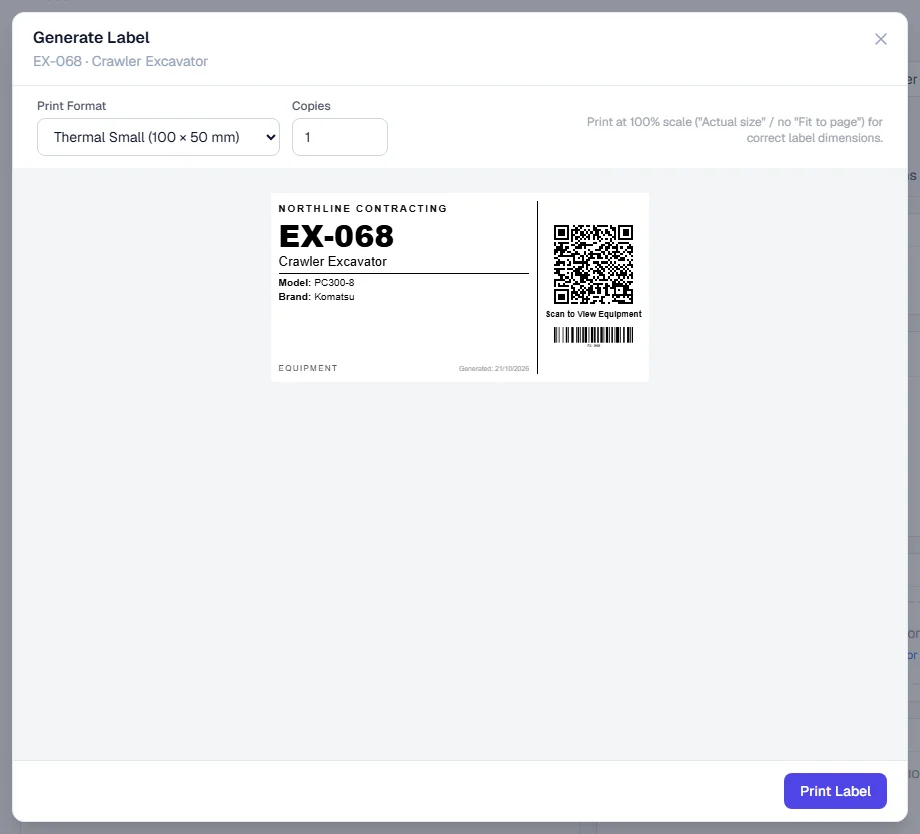
- Open the record and press its label button (see the table above). The label window opens with a preview.
- Under Print Format, choose the size that matches your labels or printer.
- Under Copies, set how many. On a sheet format it starts with a full sheet.
- Click Print Label. Your browser's print dialog opens.
- Print at 100% scale ("Actual size"), not "Fit to page", or the label will come out the wrong size.
The formats on offer include thermal label sizes, Equipment Label (90 × 60 mm), Bin Label (75 × 50 mm), Shelf Label (50 × 25 mm), QR Only (50 × 50 mm), Barcode Only (60 × 30 mm), A3 Site Sign (420 × 297 mm), and A4 Sheet or Letter Sheet of multiple labels for an ordinary printer.
Scan a label from inside Solmex
Any phone's camera app opens a Solmex label directly. If you are already in Solmex, you can scan without leaving it:
- Press Scan. On a phone it is in the bottom tab bar.
- Allow the camera when your browser asks. Hold the label inside the frame. In a dark place, press Turn the light on.
- Solmex opens the record the label is for.
If the label is scratched or will not read, type the number printed under the barcode in Or type a number. It searches assets, tools and spare parts, as far as your role can see them.
Label Service: sizes and print history
Open Settings > Label Service to see:
- Templates: the label sizes available for each kind of record.
- Print History: every print, with what was printed, the Template, the number of Copies, Printed By and Printed At.
You need Labels: View to open it.
Rules worth knowing
- At most 100 copies per print. Print again for more.
- A label shows what the record holds. A detail not recorded, such as a serial number, is left off.
- A machine's QR code never changes, even if you renumber the machine. The printed number and barcode do, so print a new label after renumbering.
Troubleshooting
| What you see | What to do |
|---|---|
| "No company name is configured, so these labels print without one." | Add your company name under Settings > Company Settings. |
| "copies must be between 1 and 100" | Enter a number of copies from 1 to 100. |
| "Camera access is blocked" | Allow the camera for this site in your browser settings, or type the number instead. |
| "The camera needs a secure connection" | Use your phone's camera app to scan, or type the number. |
| "This label was printed before the store layout was rebuilt" | Reprint the location's label from Warehouse Settings > Setup. |
| "No asset in this company matches that label." | The label is not for an asset in your company. Check you are signed in to the right company. |