
Log a completed PM
Record a service as it is done, with the people, the checklist, the parts and fluids used and the meter reading. Parts leave stock and a PDF report is made.
When a service is done, log it in Solmex. The machine's schedule moves on to the next service, the parts and fluids come out of stock, and a PM Completion Report is filed on the machine.
Before you start
- You need Preventive Maintenance: Edit.
- The machine must have a template. See Assign PM templates to machines.
- Have the meter reading taken at the service, and the names of who did the work.
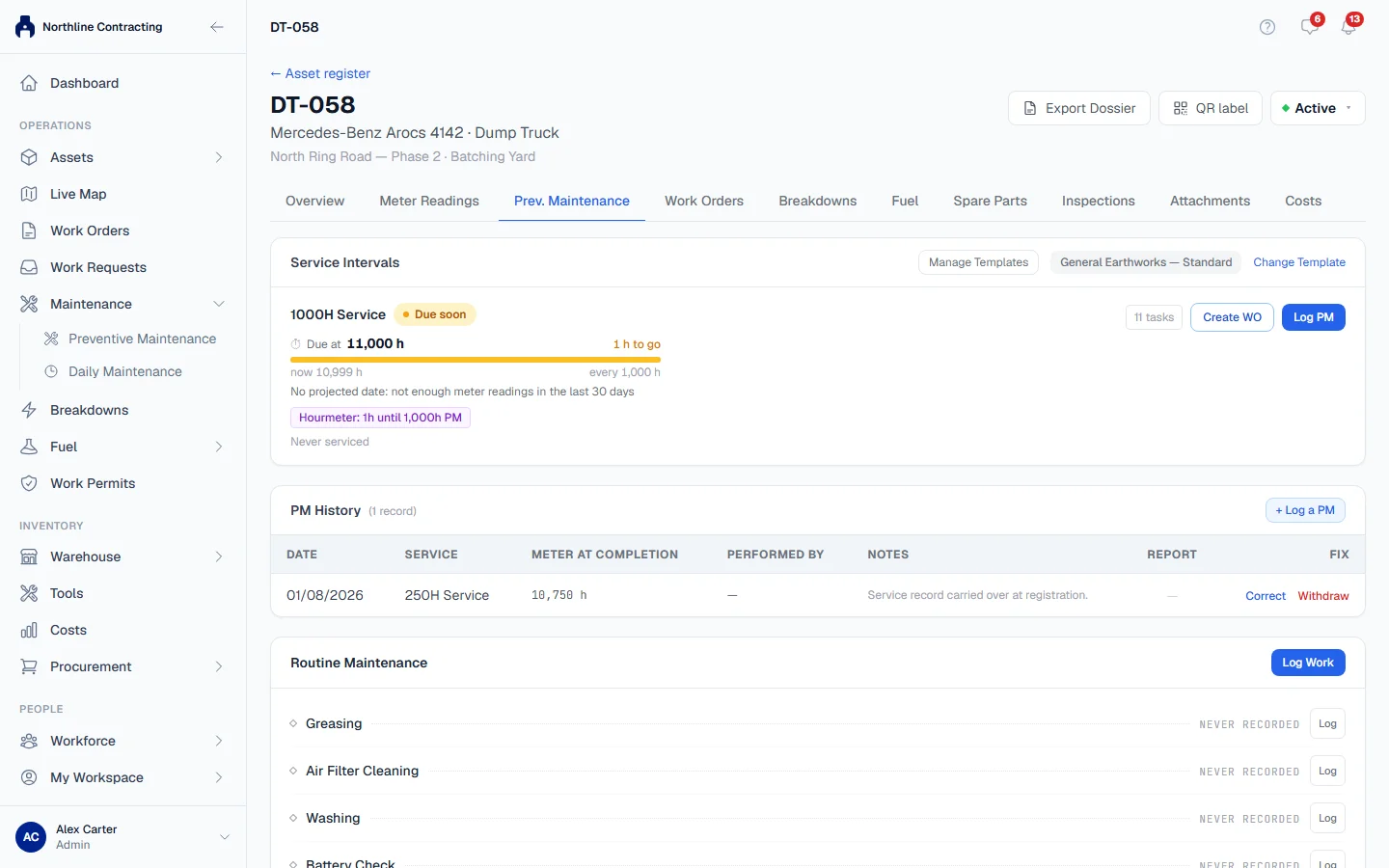
Log the service
- Open the machine and choose the Prev. Maintenance tab. You can also click the machine on the Status tab of the Preventive Maintenance page.
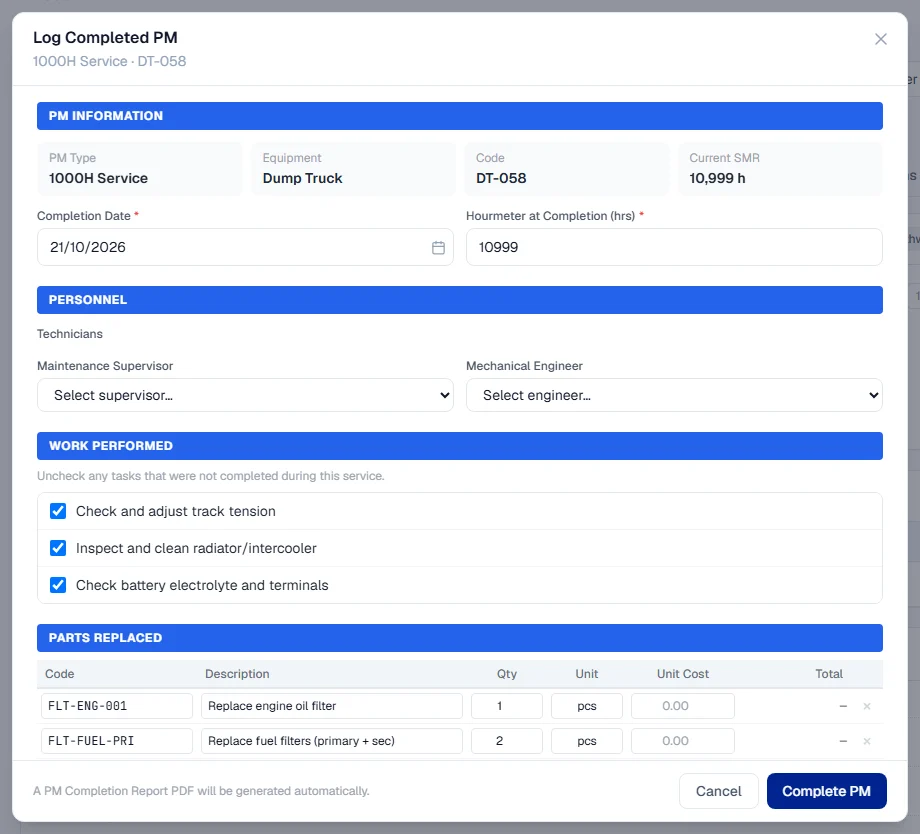
- Find the service under Service Intervals and click Log PM on it. The Log Completed PM form opens.
- Under PM Information, check the Completion Date. It starts as today.
- Enter Hourmeter at Completion (hrs) and, if the machine has one, Odometer at Completion (km). They start with the machine's current readings; change them to what the meters read at the service.
- Under Personnel, add the Technicians, and choose a Maintenance Supervisor and Mechanical Engineer if you record them. Choose the Maintenance team if a team did the work (see Maintenance teams).
- Under Work Performed, untick any task that was not done during this service.
- Under Parts Replaced and Fluids Used, check the lines filled in from the template. Change quantities, remove lines, or add one with + Add Part or + Add Fluid.
- Add any Notes: observations, findings, follow-up actions.
- Click Complete PM.
What happens next
- The service appears in the machine's PM History, and the interval's status updates. The next service is worked out from the fixed milestones. See How PM due dates are worked out.
- The meter readings become meter readings. The figures you entered are added to the machine's Meter Readings tab and move its current meter forward, so a machine serviced in the workshop does not look as if it has not moved.
- Parts and fluids leave stock. Each line linked to a warehouse item is issued from that item's default storage location and its cost is recorded against the machine. A line without a stock code is kept on the record only; no stock moves.
- A PM Completion Report PDF is made and filed on the machine. Download it from the Report column of the PM History.
Rules worth knowing
- All or nothing. If a part cannot be issued, for example because there is not enough in stock, nothing is saved: no service, no reading, no stock movement. Fix the problem and complete the PM again.
- A zero quantity means not used. A part line with a quantity of 0 issues nothing.
- The completion date cannot be in the future.
- One service per interval per reading. Logging the same service twice at the same reading is refused.
Raising a work order first
If you plan the service before it is done, click Create WO on the interval to raise a work order for it (see The work order page). The button then shows the work order's number and status. When the work is finished, log the PM as above.
Troubleshooting
| What you see | What to do |
|---|---|
| "At least one meter reading at completion is required." | Enter the reading the machine's meter showed at the service. |
| "A completed service cannot be dated in the future" | Change the Completion Date to today or earlier. |
| "A PM completion for this interval at this SMR already exists" | This service is already logged at that reading. Check the PM History. |
| "Insufficient stock for part ...: need ..., only ... on hand" | Receive the part into its default storage location, or reduce the quantity, then complete the PM again. |
| "... has no default location, so there is nowhere to issue it from." | Set a default storage location on the warehouse item. |
| "... is inactive and cannot be issued" | Reactivate the item in the warehouse, or remove the line. |
| "Check the meter reading" with a list of warnings | Correct the reading, or click Save anyway if it is right. |
| "... was disposed of on ... and you cannot log a service on it." | Reinstate the machine first if it was disposed of by mistake. |