
The equipment page
Each machine has one page holding its identity, ownership, deployment, meters and every record made about it, organised in tabs. Most fields are edited in place on the Overview tab.
Every machine has one page, and everything recorded about it is reached from there: its readings, maintenance, work orders, breakdowns, fuel, parts, inspections and costs. This article explains how the page is laid out and how to correct the machine's details.
Before you start
- You need Equipment: View to open a machine's page, and Equipment: Edit to change its details.
- Open a machine by clicking its row on the Equipment Register, or by selecting it in Panel view. See Table view, panel view and columns.
The header
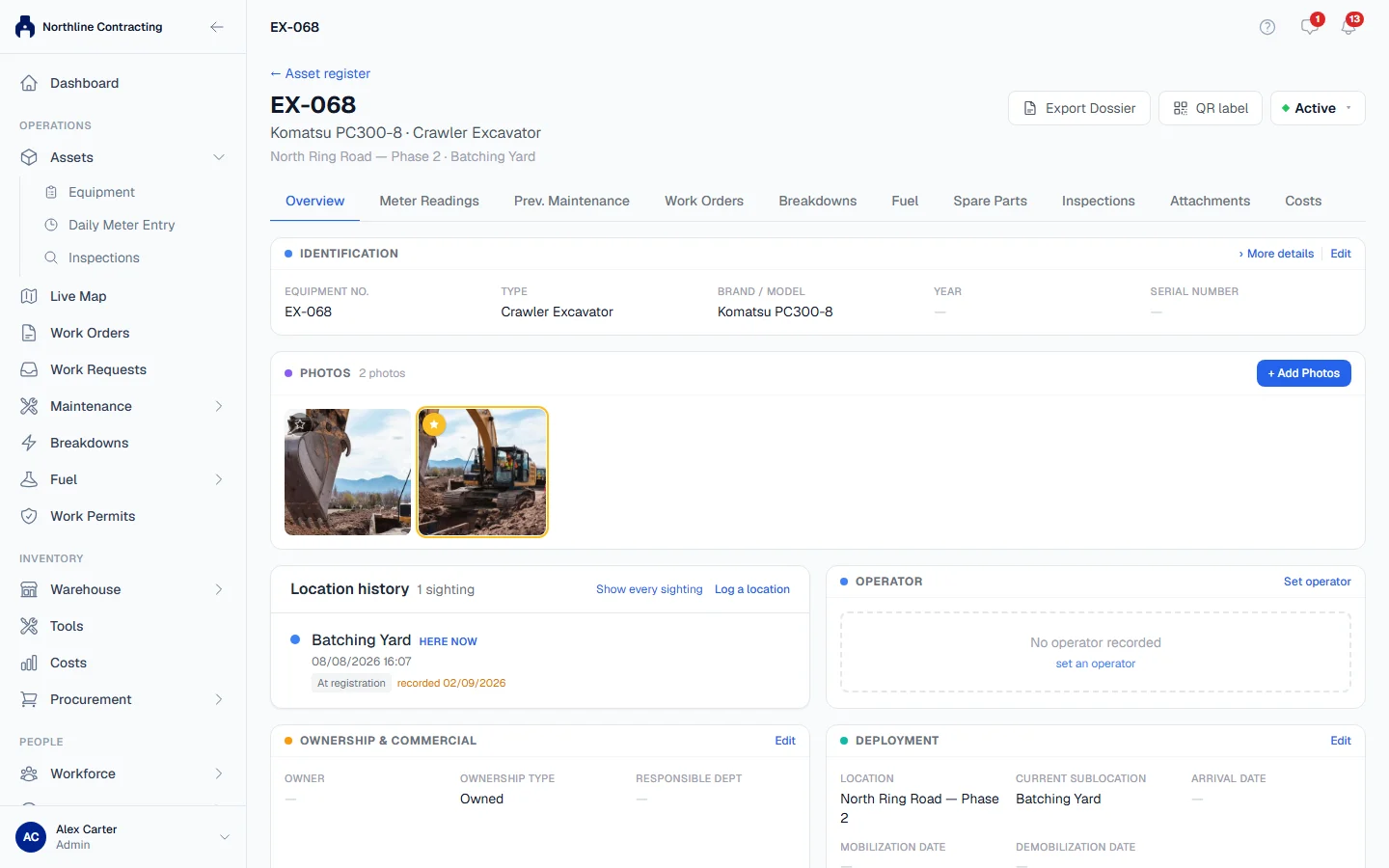
At the top of the page you see:
- The equipment number, with the brand, model and type beneath it, and the machine's Location and Sublocation.
- Export Dossier: a printable record of the machine. It is shown only if your role includes Analytics: Export.
- QR label: prints the machine's QR label.
- The status button, showing the machine's current status. If your role includes Equipment: Edit, click it to change the status; otherwise it is shown as a plain badge. See Equipment statuses.
Use ← Asset register at the top left to go back to the register.
The tabs
| Tab | What it shows |
|---|---|
| Overview | The machine's details, operator, photos and documents. |
| Meter Readings | Its hourmeter and odometer history, and where you log a new reading. |
| Prev. Maintenance | Its preventive maintenance programme and service history. |
| Work Orders | Work orders raised for it. |
| Breakdowns | Its breakdowns, past and open. |
| Fuel | Its fill-ups and fuel consumption. |
| Spare Parts | Parts fitted and issued to it. |
| Inspections | Inspections carried out on it. |
| Attachments | Other equipment mounted on it, or the machine it is mounted on. |
| Costs | What it has cost, from fuel, parts and other entries. |
You see only the tabs your role allows. For example, Fuel needs Fuel: View and Costs needs Costs: View. The open tab is part of the page address, so a link you share opens on the same tab.
The Overview tab
The Overview tab is arranged in cards:
| Card | What it holds |
|---|---|
| Identification | Equipment number, asset number, type, group, fuel type, year, serial numbers and more. Click More details to see every field. |
| Ownership & Commercial | Ownership type, owner, responsible department, and rental terms for a rented machine. |
| Deployment | Location, Sublocation, and arrival, mobilization and demobilization dates. |
| Maintenance & Compliance | The current meters, the last PM, and insurance and registration expiry dates. |
Further down are the machine's operator, its photos, its compliance and other documents, and its maintenance records.
Edit the machine's details
- On the Overview tab, click Edit on the card you want to change.
- The card's fields open for editing. Change what you need.
- Click Save, or Cancel to leave everything as it was.
Only one card's fields change when you save. Every change is recorded with your name and the time.
To change which meters the machine has, click Edit meters on the Maintenance & Compliance card. Removing a meter keeps every reading already logged against it; add it back later and the machine returns to what its history says it read, not to zero.
Types, groups, categories and departments are picked from your equipment lists. Choose + Add new… in a picker to add a value that is not there yet.
Rules worth knowing
- The equipment number must stay unique. You can correct it, but not to a number another machine already has.
- Fuel Type cannot be emptied once stated. You can change it to another value, but not back to blank.
- Status is not edited on a card. Use the status button in the header.
- The Location is not changed by editing the Deployment card. Moving a machine to a different Location is a transfer, recorded with its date.
Troubleshooting
| What you see | What to do |
|---|---|
| "Equipment not found." | The machine does not exist, or it is in a Location your account cannot see. |
| No Edit links on the cards | Your role does not include Equipment: Edit. |
| "Equipment No. is required." | You emptied the equipment number. Type it back in. |
| A message saying the equipment number is already used by another machine | Choose a different number, or open the other machine. |
| A message saying Fuel Type cannot be cleared | Pick Diesel, Petrol, Electric, or None for a machine that is not fuel-powered, instead of leaving it blank. |
| A tab you expect is missing | Your role does not include that module's view permission, or your plan does not include the module. |