
Fuel stations and attendants
Keep the lists of places fuel comes from and people who dispense it, which every fuel entry screen offers as dropdowns.
Every fill-up names the Station the fuel came from and who dispensed it (Filled By). Both are chosen from your company's own lists, kept on the Fuel Settings page. A list rather than free text means "Main Depot" is always spelled one way, so reports can group by it.
Before you start
- Anyone with Fuel: View can see the lists.
- Adding, editing, archiving and restoring needs Fuel: Manage. Without it, the page tells you that you have read-only access.
Solmex starts with empty lists. Nothing can be logged until at least one station and one attendant exist, so set these up before your first fill-up.
Add a fuel station
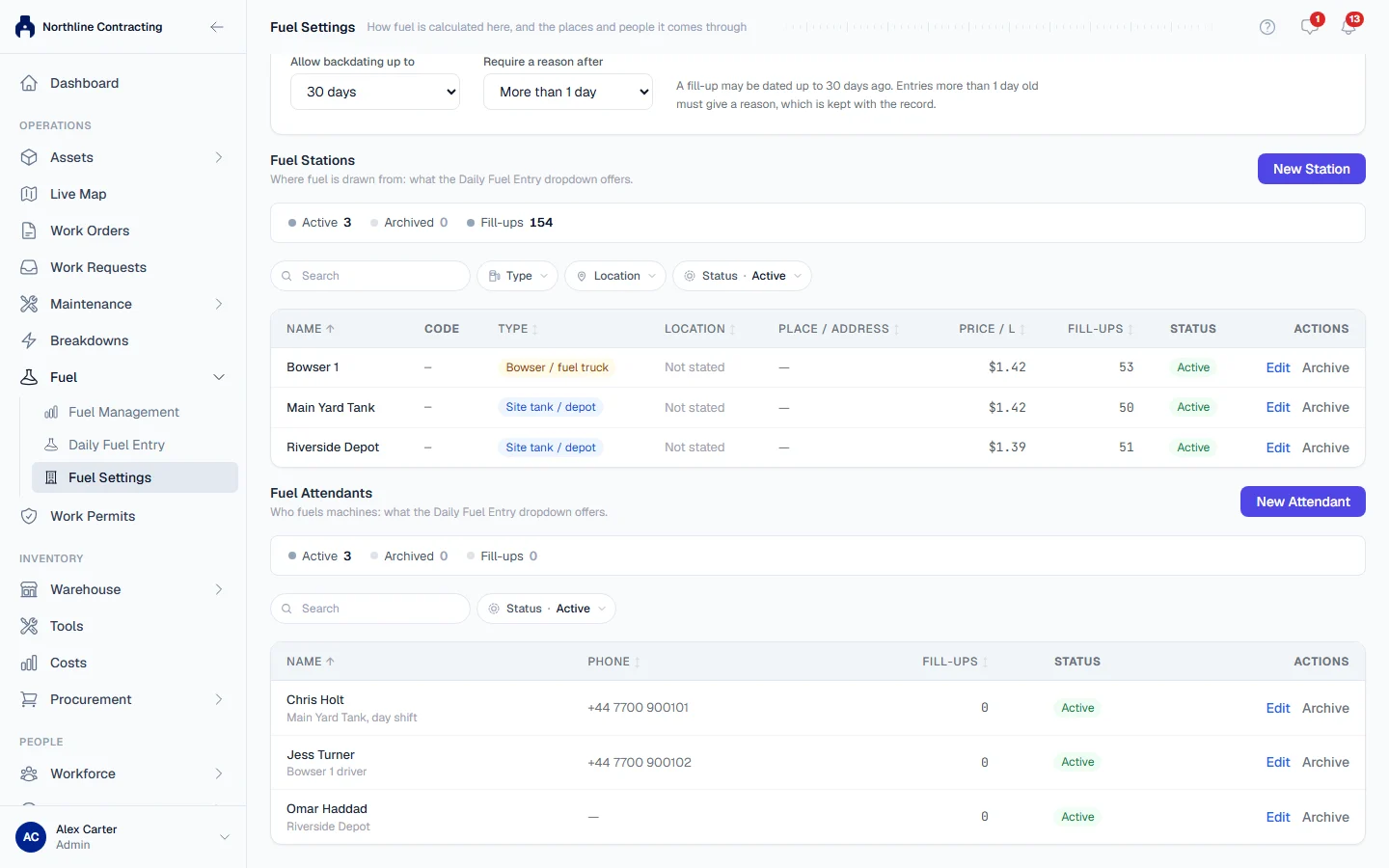
- In the sidebar, open Fuel > Fuel Settings and scroll to Fuel Stations.
- Click New Station.
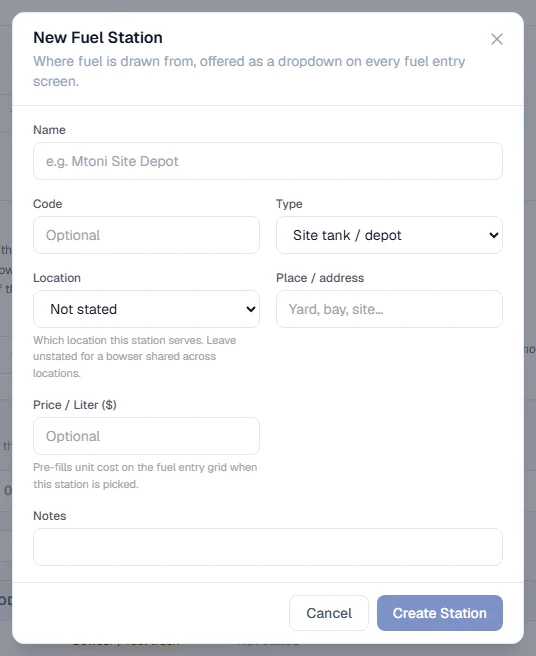
- Fill in the New Fuel Station form:
| Field | Notes |
|---|---|
| Name | Required. How everyone refers to it, such as "Mtoni Site Depot". |
| Code | Optional short code. |
| Type | Site tank / depot, Bowser / fuel truck or Third-party station. See below. |
| Location | Which Location the station serves. Leave it Not stated for a bowser shared across Locations. |
| Place / address | Optional, such as a yard or a street address. |
| Price / Liter | Optional. Pre-fills the unit cost when this station is picked on an entry screen. |
| Notes | Optional. |
- Click Create Station.
The three types separate fuel you issue from your own stock from fuel you buy from someone else:
- Site tank / depot: your own site tank or depot.
- Bowser / fuel truck: a bowser that goes to the machine.
- Third-party station: a filling station you buy from.
About the price per litre
The station price is a starting point, not a rule. It fills in Unit Cost when the station is chosen, and you can always type over it. On Daily Fuel Entry, a cost you type takes over from the station price for the rest of the round.
There is one price per station, not a dated price history. When the price changes, edit the station.
Add a fuel attendant
- On Fuel Settings, scroll to Fuel Attendants.
- Click New Attendant.
- Enter the Name, and optionally a Phone and Notes.
- Click Create Attendant.
Edit, archive or restore
Each row has Edit and Archive actions. An archived station or attendant:
- stays on every fill-up already logged against it
- is no longer offered for new entries
- can be brought back with Restore
Use the Status filter to show Archived entries. The counters above each list show how many are Active, how many Archived, and how many fill-ups have used them.
Rules worth knowing
- An archived station or attendant is refused on new entries, on every screen, and also when a saved entry is edited to use it.
- The station's Location is never guessed. A station saved before you set it reads Not stated, and the Location filter has a Not stated option so you can find them.
- A machine's last-used station is never pre-selected. Only the station you choose for the round, or for the row, is used.
Troubleshooting
| What you see | What to do |
|---|---|
| "No fuel stations yet" | The list is empty. Add the depots, bowsers and filling stations you use. |
| "Could not save the fuel station." | Check the name is filled in and try again. |
| A station is missing from the dropdown on an entry screen | It is archived. Restore it, or pick another. |
| No New Station button | Your role does not include Fuel: Manage. |