
Triage work requests
Read the requests waiting for maintenance and decide each one, by turning it into a work order or a breakdown, or by closing it with a reason.
Triage is the step between someone reporting a problem and maintenance doing something about it. For each open request you decide one of three things: it becomes a work order, it becomes a breakdown, or it is closed without work. The person who asked can see the outcome.
Before you start
- You need Work Requests: Triage to convert or close requests, and Work Requests: View to open the page.
- People holding Work Requests: Triage are notified whenever a new request arrives.
- To convert a request into a work order you do not also need Work Orders: Edit: the triage permission is enough.
Who sees what
The Work Requests page shows different things to different people:
| You hold | You see |
|---|---|
| Work Requests: View and Work Requests: Triage | Every request in your company. |
| Work Requests: View only | Only the requests you raised yourself, on every tab and in every count. |
The queue
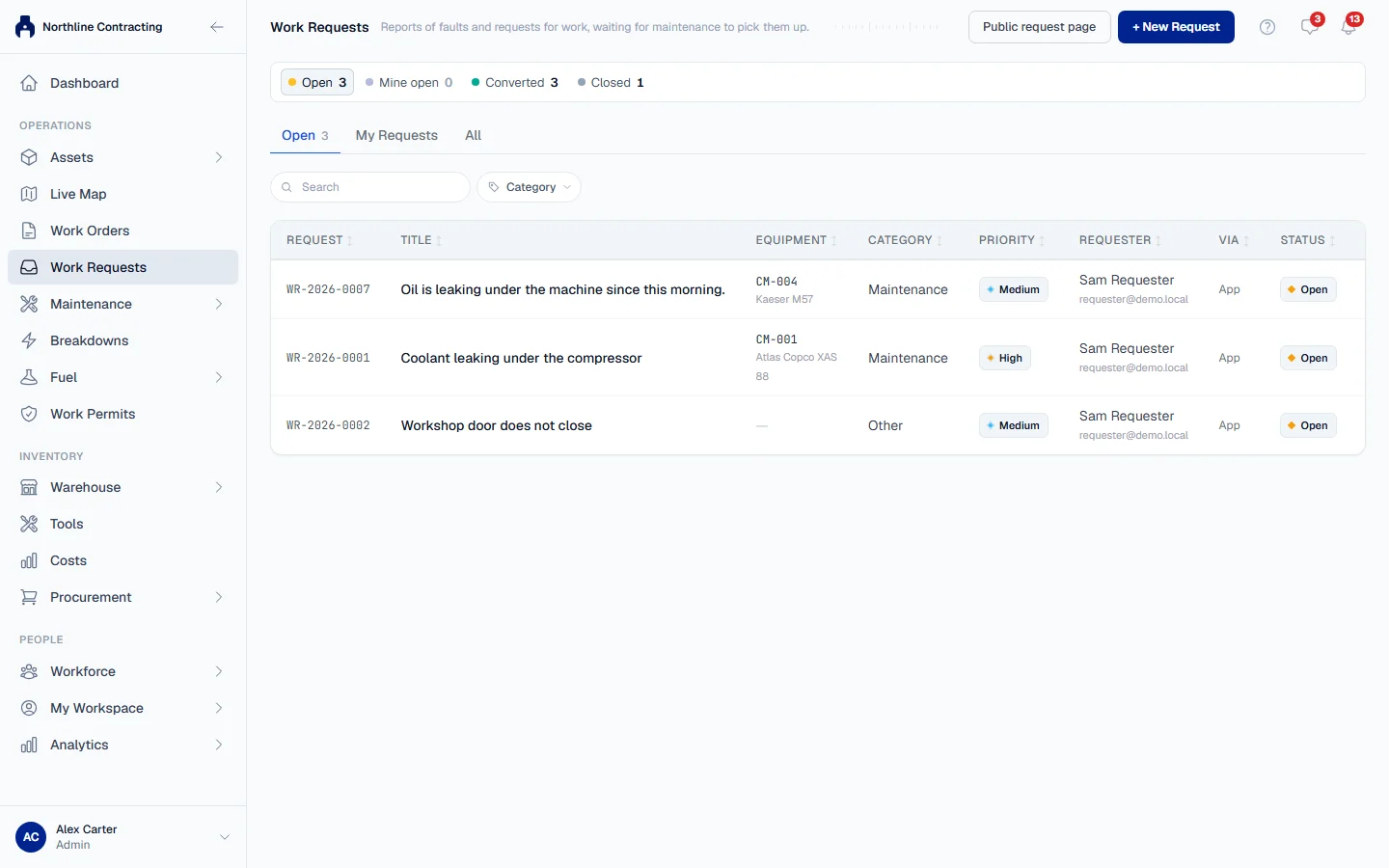
Open Work Requests in the sidebar. The page opens on the Open tab when anything is waiting.
| Tab | Shows |
|---|---|
| Open | Requests nobody has decided yet. |
| My Requests | Requests you raised. |
| All | Every request, whatever its status. Use the Status filter to narrow it. |
The figures across the top are Open, Mine open, Converted and Closed. Click one to see those requests. You can also filter by Category and search by number, title, requester or machine.
The Via column says how a request arrived: App, QR scan or Public page. A machine shown in quotes with "No machine on the register" under it is one the requester typed and Solmex could not match.
Turn a request into a work order
- Open the request. Read the description and look at any photos.
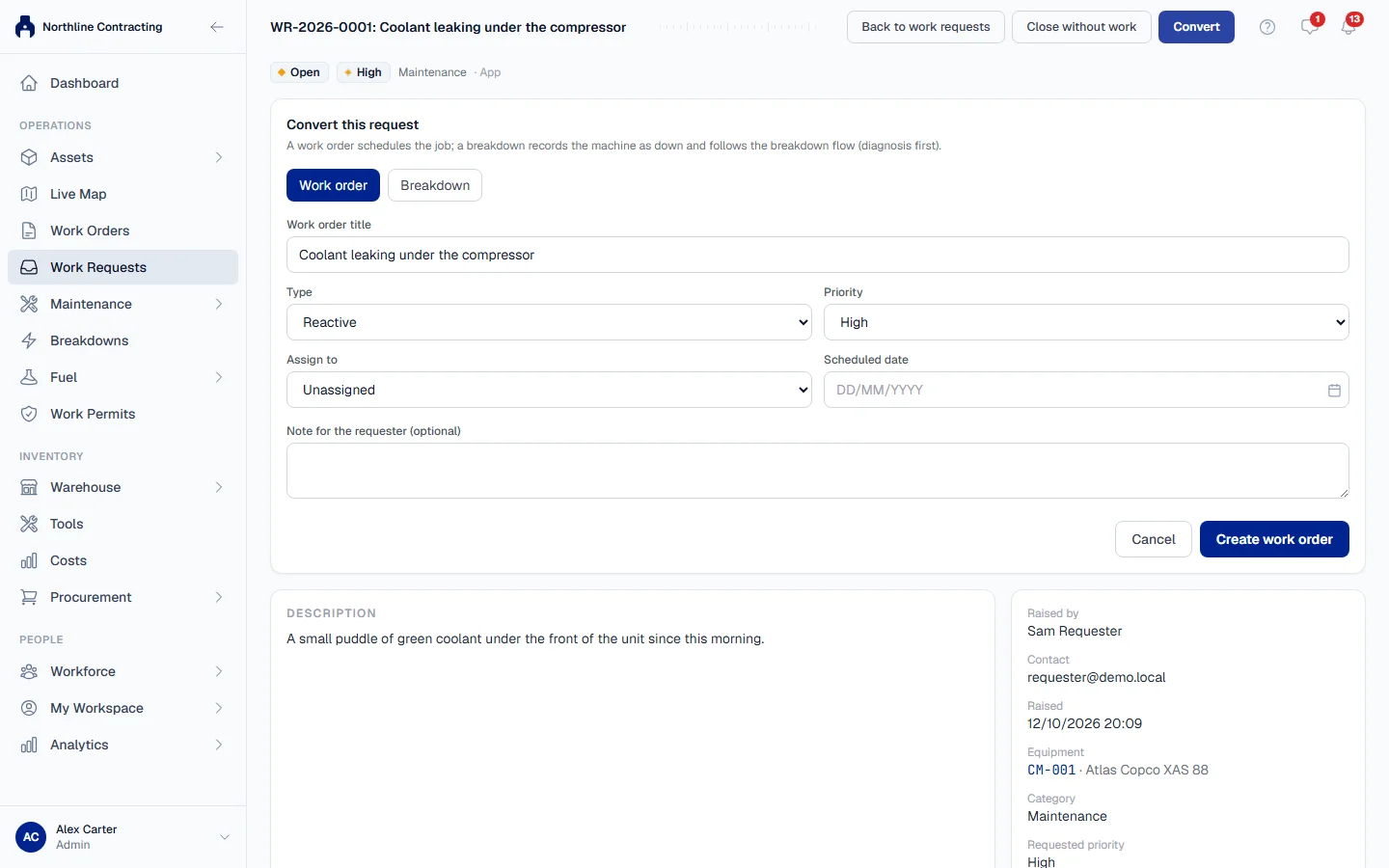
- Click Convert. The Convert this request panel opens above the request.
- Choose Work order.
- If the request names no register machine, pick the Equipment it is about.
- Check the Work order title, Type and Priority. They start from the request: the type starts as Reactive (Other when the request was raised as "Something else"), and the priority is the one the requester chose.
- Optionally, choose who to Assign to and a Scheduled date.
- Optionally, write a Note for the requester (optional).
- Click Create work order.
The request becomes Converted, and a panel at the top links to the new work order with Open work order. The work order records that it came from this request, and the person you assigned it to is notified. See Create a work order for what happens to the job next.
Record it as a breakdown instead
Choose Breakdown in step 3 when the machine is actually down, then click Create breakdown. Solmex logs a breakdown on the machine, with the reported time taken from the request, and sets the machine's status to Breakdown. The breakdown then follows the normal breakdown process, starting with diagnosis: see Work a breakdown. No work order is raised at this point.
Close a request without work
- Open the request and click Close without work.
- Under Reason, say what you found or why no work is needed. The requester will read it.
- Click Close request.
The request becomes Closed. Someone who reported it without a login sees your reason on their status page.
Rules worth knowing
- A request is decided once. After it is converted or closed, the Convert and Close without work buttons disappear.
- A reason is required to close. The person who asked deserves to know why nothing will happen.
- Your name is not shown to anonymous requesters. Their status page shows the outcome and the document number, never who decided.
- Photos cannot be added after triage, by anyone, so the evidence you decided on stays the evidence on record.
Troubleshooting
| What you see | What to do |
|---|---|
| Create work order is greyed out | Pick the Equipment (the request names no register machine), or fill in the Work order title. |
| "This request names no machine on the register. Pick the equipment it is about before converting it." | Choose the machine under Equipment in the convert panel. |
| "Work request WR-2026-0012 has already been converted." (or "closed") | Someone else decided it while you had it open. Reload the page to see the outcome. |
| Close request is greyed out | Write a Reason first. |
| You see only your own requests | Your role does not include Work Requests: Triage. Ask your administrator. |