
Import a fuel log
Bring months of fill-ups in from an Excel sheet, checked as a whole against each machine's meter history before anything is recorded.
Import Fuel Log brings a spreadsheet of past fill-ups into Solmex. Every row is checked against the machine's history and the other rows in the file, and nothing is recorded until the whole file is right.
Before you start
- You need Fuel: Edit.
- Rows may be dated only as far back as the backdating limit in Fuel Settings. For a long history, ask someone with Fuel: Manage to set it to Unlimited first.
- Add your fuel stations first if the log names them. See Fuel stations and attendants.
- One file holds up to 2,000 rows. Split a longer log into several files.
Prepare the file
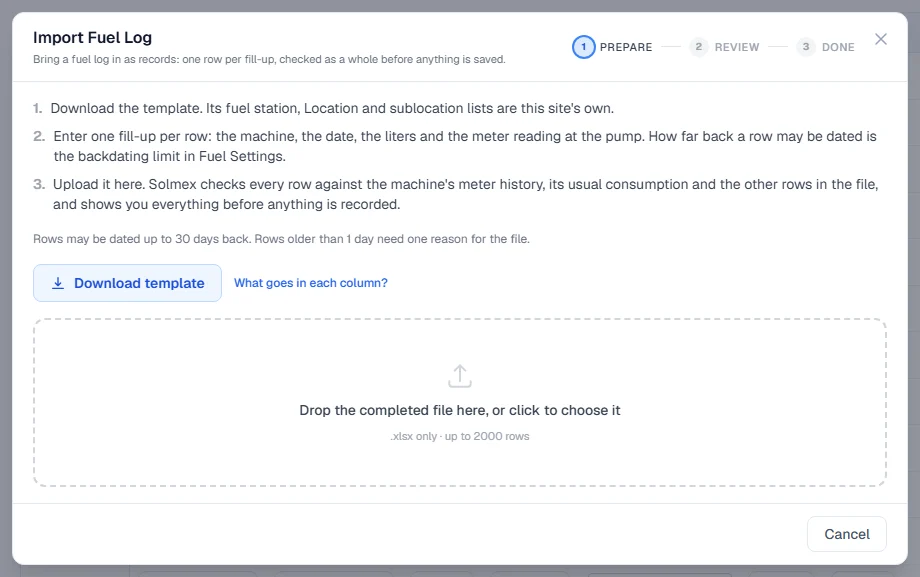
- Open Fuel > Daily Fuel Entry and click Import fuel log.
- Click Download template. The template's station, Location and Sublocation lists are your company's own.
- Enter one fill-up per row. Click What goes in each column? in the window for a guide to every column.
- Save the file as an Excel workbook (.xlsx).
| Column | Notes |
|---|---|
| Equipment No. | Required. Exactly as it appears in the register. |
| Date | Required. The day the fuel went in. |
| Liters | Required. A decimal comma is read correctly: 45,5 is 45.5. |
| Time | Optional. A blank is recorded as no time, never as midnight. |
| Fuel Type | Optional. Blank uses the machine's own fuel type. |
| Hourmeter (hrs), Odometer (km) | Optional, but without a reading no consumption figure can exist for the row. |
| Unit Cost, Total Cost | Optional. A row with no cost does not reach Costs. |
| Fuel Station | Optional. By name or code. |
| Filled By | Optional. A name matching a fuel attendant is linked to them. |
| Parent Location | Optional. Only needed when two Locations have a Sublocation of the same name. |
| Sublocation | Where the machine was when it was fuelled. |
| Note | Optional, such as a receipt number. |
Check and record
- Drop the file into the window, or click to choose it. Solmex checks it and opens the Review step. Nothing is recorded yet.
- Work through the numbered list of what is left to do. Each item is marked Done when you answer it.
- When the file can be recorded, tick the box confirming you have reviewed the warnings and meter changes, and click Record N fill-ups.
The Done step confirms how many fill-ups were recorded. They are on each machine's fuel history, with their meter readings and Sublocations.
What the review may ask you
One reason for the late entries. If rows are older than your company allows without a reason, give one reason for the whole file. It is kept with every backdated row.
Sublocation names. Solmex will not guess where a machine was. A place name that does not exactly match one of your Sublocations, or that matches one in more than one Location, is shown with any close suggestions. For each name, choose the Sublocation it means, or Record as text only (no sublocation). The name as typed is kept on every row either way.
Meter readings that do not fit. If many of a machine's readings disagree with its recorded meter, the log usually reads a different meter, such as a second hourmeter or one that was replaced. Choose either to correct the readings in the file, or to record the fuel without these readings. With the second choice, each reading is kept in the row's note.
Rows already on record. A row with the same machine, day and litres as an existing fill-up is left out by default (Leave these rows out (recommended)). Choose to record them again only if they really are different fill-ups.
What happens to current meters. The review lists, for each machine, its current meter Now and After import. The highest reading imported becomes the machine's current meter, which preventive maintenance is scheduled from.
Errors and warnings
Errors stop the whole file. Among them: an unknown machine, a meter going backwards or moving faster than a machine can run, the same fill-up twice, a fuel the machine cannot burn, an unknown or archived station, and a number such as 1.250 that could mean a thousand or a decimal.
Click Download the file with problems marked to get your own file back with each problem written beside its row. Correct it in Excel and click Upload the corrected file. Your answers to the questions above are kept.
Warnings do not block, but nothing is recorded until you confirm you have read them: for example, consumption far from the machine's usual rate. A critical warning is far outside what the machine normally does; a typo, a leak or theft look the same in the numbers, and you are the one who can tell.
Rules worth knowing
- All or nothing. Either every valid row is recorded, or nothing is.
- An import cannot be undone with Undo submission. Fill-ups recorded wrongly are voided one by one by someone with Fuel: Manage.
Troubleshooting
| What you see | What to do |
|---|---|
| "That is not an .xlsx file." | Open it in Excel and use Save As, Excel Workbook (.xlsx). |
| "This file cannot be imported as it stands" | A whole-file problem, such as a missing required column or a date column read month first. Read the message, correct the file and upload it again. |
| "Something changed while you were reviewing, so nothing was recorded." | Someone recorded fuel or meters meanwhile. Check the rows again and confirm. |
| "The import failed and nothing was recorded." | Try again. If the file is large, split it. |
| "Every row in this file is already on record" | The file was imported before. Nothing new to record. |