
Table view, panel view and columns
Read the Equipment Register as a table or with the selected machine open beside the list, and choose, order and resize the table's columns.
The Equipment Register can be read two ways. Table view is a spreadsheet of machines with the columns you choose. Panel view keeps the list on the left and opens the selected machine's own page on the right, so you can look through machines one after another without going back and forth.
Before you start
- You need Equipment: View.
- Panel view needs a screen at least 1024 pixels wide, such as a laptop or desktop. On a narrower screen, including a phone, the register is always a list.
Switch between table and panel
At the top right of the register, use the Table and Panel switch. Your choice is remembered in this browser, so the register opens the same way next time. On a wide screen it opens in Panel view until you choose otherwise.
Work in panel view
- Click a machine in the list on the left. Its page opens on the right, with the same tabs as its full page.
- Press the up and down arrow keys to move through the list. The right side follows.
- Open a tab, such as Fuel or Prev. Maintenance. When you select the next machine, the same tab stays open, so you can compare machines tab by tab.
- To leave the register for the machine's full page, press Enter, or click the expand button beside the equipment number (Open this machine's full page).
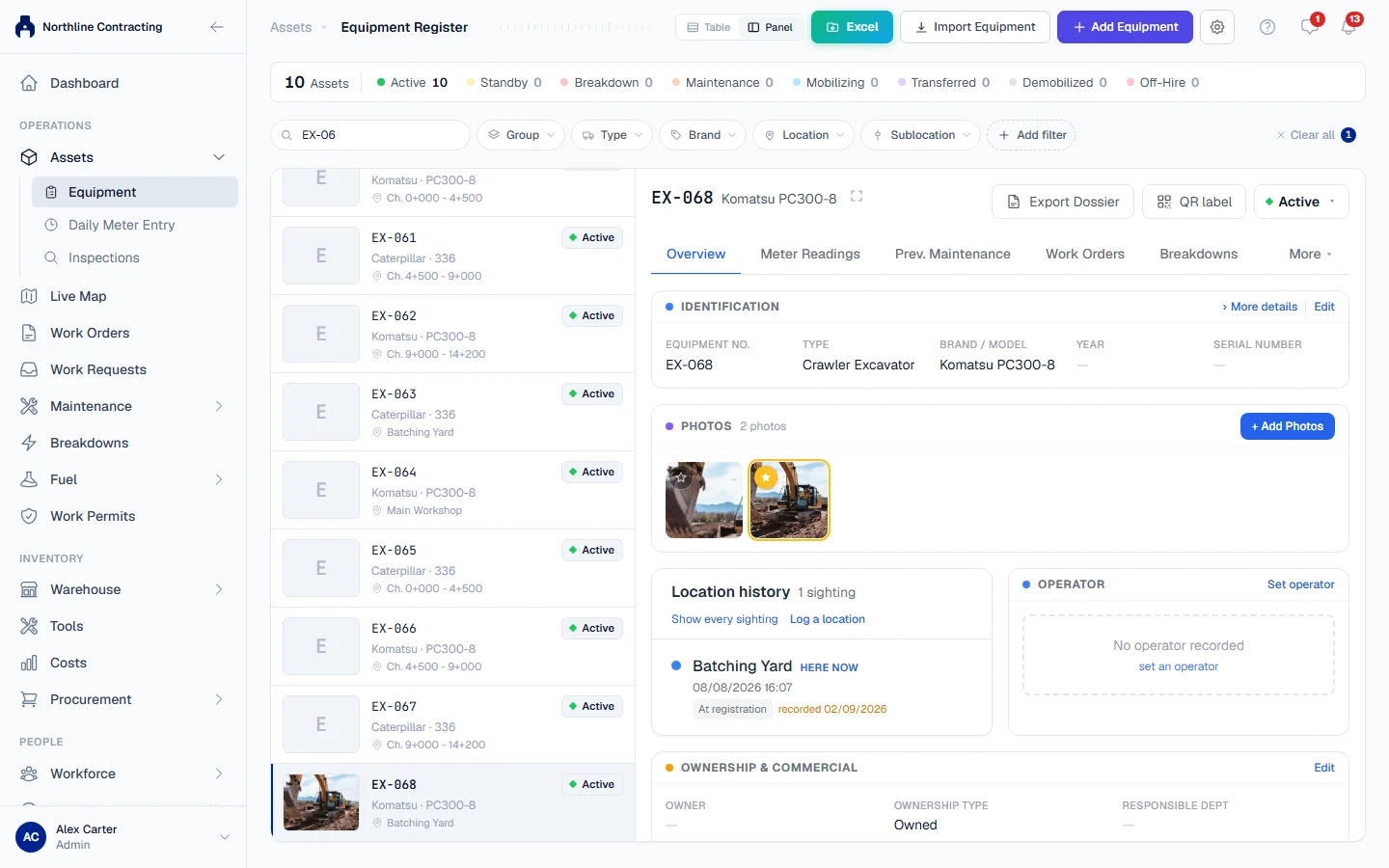
The list on the left shows each machine with its photo, number, description and status. It loads more machines as you scroll to the bottom.
Choose the table's columns
In Table view, the row above the table shows how many machines are listed and a Columns button.
- Click Columns. The Show columns list opens.
- Tick a column to show it, untick it to hide it. Equipment No. and Status are marked Always: they cannot be hidden.
- To change the order, drag a column by its grip to a new place in the list. You can also focus the grip and use the arrow keys.
- To go back to the standard set and order, click Reset.
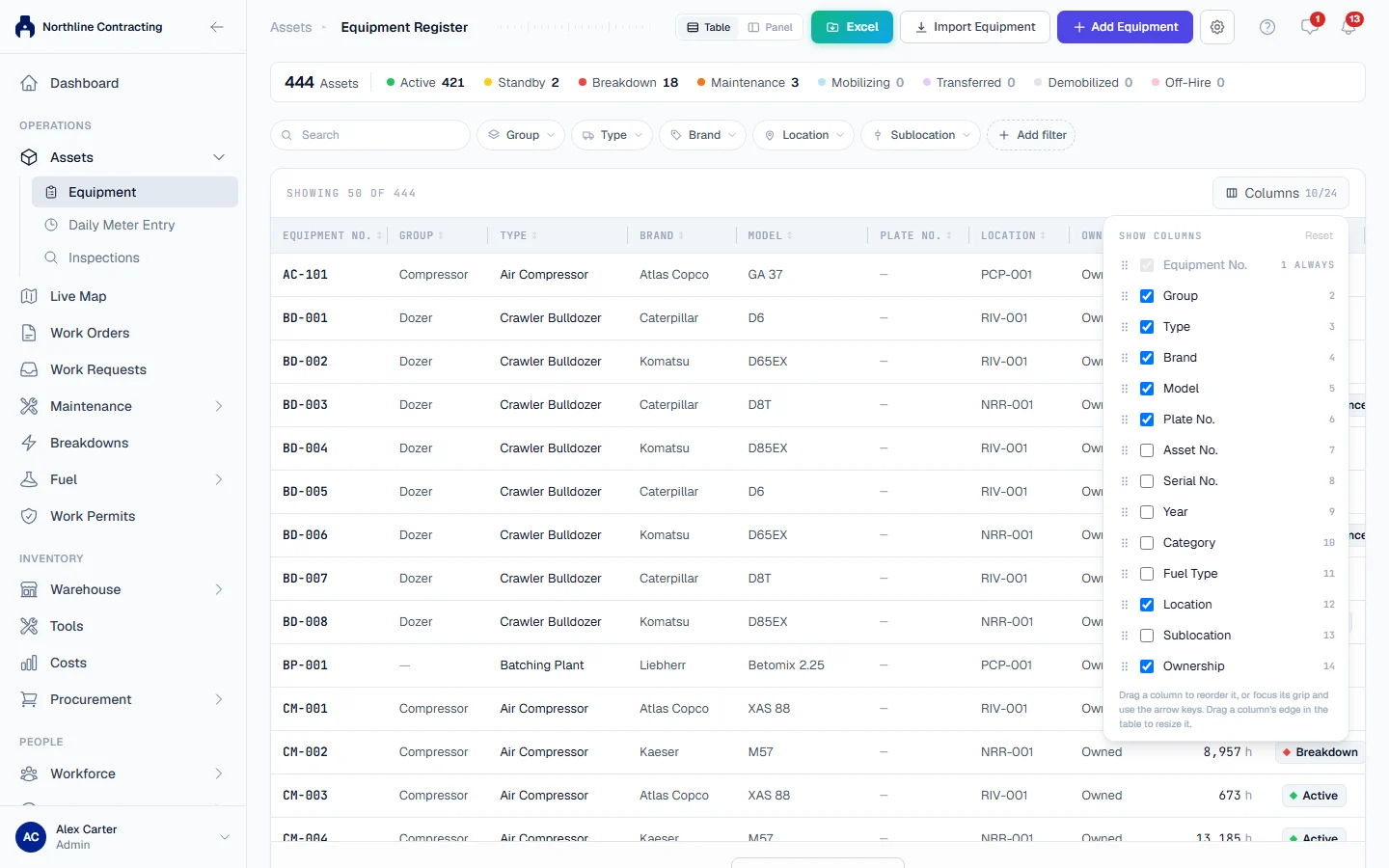
Columns you can add include Asset No., Serial No., Year, Category, Fuel Type, Sublocation, Owner, Rental Company, Department, Operator, Arrival, Last PM, Insurance Expiry and Registration Expiry.
Resize a column
Drag the right edge of a column heading to make it wider or narrower. Each column has a sensible minimum and maximum, so it cannot be dragged to nothing. Double-click the edge to return that column to its standard width. Resizing works on a computer only.
Your columns, their order and their widths are remembered in this browser. They are your own: changing them does not change anyone else's register. Reset in the Columns list clears all three.
Rules worth knowing
- Column choices are per browser. On another computer, or after clearing your browser data, the register shows the standard columns again.
- The Excel export has its own column choice. What you show on screen does not decide what goes into the file. See Export the register to Excel.
- During a guided tour, the register always shows the table, so the tour's steps work as described.
Troubleshooting
| What you see | What to do |
|---|---|
| No Panel switch | Your window is narrower than 1024 pixels, or a guided tour is running. Widen the window, or finish the tour. |
| "Select a machine from the list." | Panel view is open with no machine chosen. Click one on the left. |
| The table scrolls sideways | The columns you chose are wider than the screen. Hide some, or make them narrower. |
| A column you added is gone | Column choices are stored in the browser. A different browser or cleared browser data starts from the standard set. |