
Email a Daily Inspection Report
Have Solmex email managers a PDF of each day's inspections automatically, with the day's figures on the front page and every inspection in full behind it.
The Daily Inspection Report is a PDF that Solmex generates on a schedule and emails to the people you choose. The front page is a manager's summary of the day; after it, every inspection of the day is printed in full, exactly as its own Inspection Report shows it.
Before you start
- You need Analytics: Schedule. By default only administrators have it, because a schedule sends your company's records by email without anyone pressing a button.
- Automatic reports are part of Analytics, which is included in the Business plan.
- The people who should receive it need a Solmex user account with an email address.
Set it up
- In the sidebar, open Analytics > Automatic Reports.
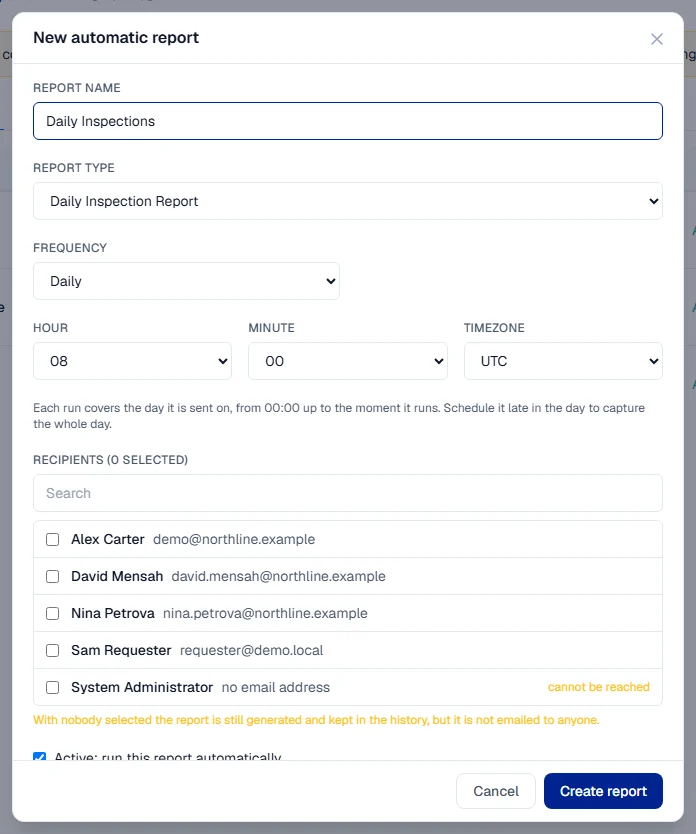
- Click New report. The New automatic report form opens.
- Give it a Report name, such as "Daily Inspections".
- Under Report type, choose Daily Inspection Report.
- Under Frequency, choose Daily.
- Set the Hour and Minute it should run, and check the Timezone.
- Under Recipients, tick the people who should receive it. Use Search people… to find them.
- Leave Active: run this report automatically ticked.
- Click Create report.
The report appears in the list with its Next run time.
To try it straight away, click Run now on its row. The run appears on the History tab, where you can Download the PDF.
What is on the front page
Four figures at the top, then the detail behind them:
| Figure | What it counts |
|---|---|
| Equipment inspected | How many different machines were inspected. A machine inspected three times counts once. |
| Findings found | Findings logged on that day's inspections. |
| Findings closed | Findings closed that day, whenever they were raised. |
| Finding resolution | Findings closed compared with findings found. Shows n/a when nothing was found. |
Below them come a sentence summing up the day, how many inspections are completed and how many are still drafts, the findings by severity and by category, a list of the machines inspected (the machines with the worst findings first), and the findings closed that day.
From the next page, each inspection is printed in full: checklist, findings with photos, and sign-off.
Rules worth knowing
- The day is the inspection date, not when the sheet was signed. An inspection carried out on Tuesday and completed on Wednesday morning is in Tuesday's report.
- Drafts are included and marked. Someone went to the machine, so the work counts, but the report shows them separately from completed inspections.
- A machine with no findings reads "None found", never a pass.
- Weekly or monthly schedules cover the whole period. If you choose Weekly, the report covers the whole week rather than one day.
- A day with no inspections still produces a report, with zeros, saying that nothing was recorded.
- Large days: up to 40 inspections are printed in full. Every count still covers all of them, and the report says how many were not printed in full.
- Nobody selected: the report is still generated and kept in the history, but it is not emailed to anyone.
Pause or change it
On the report's row, click Edit to change it, Pause to stop it for now (Enable starts it again) or Delete to remove it.
Troubleshooting
| What you see | What to do |
|---|---|
| "Report could not be generated. View details." | Open the History tab to see the failed run. Try Run now again. |
| Automatic Reports is missing from the sidebar | Your plan does not include Analytics, or you do not have Analytics: Schedule. Ask your administrator. |
| Someone is not in the Recipients list | Recipients must be users of your company. Invite them first. |