
Import equipment from Excel
Register many machines at once from an Excel file. Solmex checks every row first and imports nothing until the whole file is valid.
If you already keep a list of your machines in a spreadsheet, you can bring it into Solmex in one go instead of adding each machine by hand.
Before you start
- You need the Equipment: Edit permission.
- Create your Locations and Sublocations first. The template's dropdowns are filled with them. See Add Locations and Sublocations.
- A file can hold up to 2,000 machines. For more, split it into several files.
Import your equipment
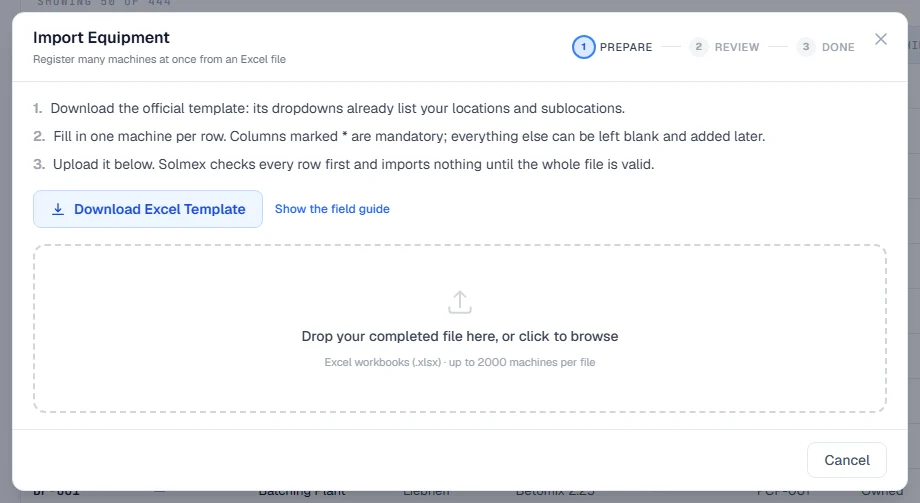
- Open Assets > Equipment and click Import Equipment. (On a phone, it is in the ⋯ menu.)
- On the Prepare step, click Download Excel Template.
- Fill in the template: one machine per row on the Equipment sheet. The Instructions sheet explains every column.
- Save the file as an Excel workbook (
.xlsx). - Drop the file onto the upload area, or click it to browse.
- On the Review step, read the results. Fix any errors in Excel and upload again.
- When every row is valid, click Import to confirm.
The Done step tells you how many machines were imported. They are on the Equipment Register straight away. To put them on a service programme, see Assign PM templates.
Required columns
| Column | What to enter |
|---|---|
| Equipment No. | Your unique number for the machine. |
| Location Code | The code of the machine's Location, from the dropdown. |
| Equipment Type | What the machine is. |
| Fuel Type | diesel, petrol, electric or none. |
| Meter Types | Hourmeter, Odometer, Both or None. |
The optional Sublocation column places the machine in a Sublocation of its Location.
Everything else can be left blank and filled in later. Ownership defaults to owned and status to active. An opening meter reading is only accepted for a meter the machine has.
The example row
The template comes with one worked example, numbered EXAMPLE-001. That row is skipped when you import. If you type over it with a real machine, it imports normally.
Errors and warnings
The Review step sorts problems into two kinds:
- Errors block the import. Each one names the row, the column and what to fix. Correct them in Excel, save, and upload the file again. Nothing is imported while any row has an error.
- Warnings are worth checking but never block, for example a serial number that already exists on another machine.
You will also see how many machines have no Equipment Group, and how many new types, groups or categories will be added to your lists.
Troubleshooting
| What you see | What to do |
|---|---|
| "Only .xlsx files can be imported" | Open the file in Excel and use Save As > Excel Workbook (.xlsx). |
| "The file is no longer valid: nothing was imported" | Something changed between the check and the confirmation, such as another user adding a machine with the same number. Upload the file again. |
| "{n} machines have no Equipment Group" | They import fine but will not appear under a group filter. Set the group later on each machine's Overview tab. |