
Assign and return tools
Record who has a tool and when it is due back, then record its return, so the Tools register always says who holds what.
Assigning a tool records who is responsible for it while it is out of the store: a person, a team, a Location or a workshop. Recording the return brings it back and sets its new status. Between the two, the register shows who holds the tool and whether it is overdue.
Before you start
- You need Tools: Assign to assign and return tools. Viewing assignments needs only Tools: View.
- The tool must not be retired.
Assign a tool
- In the sidebar, click Tools and open the tool.
- Click the Assignment tab.
- Under Current Assignment, click Assign Tool.
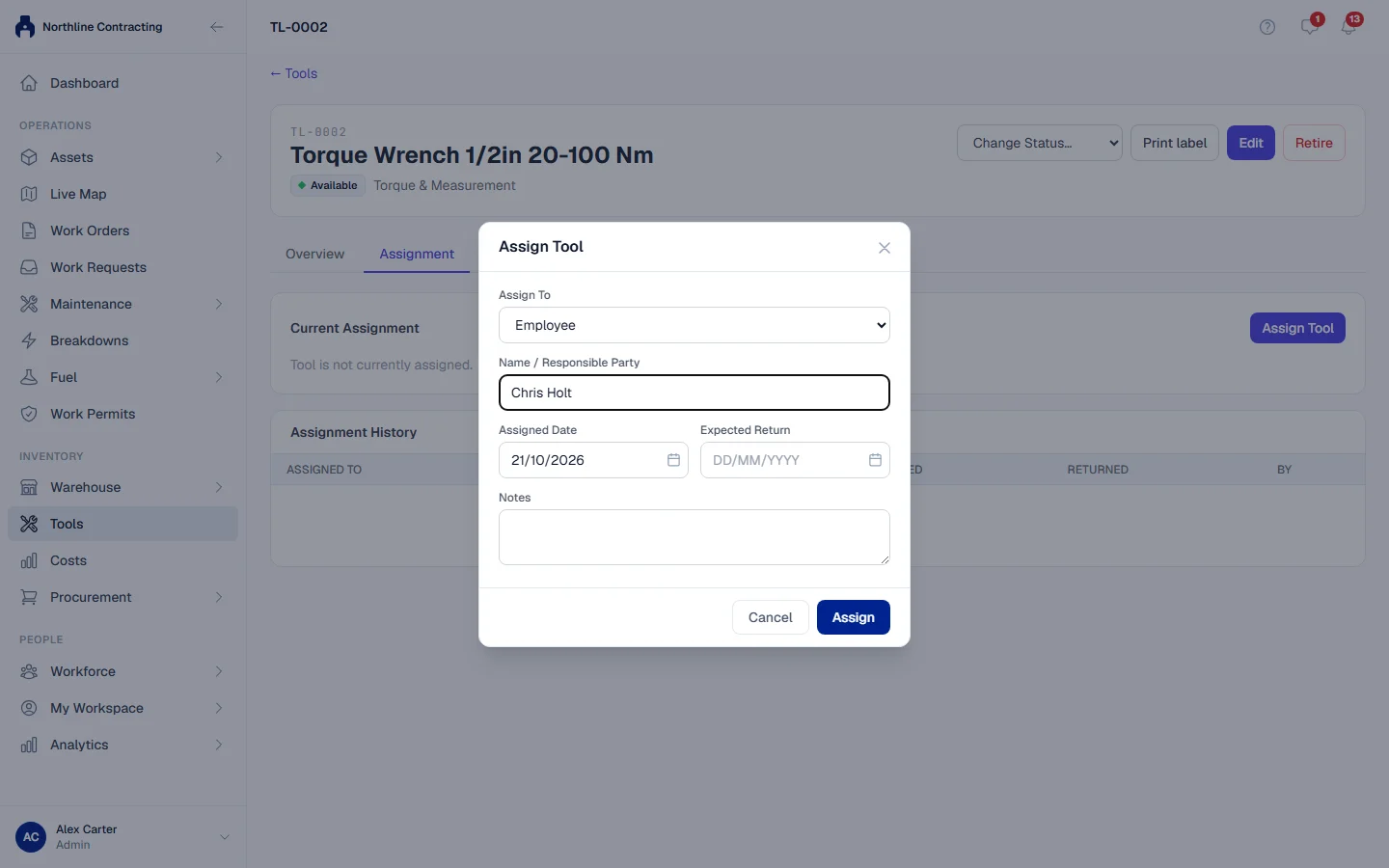
- Under Assign To, choose Employee, Team, Location or Workshop.
- In Name / Responsible Party, type who has the tool, such as "John Mwakideu", "Welding Team" or "Site Workshop".
- Check the Assigned Date (today by default) and, if the tool is due back by a set day, fill in Expected Return.
- Add any Notes and click Assign.
The tool's status becomes Assigned, and its Current Location and Custodian become the name you typed. The register shows "Custodian:" with that name, and the tool's page shows Held by the same name.
Record a return
- Open the tool and click the Assignment tab.
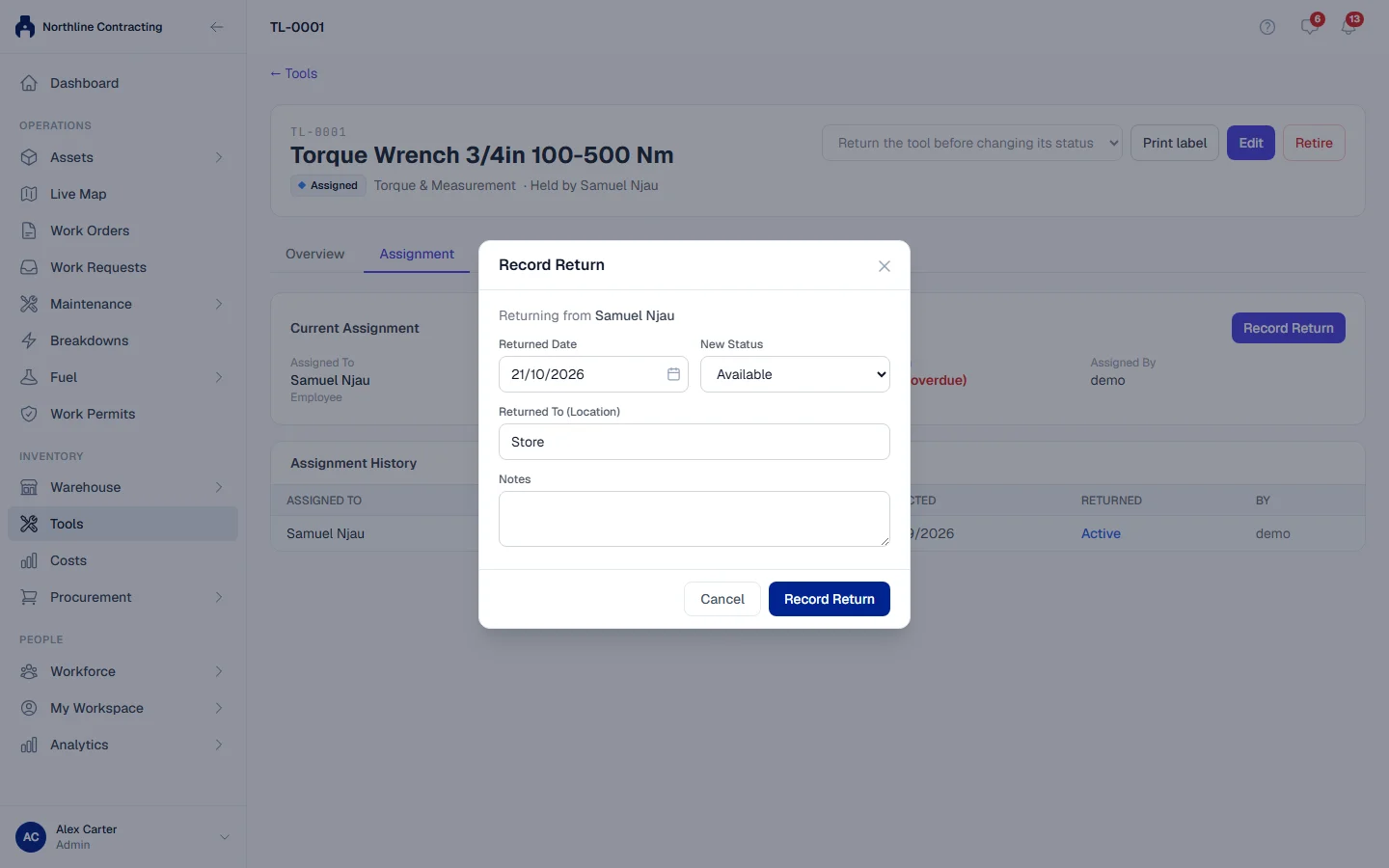
- Click Record Return. The dialog shows who the tool is Returning from.
- Check the Returned Date.
- Choose the New Status: Available for a tool ready for use, or Under Maintenance, Out for Repair, In Workshop, Calibration Due or Lost if it came back needing attention (or did not come back).
- Under Returned To (Location), type where it now is. It starts as "Store".
- Add any Notes and click Record Return.
The assignment moves to Assignment History with its returned date, and the tool can be assigned again.
Overdue returns
When an assignment's Expected Return date has passed and the tool has not come back, the date is shown in red with "(overdue)" on the tool's Assignment tab, and the assignment is counted under Overdue Returns at the top of the register. An assignment with no expected return date is never overdue.
Rules worth knowing
- A tool has one assignment at a time. To give a tool to someone else, record its return first, then assign it again. This keeps a clear record of who was responsible on each day.
- Every assignment and return is kept. Assignment History lists who had the tool, when it went out, when it was expected back, when it came back and who recorded it. Each one also appears on the Movements tab.
- The name is what you type. The responsible party is a free-text name, so a subcontractor or a visiting team can hold a tool without being on your employee list.
Troubleshooting
| What you see | What to do |
|---|---|
| "Please enter who the tool is assigned to" | Fill in Name / Responsible Party. |
| "Tool already has an active assignment" | Record the return first, then assign again. |
| "Cannot assign a retired tool" | Someone with Tools: Administration must reactivate it first. |
| "Tool has no active assignment to return" | The tool was already returned. Refresh the page. |
| Assign Tool or Record Return is missing | Your role does not include Tools: Assign, or the tool is retired. |