
Breakdown codes
Classify each breakdown by the kind of failure, and manage your company's own list of codes: add, rename, re-code, archive and restore.
A breakdown code says what kind of failure a breakdown was, such as an engine, hydraulic or electrical fault. Codes are what let Solmex show which causes cost you the most downtime. Your company starts with a ready-made list, and you own it: you can rename, add, re-code and archive codes to fit how you work.
Before you start
- To classify or reclassify a breakdown you need Breakdowns: Edit.
- To change the list of codes you need Breakdowns: Manage. At first, only the Admin role has it.
- Anyone with Breakdowns: View can browse the list.
How the list is organised
Codes form a tree up to four levels deep, from a broad category down to a specific component. Each level adds its own short code to the one above it, so a full code reads like 001.025.001. You can file a breakdown at any level: a broad code is fine when you do not know more yet.
Classify a breakdown
A code is required when you report a breakdown. To change it later, for example after the diagnosis:
- Open the breakdown. The code and its name are the heading at the top of the page.
- Click Change beside the code. On a breakdown with no code, the link says Classify.
- Search by code or name, for example "transmission", and choose the code. Choose the most specific code you can be sure of. A broader one is better than a guess.
- Optionally, give a reason.
- Click Save.
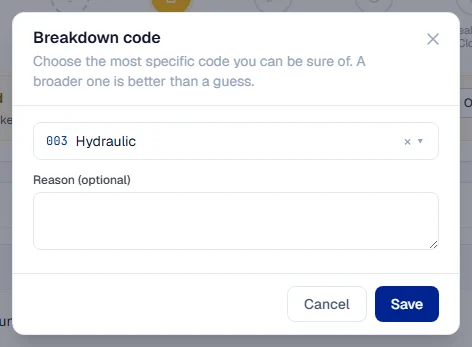
The change is listed on the breakdown's Activity tab, with the old and new code. You can change the code even after the breakdown is resolved, and you can clear it so the breakdown reads Not classified.
Manage the list
- In the sidebar, open Breakdowns.
- Click Breakdown Codes at the top of the page.
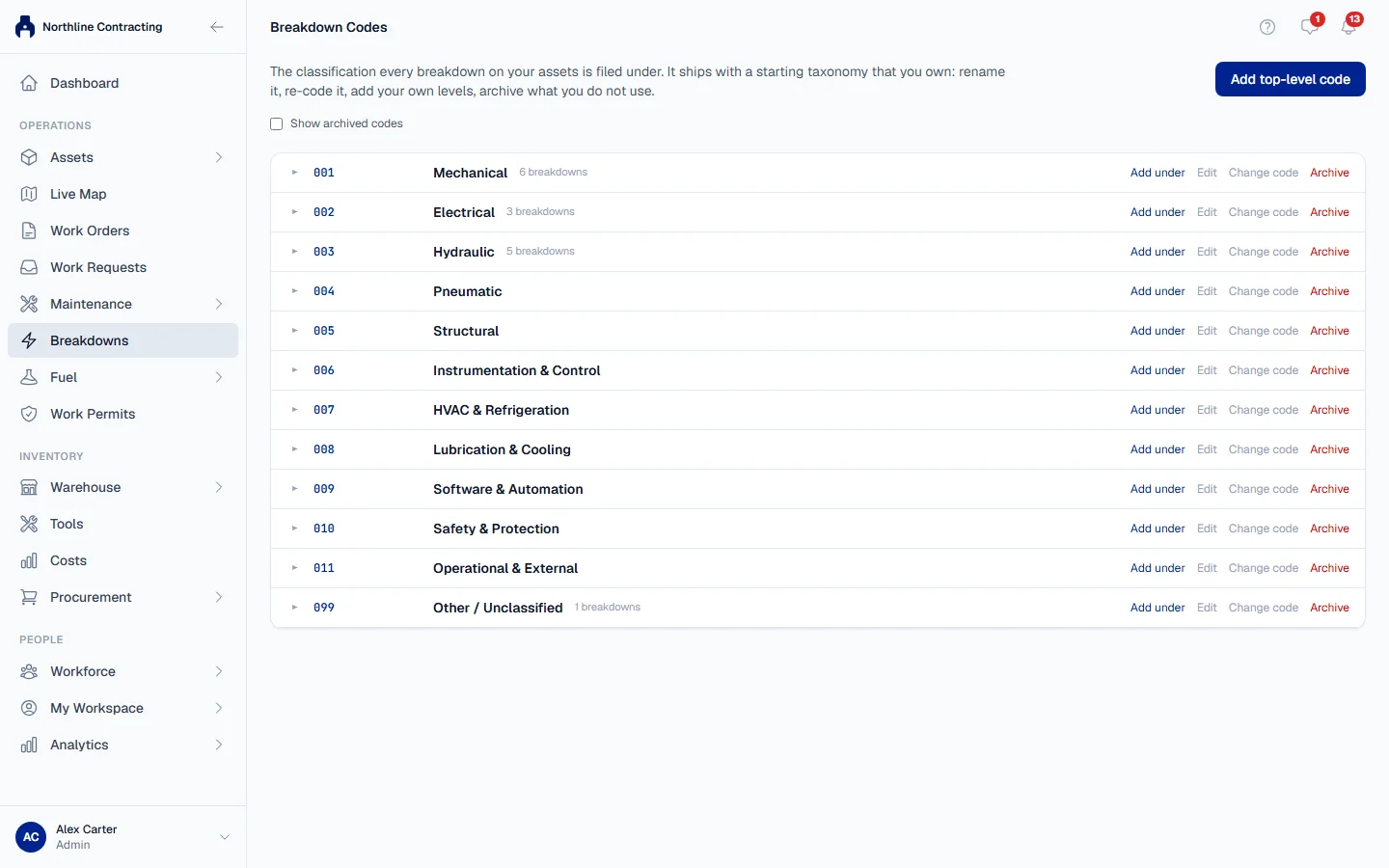
Each row shows the code, its name and how many breakdowns are filed under it and below it. Click a row's arrow to open its branch.
Add a code
- Click Add top-level code for a new main category, or Add under on the row it belongs beneath.
- Enter the Code: up to 10 letters or digits, with no spaces or dots.
- Enter the Name, and optionally Guidance: what belongs here and what does not. Guidance is shown in the picker.
- Click Save.
Rename a code
Click Edit on its row, change the Name or Guidance, and click Save. Every breakdown filed under it shows the new name, including old ones.
Change a code
Click Change code on its row, type the new code and click Save. Every code beneath it moves with it. The breakdowns filed under it keep their classification.
Archive or restore a code
Click Archive on a code you no longer want offered. The code and everything beneath it disappear from the picker. To see archived codes, tick Show archived codes; click Restore to bring one back.
Rules worth knowing
- Codes are never deleted. Archiving stops a code being used on new breakdowns. Breakdowns already filed under it keep showing it, marked as archived.
- You cannot add under an archived code. Restore it first.
- Renaming reaches every breakdown; re-coding reaches none of their classifications. A breakdown points at the code itself, not at its number, so neither change rewrites history.
Filter and report by code
On the Breakdowns page, the Breakdown Code filter shows a code and everything beneath it: choosing a main category includes every failure filed under its sub-categories. Choose Not classified to find breakdowns with no code. Archived codes are offered in the filter, so you can still find old records.
Troubleshooting
| What you see | What to do |
|---|---|
| "A code must be 1-10 letters or digits with no spaces or dots" | Shorten the code and remove spaces, dots and symbols. |
| A message starting "Code 010 is already in use" | Choose a code no other sibling uses. |
| A message saying the parent is archived and must be restored before adding under it | Restore the parent code first. |
| A message saying the list is 4 levels deep | You cannot add below the fourth level. Use the code at that level. |
| A message saying a code is archived and cannot be used on new records | Choose an active code, or ask someone with Breakdowns: Manage to restore it. |
| "That is already the breakdown code" | The breakdown already has that code. Nothing to change. |
| The page says "You can browse the taxonomy but not change it." | You need Breakdowns: Manage to change the list. |