
Help CenterManaging the Organisation
Company settings in depth
What each part of Company Settings controls: company details and logo on documents, base currency, working hours, upload limits and storage use.
Company Settings holds the facts about your company that Solmex prints and applies everywhere. You filled in the basics when you started, in Set up your company. This article explains what each section actually affects, so you know what changes when you change it.
Before you start
- Settings: View shows the tab. Settings: Edit lets you save changes.
- Open Settings (your name at the bottom of the sidebar) and go to the Company Settings tab.
- Every section except the logo is saved together with Save Settings at the bottom. "Settings saved." confirms it.
Company Information
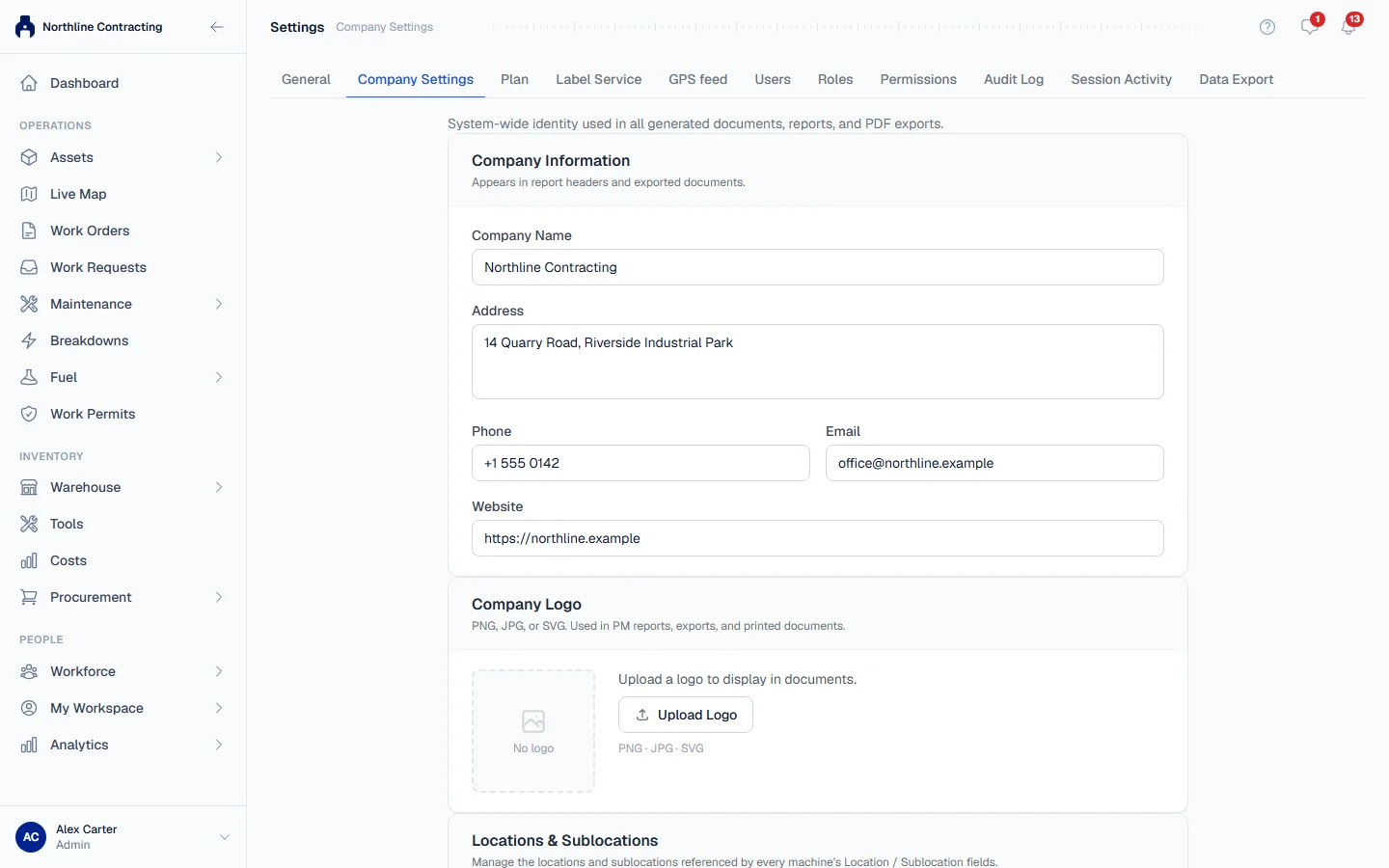
Company Name, Address, phone, email and Website. These print in the header of reports and exported documents: work orders, inspection reports, the equipment dossier, Excel exports and the rest. Fill in what you want a customer or auditor to see on paper.
Company Logo
- Click Upload Logo, or Replace Logo if you have one.
- Choose a PNG, JPG or SVG file.
The logo is saved the moment it uploads; you do not need to click Save Settings. It appears on PM reports, exports and printed documents. A wide logo on a transparent or white background prints best. To change it, upload a new one: the old one is replaced.
Financial Settings
Base Currency is the currency every amount in Solmex is recorded and shown in: spare parts, fuel, work orders, costs, reports and exports. Choose from the list, such as USD, EUR, GBP, TRY, TZS or KES.
Workforce Settings
Default Working Hours per Day, between 1 and 24 in half-hour steps. It is the number of hours Mark All Present fills in on the Daily Timesheets page. Changing it does not alter days already saved. See Record daily attendance.
File Upload Limits
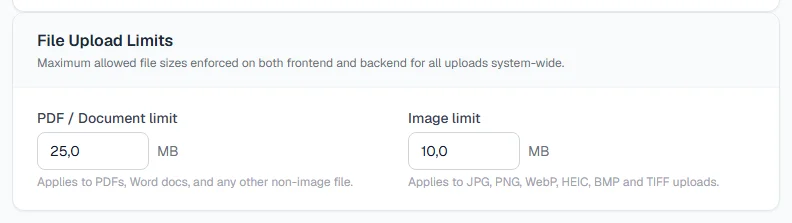
| Setting | Applies to | Range |
|---|---|---|
| PDF / Document limit | PDFs, Word documents and any other file that is not an image. | 1 to 500 MB |
| Image limit | Photos and pictures: JPG, PNG, WebP, HEIC, BMP and TIFF. | 1 to 100 MB |
The limits are checked both in your browser and on our servers, everywhere in Solmex a file can be attached: machine documents, work order photos, inspection photos, employee documents and the rest.
Photos are resized and compressed when they are stored, and iPhone HEIC photos are converted to JPEG. The limit applies to the file as it is uploaded, so a large phone photo is accepted and then stored much smaller.
Storage Usage
Shows the total space taken by every file your company has uploaded: documents, photos and generated reports. Click Refresh to recount it. Nothing here deletes files.
Locations & Sublocations
The Manage Locations & Sublocations button opens the list of your Locations and Sublocations. See Add Locations and Sublocations.
Rules worth knowing
- These settings are for the whole company. There is one set, shared by every user and every Location.
- Your own language, theme and date display are not here. Each user sets their language on the General tab, and dates are always shown as DD/MM/YYYY.
- Your Organization ID, on the General tab, is what to quote when you contact support.
Troubleshooting
| What you see | What to do |
|---|---|
| "Logo must be PNG, JPG, or SVG." | Save the logo in one of those formats and upload again. |
| "Logo upload failed." | Check the file is not larger than the image limit, then try again. |
| "Failed to save settings." | Check every number is within its range, then save again. If it repeats, your role may lack Settings: Edit. |
| "Could not load storage information." | Click Refresh. |