
Create a site plan
Upload a drawing of a Location, or import a KMZ or KML file from your surveyor or Google Earth, so Live Map has something to draw machines on.
A site plan is the drawing Live Map places machines on. Each Location can have one or more plans: a whole-site layout, a workshop floor, a yard in detail. You can upload a picture, or import the shapes your surveyor already drew in Google Earth.
Before you start
- Live Map is switched on per company, not by plan. If you do not see it, contact Solmex.
- You need Live Map: Edit. Creating new Sublocations during an import also needs Sublocations: Edit.
- The Location must exist. See Add Locations and Sublocations.
Two kinds of plan
| Kind | What it is | GPS |
|---|---|---|
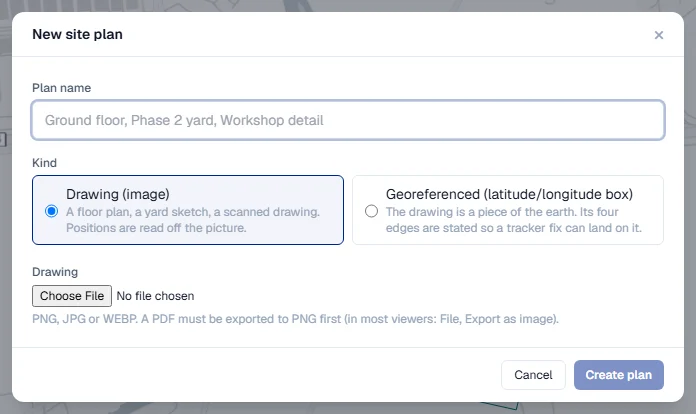
| Drawing (image) | A floor plan, a yard sketch, a scanned drawing. Positions are read off the picture. | Never. A picture has no coordinates for a tracker position to land on. |
| Georeferenced (latitude/longitude box) | The drawing is a piece of the earth, with its four edges stated. | Yes. Tracker positions land on it and a machine's day track can be drawn. |
If you have trackers on your machines, or plan to, choose a georeferenced plan or import a KMZ.
Upload a drawing
- Open Live Map and choose the Location.
- Click New plan.
- Type a Plan name, such as "Phase 2 yard".
- Under Kind, choose Drawing (image) or Georeferenced (latitude/longitude box).
- Under Drawing, choose a PNG, JPG or WEBP file. A PDF must be exported to PNG first.
- For a georeferenced plan, fill in North, South, East and West under Box edges. Read them off the survey or Google Earth. They are optional when you upload a drawing, and required without one.
- Check the Preview and click Create plan.
To swap the picture later, open the plan and click Replace drawing. The Areas stay where they are, so if the new drawing is cropped differently, check every Area afterwards.
Import a KMZ or KML file
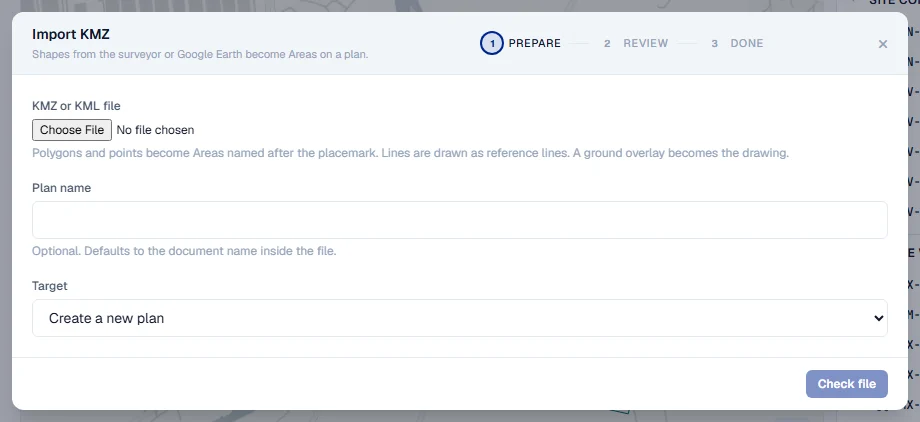
A KMZ is the file your surveyor or Google Earth produces. Polygons and points in it become Areas named after each placemark, lines become reference lines, and a ground overlay becomes the drawing.
- Open Live Map, choose the Location, and click Import KMZ.
- Choose the KMZ or KML file.
- Optionally type a Plan name. Left blank, the name inside the file is used.
- Under Target, choose Create a new plan, or replace the Areas of an existing plan.
- Click Check file. Nothing is written yet.
- Read the review. Each placemark shows an Outcome: Matched (it names one of your Sublocations), New sublocation, Reference line, Duplicate, Invalid or Ignored.
- If the file names places you have not registered, tick Create the Sublocations this file names that the register does not have yet, or rename them in the file and check it again.
- Click Import. The Done step shows how many Areas and lines were written, and Open the plan takes you to it.
The street map
On a georeferenced plan with no drawing of its own, Live Map can show a light street map underneath, with roads and place names. Use the Hide the street map and Show the street map buttons beside the zoom controls. Place names on the street map are in the local language and cannot be translated.
Rules worth knowing
- Sublocation names are matched exactly, ignoring case. A placemark called "wash bay" matches your Sublocation "Wash Bay". An unmatched name is never created silently: you tick the box, or the import stops.
- Re-importing onto an existing plan replaces its Areas. The review says how many Areas will be replaced. It never renames or archives a Sublocation.
- A failed import writes nothing. You can fix the file and check it again.
Troubleshooting
| What you see | What to do |
|---|---|
| "Only PNG, JPG and WEBP are accepted." | Export the drawing to one of those formats. |
| "A georeferenced plan without a drawing needs its four edges." | Fill in North, South, East and West. |
| "North must be above south and east must be right of west." | Check the edges are not swapped. |
| "Some names are not in the Sublocation list yet." | Ask someone with Sublocations: Edit to add them, or rename the placemarks in the file. |
| "The import failed. Nothing was written." | Fix the problems listed in the review and click Check file again. |
| "The street map could not be loaded." | Tell your Solmex contact; the map service is refusing this address. |