
Get your data out
Download your company's records as one zip file of Excel workbooks or CSV files, to read, to keep, or to load into another system.
Your records belong to you. The Data Export tab in Settings puts them in one zip file you can open in Excel or load into another system, whenever you want, including after a subscription has ended.
Before you start
- You need Data export: Run, which is given to administrator roles by default.
- Each category also needs that module's own access. For example, the fuel records need Fuel: View and Fuel: Export. A module with no export permission needs only its view permission. Categories you cannot read are left out, and the page says how many.
- Taking an export when you need one works on every plan.
Export your data
- Open Settings and click the Data Export tab.
- Stay on Export data. To take everything you have access to, click Export all data under Export all your data. To take one category, click Export on its row below.
- Choose the dates: Everything, or Between two dates. Reference data, such as your lists and Locations, is always exported in full.
- Choose the file format (see below).
- Click Start export.
- When the export is ready, it appears on the History tab. Click Download.
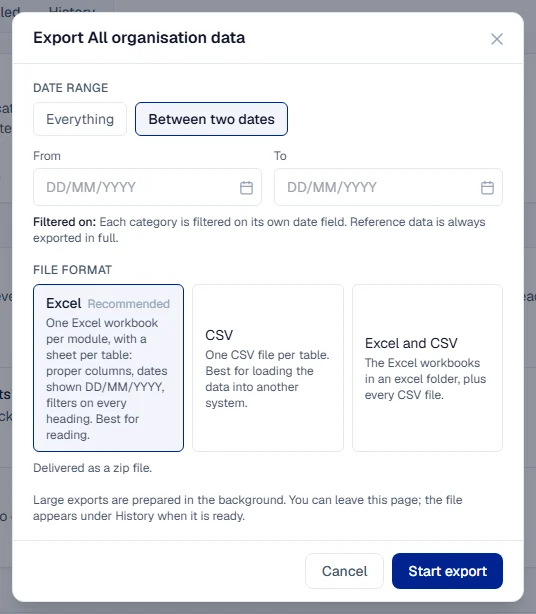
The file formats
| Format | Contains | Best for |
|---|---|---|
| Excel (recommended) | One Excel workbook per module, with a sheet per table, dates shown DD/MM/YYYY and filters on every heading | Reading the data yourself |
| CSV | One CSV file per table | Loading the data into another system |
| Excel and CSV | The Excel workbooks in an excel folder, plus every CSV file | Both |
Every format comes as a zip file. Each record keeps its identifier, so the tables can be joined back together in another system. Times are in UTC, and the column headings say so.
What happens next
The file can be downloaded for 7 days. After that it is removed and the export shows Expired on the History tab, so you can see it existed. Run a new export whenever you need a fresh copy. Every export and every download is recorded in the audit log.
To have an export sent to your team on a regular schedule, use the Scheduled tab. Scheduling needs its own permission, Data export: Schedule, and depends on your plan. Scheduled exports are emailed only to Solmex users in your company. See Email Solmex sends.
Troubleshooting
| What you see | What to do |
|---|---|
| "You do not have access to any exportable data. Ask an administrator." | You need Data export: Run and access to at least one module. |
| "Could not start this export." | Try again. If it keeps failing, contact Solmex. |
| "Could not download this export." | Try again. If the export is marked Expired, run a new one. |
| A CSV opens with everything in one column | Your Excel uses a different separator. Choose the Excel format instead. |