
Help CenterManaging Purchases and Stock
Classify your parts
Build the three level classification every part is filed under, and understand how it makes each part's stock code.
Every part in Solmex is filed under a classification you design: a Main Category, a Category inside it and a Family inside that. The part itself is the fourth level. The classification groups your catalogue and builds each part's Stock Code, so set it up before you add parts.
Before you start
- You need Warehouse: Manage. Warehouse Settings, where the classification lives, appears in the sidebar and on the Stock Register only with that permission.
- Sketch your tree first. For example: Filters, then Hydraulic Filters, then Return Filters. Keep it to groupings people will actually search by.
How a stock code is made
Each level has a short code, and a part's Stock Code is the codes of its Main Category, Category and Family, then its own Item Code, joined with dots. A part filed under FLT (Filters), HYD (Hydraulic Filters) and RET (Return Filters) with item code 001 gets the stock code FLT.HYD.RET.001.
Build the tree
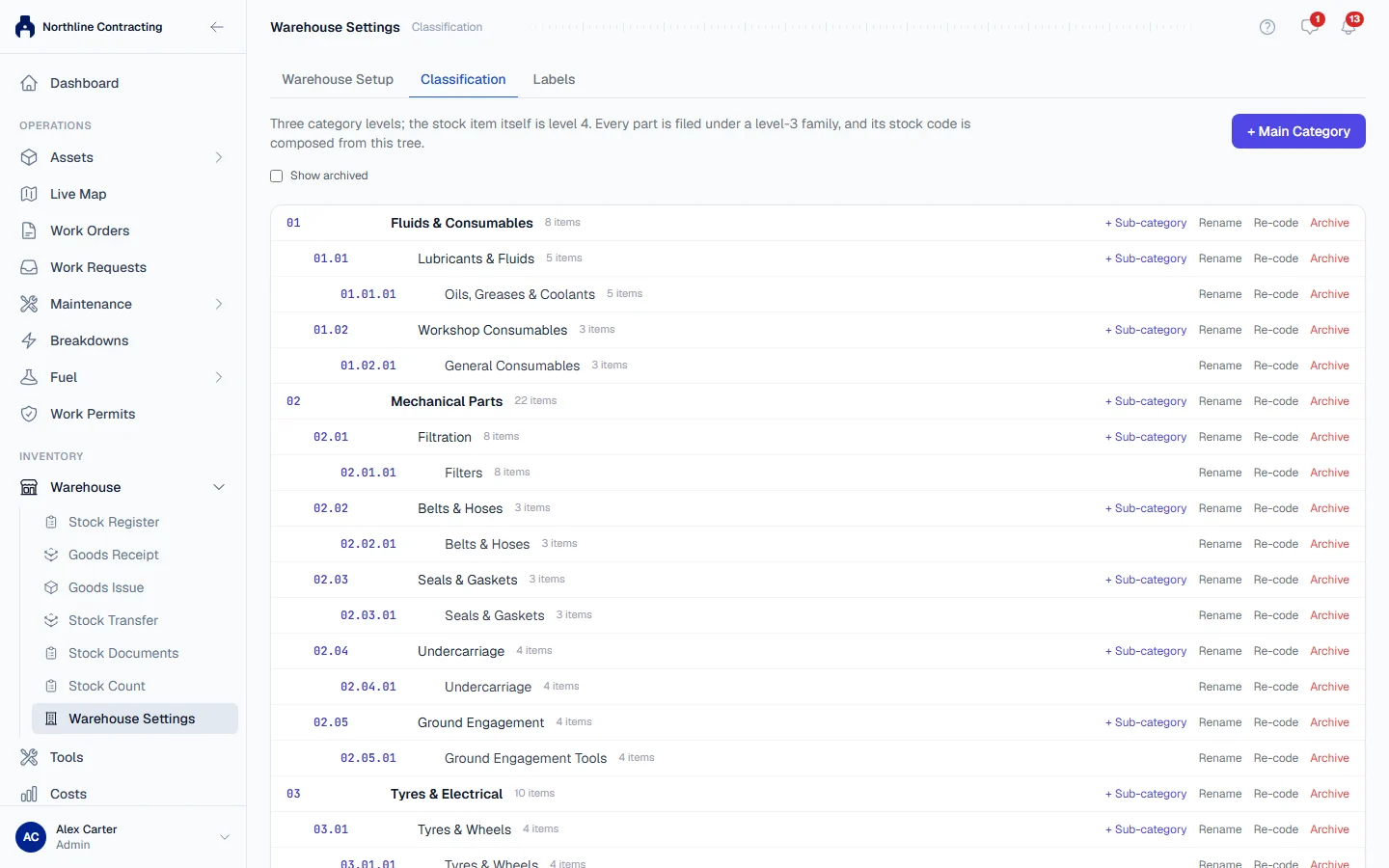
- In the sidebar, open Warehouse > Warehouse Settings and choose the Classification tab.
- Click + Main Category. Enter a Code and a Name, and save. Solmex suggests a code; it is yours to change.
- On the new row, click + Sub-category to add a Category inside it.
- On the Category's row, click + Sub-category again to add a Family.
- Repeat until every kind of part you stock has a Family to go in.
Codes are 1 to 10 letters or digits, with no spaces or dots. Each row shows how many parts are filed beneath it.
Rename, re-code and archive
- Rename changes the name only. Every part keeps its stock code.
- Re-code changes a row's code, and with it the stock code of every part beneath it. Solmex asks you to confirm and then says how many parts were re-coded.
- Archive takes a row out of use, together with everything beneath it. No new part can be filed under an archived Family. Parts already filed there keep their stock code.
- Restore brings an archived row back, together with everything beneath it. Use Show archived to see archived rows.
Nothing in the classification can be deleted.
Troubleshooting
| What you see | What to do |
|---|---|
| "A code must be 1-10 letters or digits with no spaces or dots" | Shorten the code and remove spaces, dots and symbols. |
| "Code ... is already in use" | Another row at the same place in the tree uses that code. Choose another. |
| "... is archived; restore it before adding under it" | Restore the parent row first, or add under a different one. |
| "You can browse the tree. Changing it requires the warehouse manage permission." | Ask an administrator for Warehouse: Manage. |
| "No classification tree defined yet" when adding a part | Build at least one Main Category, Category and Family here first. |