
The tools register
Add hand and power tools to the Tools register, sort them into categories, and find what is available, out, in repair or due for calibration.
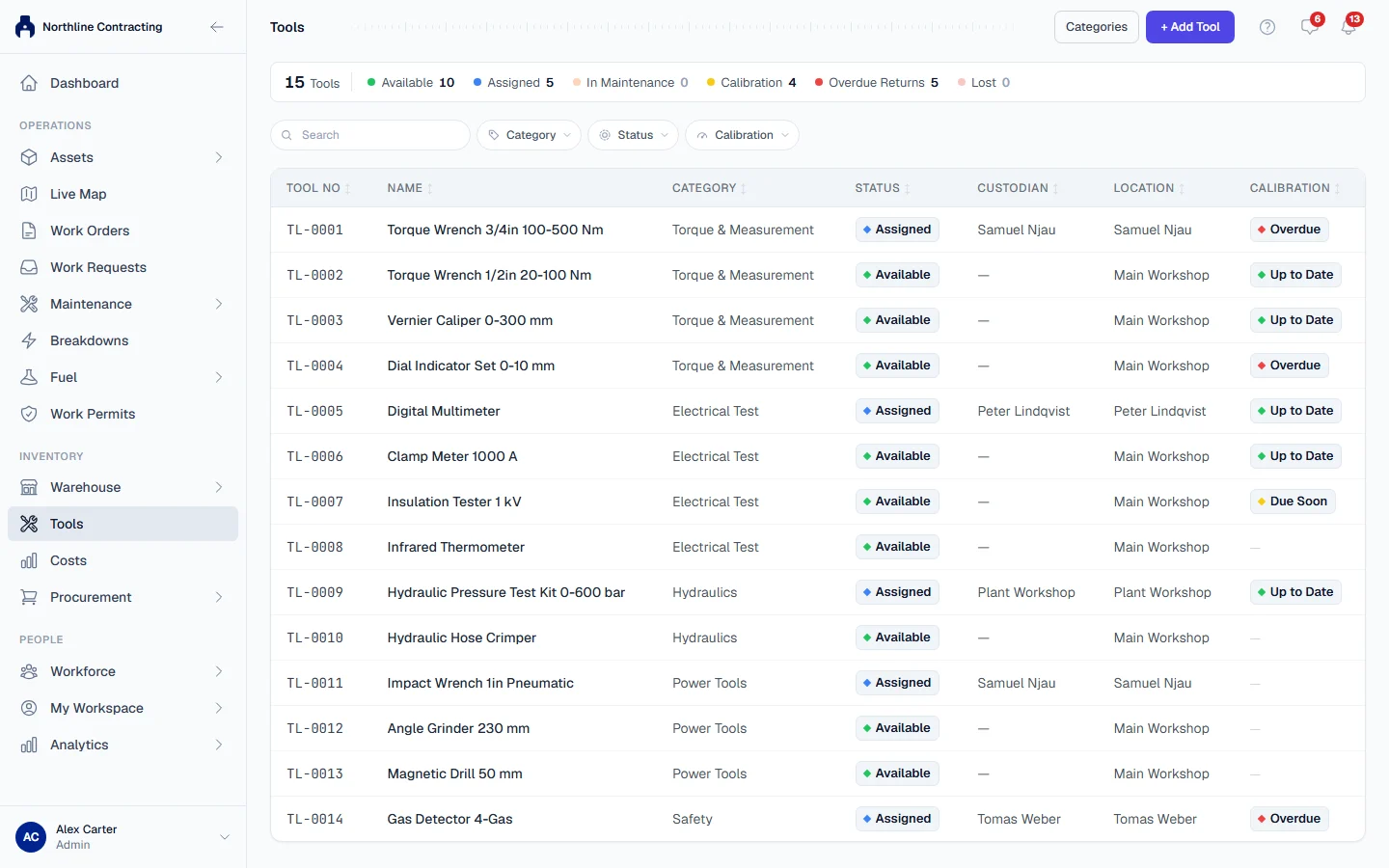
The Tools register keeps one record per tool: drills, torque wrenches, gas detectors, lifting gear. It says where each tool is, who has it, and whether its calibration is up to date. Tools are tracked separately from your equipment because they move between people far more often than machines do.
Before you start
- You need Tools: View to open the register and Tools: Edit to add or change tools.
- Managing categories and retiring tools needs Tools: Administration.
Add a tool
- In the sidebar, click Tools.
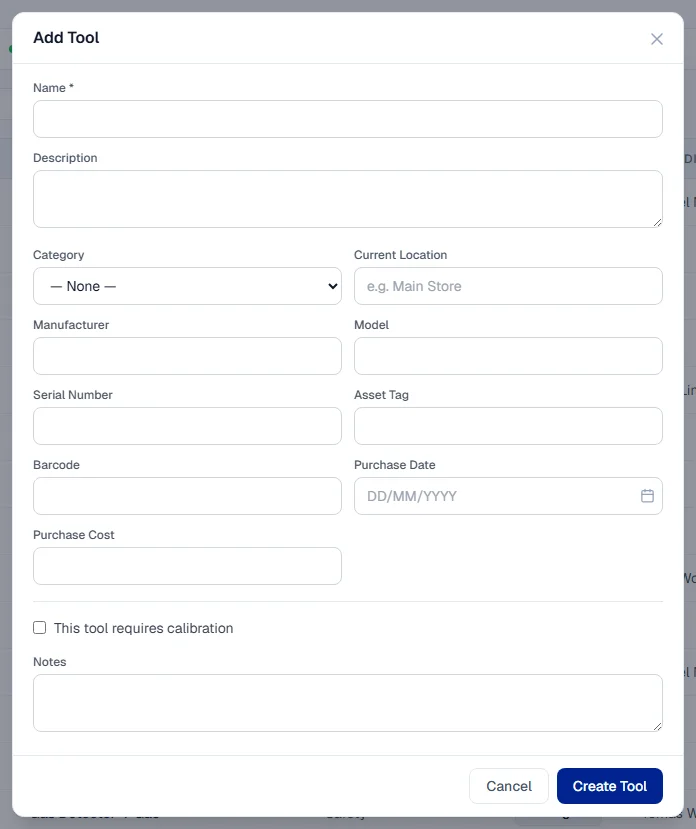
- Click + Add Tool. The Add Tool form opens.
- Type a Name. It is the only required field.
- Fill in what you know: Description, Category, Current Location (such as "Main Store"), Manufacturer, Model, Serial Number, Asset Tag, Barcode, Purchase Date and Purchase Cost.
- If the tool must be calibrated, tick This tool requires calibration and fill in Last Calibration Date and Calibration Due Date.
- Click Create Tool.
Solmex gives the tool its Tool Number, such as TL-0001. Tool numbers never reset and carry no year. A new tool starts as Available.
Find a tool
The figures across the top count Tools, Available, Assigned, In Maintenance, Calibration, Overdue Returns and Lost. Click a figure (except Overdue Returns) to filter the list to those tools.
Search by tool number, name, serial number or asset tag, and filter by Category, Status and Calibration (Calibration Overdue or Calibration Due Soon). Click a column heading to sort. Click a row to open the tool.
Manage categories
- On the Tools page, click Categories.
- Type a New category name, choose a colour and click Add.
- To stop offering a category, click Deactivate. Activate brings it back.
- Click Done.
You can delete a category only while no tool uses it. Once tools use it, deactivate it instead: the tools keep it, and it leaves the picker.
The tool's page
A tool's page has five tabs:
| Tab | What it holds |
|---|---|
| Overview | Identification, status and location, custodian, calibration, purchase details and notes. |
| Assignment | Who has the tool now, and every past assignment. See Assign and return tools. |
| Movements | Every move, assignment, return and status change, with who recorded it. |
| Calibration | Calibration dates and status. See Tool status, calibration and retiring. |
| Documents | Manuals, warranties, calibration certificates, purchase invoices and photos. |
From the header you can Edit the tool and Print label for a QR label. Scanning the label opens a quick view of the tool: its status, who holds it and its calibration.
Rules worth knowing
- One record per tool. A tool's history stays on its record for its whole life, including after it is retired.
- Tools belong to the whole company. The tool's Current Location is free text such as "Main Store" or "Site Workshop", not one of your Locations.
Troubleshooting
| What you see | What to do |
|---|---|
| "Name is required" | Type a name for the tool. |
| "A category with this name already exists" | Use the existing category, or choose a different name. |
| "Category is assigned to one or more tools" | Deactivate the category instead of deleting it. |
| "Failed to save tool" | Check your connection and save again. If it repeats, your role may not include Tools: Edit. |
| + Add Tool or Categories is missing | Your role does not include Tools: Edit or Tools: Administration. |