
Tool status, calibration and retiring
Change a tool's status, record moves and calibration, attach certificates, and retire a tool you no longer use without losing its history.
A tool's status says whether it can be used today. Its calibration dates say whether it can be trusted. This article covers keeping both up to date, recording where a tool goes, and retiring it at the end of its life.
Before you start
- You need Tools: Edit to change status, record movements, update calibration and upload documents.
- Retiring and reactivating a tool needs Tools: Administration.
- To change who holds a tool, see Assign and return tools instead.
Change a tool's status
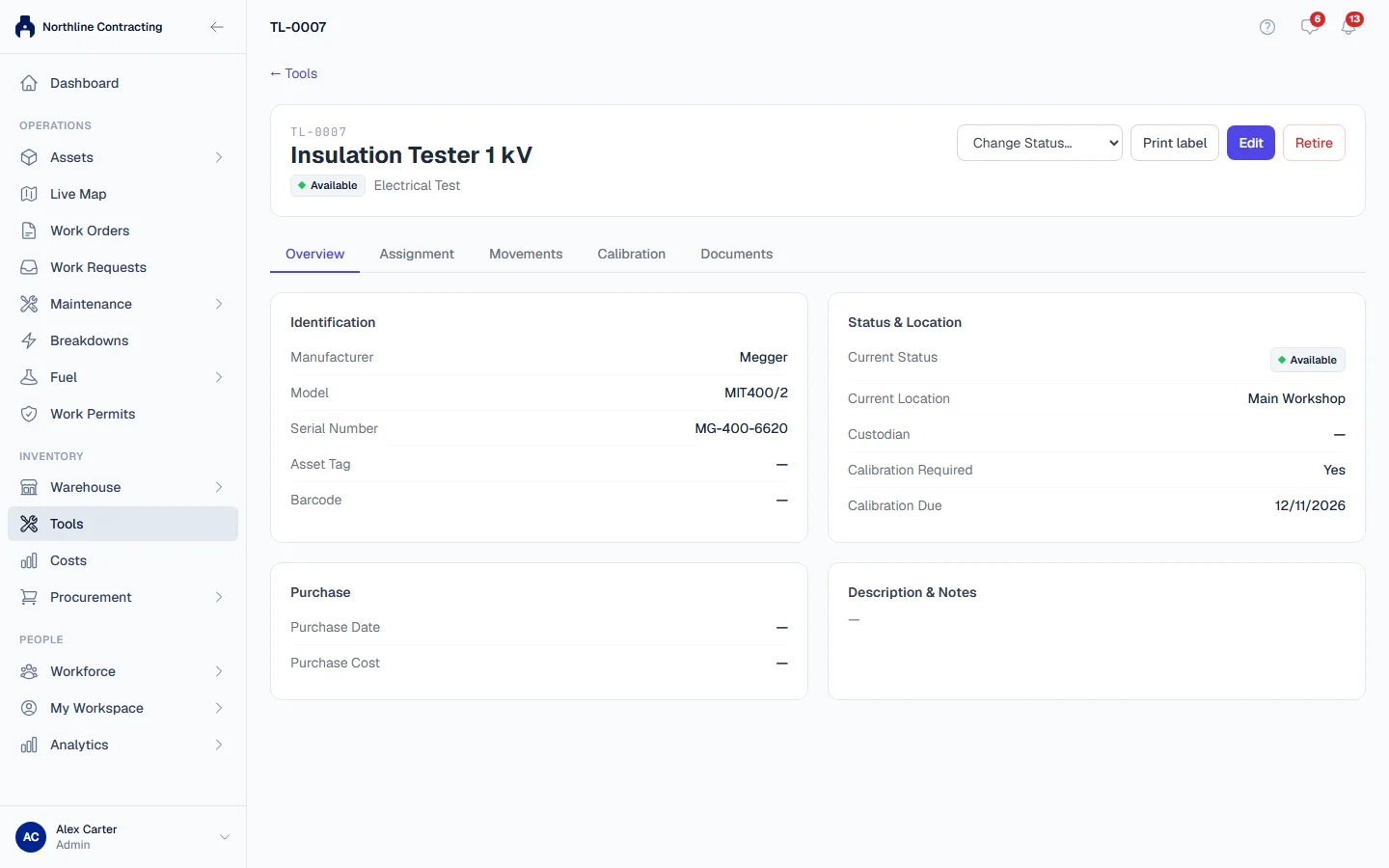
- In the sidebar, click Tools and open the tool.
- In the header, open Change Status… and choose the new status.
| Status | Use it when |
|---|---|
| Available | The tool is ready for use. |
| Under Maintenance | It is being serviced in house. |
| Out for Repair | It has gone to an outside repairer. |
| In Workshop | It is in the workshop and not available. |
| Calibration Due | It must not be used until it is calibrated. |
| Lost | Nobody can find it. |
Assigned and Retired are not offered here: a tool becomes Assigned when you assign it, and Retired through Retire. Each status change is recorded on the Movements tab.
While a tool is assigned, the menu is greyed out and reads Return the tool before changing its status. Record the return on the Assignment tab: the return form is where you choose the status the tool comes back in.
Record a move
Use this when a tool changes place without being assigned to anyone, for example from the main store to a site store.
- Open the tool and click the Movements tab.
- Click + Add Movement.
- Choose the Movement Type: General Move, Transfer, Sent for Repair or Returned from Repair.
- Type the Destination Location and any Notes.
- Click Add Movement.
The tool's Current Location becomes the destination. A movement does not change the tool's status: when a tool goes for repair, also set its status to Out for Repair.
Keep calibration up to date
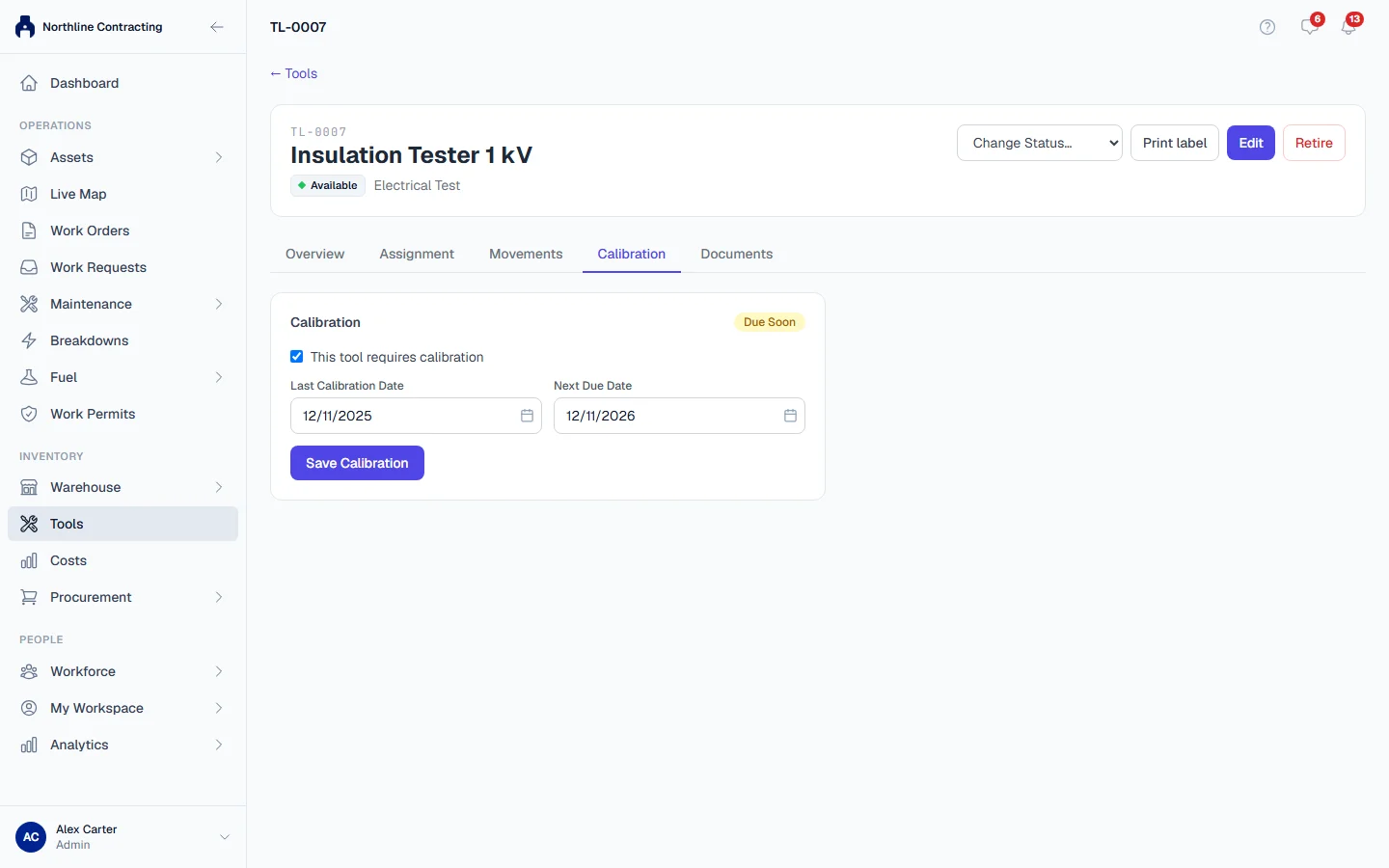
- Open the tool and click the Calibration tab.
- Make sure This tool requires calibration is ticked.
- After each calibration, fill in Last Calibration Date and the Next Due Date.
- Click Save Calibration.
The tab, the register and the scanned label all show the calibration state, worked out from the next due date each day:
| Calibration | Meaning |
|---|---|
| Up to Date | The next due date is more than 30 days away, or no due date is set. |
| Due Soon | The next due date is within 30 days. |
| Overdue | The next due date has passed. |
| Not Required | The tool does not need calibration. |
Filter the register by Calibration Overdue or Calibration Due Soon to plan the next batch for calibration.
Attach documents
- Open the tool and click the Documents tab.
- Type a Document Name, choose the Type (Manual, Warranty, Calibration Certificate, Purchase / Invoice, Photo or Other) and choose the File.
- Click Upload.
Retire a tool
Retire a tool that is scrapped, sold or written off.
- Make sure the tool is not assigned. Record its return first if it is.
- Open the tool and click Retire in the header.
- Confirm.
A retired tool is marked inactive, but its full history is kept: assignments, movements, calibration and documents. It cannot be assigned, moved or have its status changed. If it was retired by mistake, click Reactivate: it comes back as Available.
Troubleshooting
| What you see | What to do |
|---|---|
| "Tool has an active assignment" when retiring | Record the return on the Assignment tab, then retire it. |
| "Tool is retired" when changing status | Reactivate the tool first. |
| "Return the tool before changing its status" | The tool is assigned. Record its return on the Assignment tab and choose the new status there. |
| "Destination location is required" | Type where the tool is going. |
| "Name and file are required" | Give the document a name and choose a file. |
| Retire or Reactivate is missing | Your role does not include Tools: Administration. |